
pghmfgnakhjiphmlcnhfpgopkcjhiedc

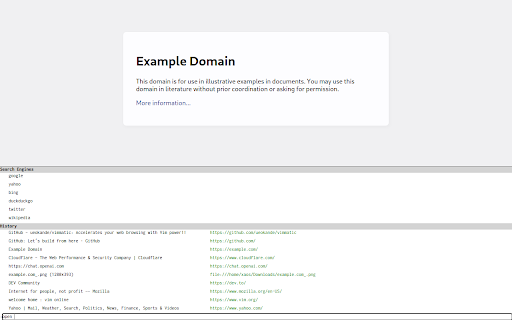
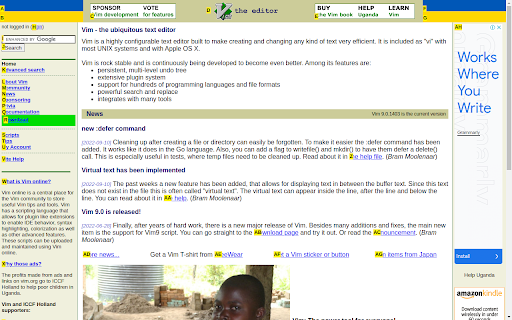
Vimmatic enables Vim-like key binds in your web browser for easier and faster navigation. This extension enables you to navigate pages, switch tabs, and open a site you want with your keyboard. The extension provides a Vim-like experience on your browser and a new choice for Vim users. You can configure keymaps and browse pages with your preferences. After installation, you can control Firefox with vim-like keymaps. To scroll a page in the browser, press `k`, `j`, `h` and `l` keys. You can scroll to the top or the bottom of a page by `gg` and `G`. To select a left and right of current tab, use `K` and `J` respectively. To close current tab, use `d` and to restore closed tabs, use `u`. To open a link, press `f` to enter the follow mode to select a link. Then you can select links by alphabetic keys. Vimmatic supports command line to run commands that control tabs and opens a tab. To open command line, press `:`. To open a tab with URL, use `open` command. You can select completed items by `Tab` and `Shift`+`Tab` For usage and more detailed information, check out our documentation: https://ueokande.github.io/vimmatic/ The development of Vimmatic is publically available as open-source software. Feel free to contact us at github.com: https://github.com/ueokande/vimmatic

VIM typer
This extension allows use vim keys for text editing. Other vim plugins allows you to navigate in browser or webpage. This extension allows you to use vim keys while typing in input fields. Currently only `textarea` HTML elements are supported. Enable vim keys Plugins functionality can be toggled with special key combination adjustable via `chrome://extensions/shortcuts`: - `alt` + `v` on windows / linux - `Command` + `Control` + `v` on macOS It is because, sometimes you may don't want to `VIM typer` interfere with other vim like plugins. Please look at the indicator (small red square in top left corner). When it becomes green: the plugin functions are available.

VimNav
Professional vim-style browser navigation with advanced tab management, visual selection, and developer-focused workflow tools VimNav is a productivity focused Chrome extension that transforms browser navigation with vim-style keybindings and advanced tab management capabilities and a modal Vim like editor for fields. The extension bridges the gap between vim's powerful keyboard-driven workflow and modern web browsing, offering developers and power users a familiar, efficient navigation experience across all websites. The following is a breakdown of the current feature set. Use '?' while on any tab to see view the help page! Vim-Style Navigation: - Classic vim keybindings (j/k/h/l, gg/G, Space/b) for page scrolling - H/L to switch to tabs left and right - Modal editing with normal/insert/visual modes - Search functionality with /n/N patterns - Hint mode for keyboard-only link navigation - Visual mode for selecting text VimEdit: - Edit any field in the browser with a modal vim editor! Just use 'Ctrl+i' and select a field. Advanced Tab Management: - NERDTree-inspired tab navigator with fuzzy search - Telescope-style tab switching - Browser history navigation with date filtering - Tab grouping and organization features - Marks system for quick page location access, including global marks Developer Productivity: - Command palette for quick actions - Visual selection mode for text manipulation - Scroll target selection for navigating complex pages - Sidepanel for quick configuration changes - Configurable performance limits for large pages Security: - Configure either whitelist or blacklist with URL glob patterns

Vi Editing Mode
Automatically and non-intrusively add a vi editing mode to all textareas/inputs. Behaviour is unchanged until you hit Escape. Automatically and non-intrusively add a vi editing mode to all textarea/input elements on pages, so you can use vim keys/shortcuts to edit and navigate text. Inputs/textareas keep working as they normally do (like insert mode, handled by the browser), hitting "escape" enables command mode on the focused element, indicated with a box-shadow. Features: - Simple, automatic, non-intrusive vi editing. - Command, visual and visual-line modes. - Plenty of commands/keys (but please contribute more!) - Multi-level undo and redo. - Repeat. - The tab key inserts literal tabs after having been in command mode, until the element loses focus. - Only basic addon permissions needed. (clipboard read/write permission requested on first use). Non-goals: - vi-like keys for other browser behaviour, like navigating on a page or the internet. - Full-blown vi/vim editor (not all commands are needed, it doesn't have to look like a standalone vi/vim, it would be too much for an input element). - Marks, tags, macros, registers, custom key mappings and other advanced features. Textareas don't expose whether text (e.g. the selection) is visible in the viewport. This limits how vi.js can implement some commands/motions. Insert mode is handled by the browser (with the exeception of Tab, which can insert a literal tab), including undo/redo while typing. JS doesn't have access to textarea undo/redo history. vi.js tracks history for changes it makes (based on commands), and tracks changes during insert by comparing contents between going into insert mode. The edits a user makes in insert mode are turned into a single history change to undo/redo. In vi/vim, the cursor is typically "on" a character. With a textarea, it is shown between characters. The position at the end of the line, after the last character, before the newline, is not normally a separate position in vi. vi.js lets you navigate to these positions, which changes how some motion keys work. Access to the clipboard is only explicitly with the "y" and "p" keys. Commands that remove/replace text don't change the clipboard. Popular messaging web applications have custom UI elements for sending messages, for their rich text. They often don't use standard textarea/input elements, so this plugin won't help with those apps. Some applications use "Escape" as a shortcut to cancel. Use "ctrl-{" as alternative. Unfortunately, the obvious alternative "ctrl-[" is interpreted by firefox as "back" and can't be intercepted. Plenty of vi/vim keys haven't been implemented yet. People typically use a subset of all the many vi/vim key bindings. Please submit a PR for commands you're missing and want. Keep the code maintainable. The source code is Open Source, MIT-licensed, see https://github.com/mjl-/vijs.

Vim Compose
Compose mail and other text on the web as markdown in vim. Vim Compose allows you to use the vim text editor within your browser to compose and edit text in input fields. To open the vim, simply focus on an input field and either press Ctrl-Shift-E or click the Vim Compose extension button in the toolbar. Any text you save in vim will be automatically copied back to the input field in your browser. If the input field supports formatted text, you can also use markdown for formatting. Please note that Vim Compose is currently only compatible with Linux systems and requires the installation of a native app. You can find installation instructions for the native app at the following link: https://github.com/mbid/vim-compose
