
pfkkjnnibjaadmplanefpcgjaopnfdmf


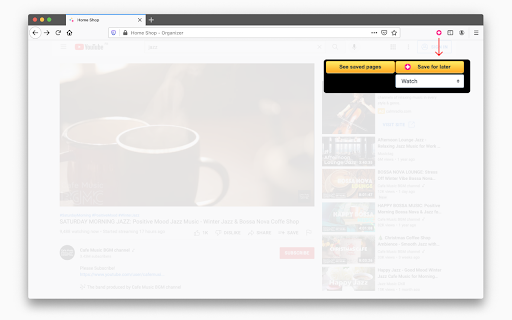
Save any web page as a visual bookmark with image preview. Organize into categories, star favorites, and share collections. WebLinks saves any web page as a visual bookmark with an image preview — so you can actually see what you saved, not just a list of URLs. HOW IT WORKS 1. Visit any web page 2. Click the WebLinks icon 3. Pick a category and click "Save for later" That's it. Your bookmark appears in a visual dashboard with an image, title, and link. FEATURES - Visual bookmarks with automatic image previews - Unlimited custom categories to organize your links - Star your favorite bookmarks for quick access - Share individual pins, selections, or entire categories - Import shared collections from others - Works on any website - Dark mode (follows your system preference) - Automatic price extraction on shopping sites PERFECT FOR - Shopping: save products from Amazon, eBay, and other stores with prices and images. Compare across sites. - Real estate: collect listings from Zillow, Realtor, and local marketplaces into one board. - Research: organize articles, references, and resources by project or topic. - Travel: bookmark hotels, flights, restaurants, and activities for your next trip. - Design inspiration: collect visual references from Dribbble, Behance, Awwwards, and more. - Recipes: save recipes from any cooking site with the food photo as preview. 100% FREE No premium tier, no subscription, no account required. All features are available to everyone. Your bookmarks are stored locally in your browser — we don't collect your data. Available on Chrome, Firefox, and Microsoft Edge.

Visual Bookmarks - Privacy Screenshots & Tags
2025 Upgrade! Features screenshots, AES-encrypted private folders, and multi-tag management. Transform your Chrome bookmarks into a… Visual Bookmarks: The Ultimate Chrome Bookmark Manager Tired of endless text lists? Visual Bookmarks transforms your browser bookmarks into a stunning thumbnail wall. Find websites visually in seconds and say goodbye to the text labyrinth! Whether you are a designer, developer, or a privacy-conscious user, this is the essential tool to boost your productivity. 🧠 Smart Meta Search (AI-Like Search) Can't find a bookmark because the title lacks keywords? Search is no longer limited to titles! Enhanced Full-Text Search: When adding bookmarks, the system automatically scrapes Descriptions, Keywords, Authors, and JSON-LD structured data. No Dead Ends: Even if the title is just "Google," searching for "AI" will find it instantly. Hit Highlights: Search results display a helpful "🔍 Matched content:..." snippet, highlighting the keywords so you know exactly why a bookmark was found. Smaller Size, Same Quality: Adopting the next-gen WebP format reduces file size by over 30%, allowing you to save more stunning captures without hitting storage limits. Smarter Context Menu: Simplified logic with a new one-stop "Capture & Bookmark" feature, fully supporting multiple languages. Smart Validation: Optimized URL matching logic during capture to ensure the image is always linked to the correct bookmark, preventing mismatches. 🔒 Private Space & Secure Lock Don't want specific sites appearing in your browser's bookmark bar? We've built a secure vault for you. Isolated Privacy Space: Create "Internal Folders" visible only within the extension, completely isolated from native Chrome bookmarks. AES/SHA Encryption: Secured with SHA-256 encryption hashing. Your password is stored locally; no one can unlock it but you. One-Click Lock: Toggle privacy mode instantly via the lock icon to protect sensitive content. Multi-Tag Management: Break free from folder limits. Add multiple custom tags to bookmarks for flexible searching. Visual Colors: Tags are automatically color-coded for at-a-glance categorization. DOM Element Selection: Designed for power users. Use "Capture Element" in the context menu to precisely grab specific DOM elements (like video thumbnails or specific images) using CSS Selectors. Auto Capture: Instantly snap the visible area of the current page. Custom Area Capture: Drag to crop the exact part of the page you want. Manual Upload: Support for custom images (Logos, Posters). Dual View Modes: Switch between efficient "List View" and beautiful "Grid View". Drag & Drop: Intuitively organize folders and bookmark order. Full Folder Support: Create, edit, and delete folders with native bookmark syncing. Instant Search: Real-time search by title, URL, and tags. Side Panel: Always accessible on the side without interrupting your browsing. Keyboard Shortcuts: Custom hotkeys to double your efficiency.

Faro
Save pages with highlighted taglines - Bookmark manager ⨯ web highlighter Chaos in your bookmarks? Can't find what you want? They end up gathering dust? Or you don't even try and end up with 100s of open tabs? Faro is made to fix that! It's the simplest way to save & keep track of pages. With it, even thousands of saves don't get overwhelming. When saving, you highlight a sentence to act as a tagline. It helps you remember what the page is about and why you saved it. If unsure - just save whatever sentence you're reading. All saves appear on your dashboard. They come most-recent-first by default, so you don't forget what you recently saved. You can pick up your reading where you left off - no need for a separate reading list. You can also pin & archive to further arrange it. Organize them with tags. Since you're reminded what you saved and why, you can do it later. It makes your saves much easier to manage than bookmarks. Faro supports nested tags (eg: recipes/vegan), so combines the best of tags and folders. Clicking a save takes you right back to your highlight - especially useful for longer articles. Also: ➣ export to bookmarks to keep them if you uninstall Faro ➣ copy links to highlights and share them or paste into Notion, Obsidian, etc. ℹ️ About your data: When installing you can read: "it can read and change all your data on all websites" The only information that ever gets uploaded (when signed in) when you use it to save: ➣ Open page address ➣ Saved highlight/quote - what's visible in the sidebar ➣ Timestamp ➣ Debug info e.g. errors The extension also keeps track the currently open tab for each window - to update the sidebar as you navigate - but doesn't save or upload that data.

Bookee - Instant Bookmark Manager
Browse, search and share your Bookmarks with screenshots and thumbnails! Here are a few things that Bookee does to make your life easier: - ⚡️ Loads instantly on any tab as you browse - 🔎 Shows better search results - 🏞 Shows you a thumbnail of each bookmark - ⌨️ Adds shortcut keys (like "Command + e" to edit a bookmark) - 🍿 Let's you watch any YouTube bookmarked videos right away - 🤝 Share your bookmarks and folders with your team (coming soon) - 🔗 Add collections of links for quick access (coming soon) We all use our Bookmarks and Bookmarks Tab. But it can get super-busy: too many bookmarks, and losing track of what we've bookmarked. Bookee was designed to access and search through your bookmarks instantly: just press the "Command + Shift + k" shortcut, and Bookee will pop right up. Start typing to instantly search through your bookmarks, and then press the Enter key to open that bookmark in a new tab. Here's what Bookee will *not* do: - 🚫 It will *not* share your data with any third party sites - 🚫 It will *not* export your bookmarks to any servers - 🚫 It will *not* be a closed system. We will be open sourcing it soon 🙂

Tag Bookmarks
Rebuild your bookmarks with tags Add tags 🏷️ to your bookmarks 🔖 for easy filtering and management, perfect for heavy bookmark users to alleviate bookmark anxiety. * Click the edit button on a bookmark to edit it (select tags, add tags, modify title, delete, etc.) * Click the configuration button in the top-right corner for quick settings (language, theme, bookmark sorting, display options, etc.) * Use the top search bar for keyword filtering (name, URL, tags, and folder, including all parent folders) * Click tags at the top or behind a bookmark to filter * Click the folder in the top-left corner to filter by folder * After filtering, click the [Add Tags to Filtered Bookmarks] button at the bottom to batch-add selected tags to bookmarks * Right-click the extension to open the sidebar mode * Right-click the extension or click the text link in the edit menu to open the options panel for detailed configuration (tag display, storage mode, etc.) and tag management (adding tags, editing colors, deleting, etc.) * Use shortcuts cmd|ctrl+shift+O to quickly open the extension and cmd|ctrl+shift+K to quickly add or edit bookmarks * Trigger OmniBox search with the `tb` keyword in the search bar for quick bookmark search (supports name, URL, tags, and folder) This extension does not store any user information. Tag data is saved in the original bookmarks in a specific format and can be searched directly in the search bar. If there are data sync issues, it’s likely Chrome’s problem—consider backing up when organizing a large number of bookmarks. More features are being developed and updated regularly.
