
pegpfhbecbiefakehnmehoaembjmican
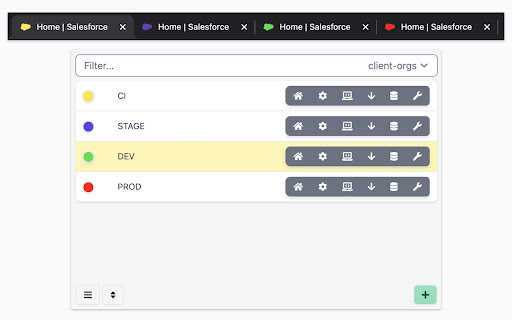
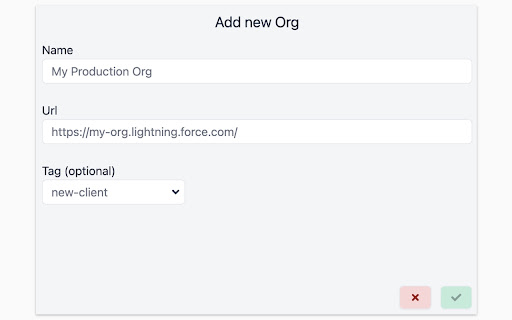
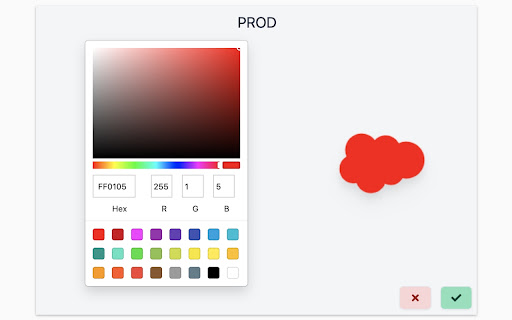
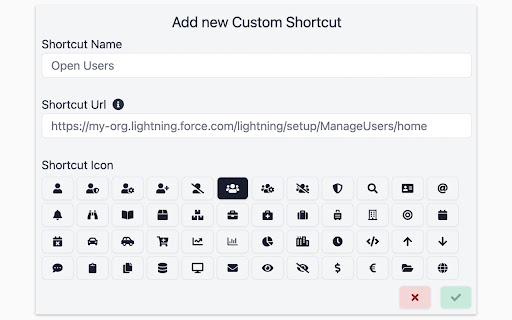
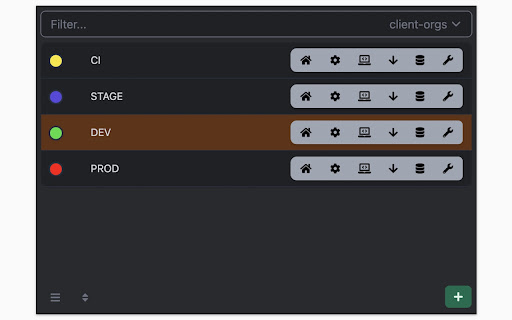
Allows you to quickly open the saved Salesforce orgs with keyboard shortcuts. It also enables you to set a colored favicon for them. The plugin allows you to quickly open saved Salesforce orgs with built-in shortcuts to Home, Setup and Developer Console. You can also add additional custom shortcuts to other Salesforce URLs of your choice. In addition to that, to help you differentiate between different sandboxes, the plugin enables you to set a colored favicon for each one. How to use the shortcuts after your already added a Salesforce org to it: 1) Open the extension using the "Alt + S" keyboard shortcut ("Option + S" on macOS) 2) Select your Salesforce Org with up and down arrows 3) Press "Control + 1" to open its Home page 3.a) use "Control + 2" to open Setup, or "Control + 3" to open Developer Console How to change the favicon color: 1) Open the extension using the "Alt + S" keyboard shortcut ("Option + S" on macOS) 2) Click on the colored circle next to the name of the Salesforce Org for which you want to change the favicon color 3) Select a new color 4) Next time you open that org the favicon will be of the color you selected You can change the default "Alt + S" shortcut by opening the following URL in your browser: chrome://extensions/shortcuts The plugin is 100% safe and private, however, it requires certain permissions to be able to know when you have opened a Salesforce URL so that it can set a favicon for it. If you still have privacy concerns, you can use a version of this plugin that doesn't require any permissions, but it comes without the colored favicons: https://chrome.google.com/webstore/detail/salesforce-shortcuts/cfkgcmoiljifcbaaofinpfjgobhmnopk Features: - Allow exporting and importing of settings Improvements: - Add support for additional Salesforce domains Fixes: - Fix the issue where favicon wouldn't be set correctly in Experience Builder Improvements: - Ask for a review on 200th usage Fixes: - Fix the issue where the "Active Org" is not automatically selected if "Ignore tags" setting is enabled Features: - It is now possible to configure the plugin to search through all the orgs even if a tag is selected Improvements: - Minor styling improvements in Help page Fixes: - "Active Org" feature adjusted to work better with community domains and to ignore some other non-relevant Salesforce domains Fixes: - Fixed the issue where the Alt keyboard shortcuts are ignored when not using the Numeric Pad Fixes: - Fixed the issue where the Alt keyboard shortcuts sometimes didn't execute the correct shortcut Improvements: - New "Help" page with basic instructions on how to use the plugin - New "Settings" page where a different shortcut activation key can be selected (Control vs Alt/Option) Fixes: - Fixed the issue where the plugin would show some standard Salesforce pages as Active Orgs Improvements: - Width of the Name cell will remain constant independent of the Name length - Improved spelling in some labels Fixes: - The plugin popup window will now close automatically when executing shortcuts within the Chrome's "New Tab" Features: - If the org that is currently open in the browser is not yet stored, the plugin will still show it as "(ACTIVE ORG)" in the first row (this is useful for scratch orgs) - If the org that is currently open in the browser is already stored, the plugin will automatically highlight it so that you can execute keyboard shortcuts even quicker than before Improvements: - Reduced the size of the drop down icon in Tag selector - Added more robust handling of Salesforce domains to prevent adding duplicate orgs Features: - If Chrome's "New Tab" is opened and active, executing shortcuts will open the URL in that same tab - When adding a new org its URL will automatically be selected if it's in the currently opened Chrome tab - Holding down "CTRL" will show shortcut numbers instead of icons for easier use of keyboard shortcuts Improvements: - 12 new icons are available for custom shortcuts - When 7 or more shortcuts are displayed in the home page they are now not as narrow as before Fixes: - Favicons will now work with sandbox communities - Fixed the issue where color codes in color picker were too dark when the plugin was in dark mode Improvements: - Explanation for "System" theme is provided Fixes: - Fixed the scrollbar look in Dark mode Improvements: - Moved "Delete Org" button to Reordering screen to prevent accidental deletions - Display plugin version in Settings - Added "Arrow Up" and "Arrow Down" icons for Custom Shortcuts - Added help text next to "Shortcut URL" field to make it more clear how it functions Fixes: - Fix the flickering when opening pages - Focused buttons couldn't be executed when pressing "Enter" key before. Now they can, but in order to open the selected Org "Ctrl + Enter" has to be pressed. Features: - Allow adding custom shortcuts that are applied across all Orgs - When Org is selected, pressing the "Enter" key will execute the first action - Allow reordering of Orgs

Salesforce Shortcuts
Quickly open the most used URLs in your Salesforce Orgs. How to use it: 1) Open the extension using the "Alt + S" keyboard shortcut ("Option + S" on macOS). 2) Select your Salesforce Org with up and down arrows 3) Press "Control + 1" to open its Home page 3.a) use "Control + 2" to open Setup, or "Control + 3" to open Developer Console You can change the default "Alt + S" shortcut by opening the following URL in your browser: chrome://extensions/shortcuts 100% safe and private. No tracking and no permissions required to run. Also, completely free. There is also a version of this plugin that allows changing the colour of Salesforce Favicons: https://chromewebstore.google.com/detail/salesforce-shortcuts-with/pegpfhbecbiefakehnmehoaembjmican Features: - Allow exporting and importing of settings Improvements: - Ask for a review on 200th usage Features: - It is now possible to configure the plugin to search through all the orgs even if a tag is selected Improvements: - Minor styling improvements in Help page Fixes: - Fixed the issue where the Alt keyboard shortcuts are ignored when not using the Numeric Pad Fixes: - Fixed the issue where the Alt keyboard shortcuts sometimes didn't execute the correct shortcut Improvements: - New "Help" page with basic instructions on how to use the plugin - New "Settings" page where a different shortcut activation key can be selected (Control vs Alt/Option) Improvements: - Width of the Name cell will remain constant independent of the Name length - Improved spelling in some labels Improvements: - Reduced the size of the drop down icon in Tag selector - Added more robust handling of Salesforce domains to prevent adding duplicate orgs Features: - Orgs can now be assigned different colors - Holding down "CTRL" will show shortcut numbers instead of icons for easier use of keyboard shortcuts Improvements: - 12 new icons are available for custom shortcuts - When 7 or more shortcuts are displayed in the home page they are now not as narrow as before Improvements: - Explanation for "System" theme is provided Fixes: - Fixed the scrollbar look in Dark mode Improvements: - Moved "Delete Org" button to Reordering screen to prevent accidental deletions - Display plugin version in Settings - Added "Arrow Up" and "Arrow Down" icons for Custom Shortcuts - Added help text next to "Shortcut URL" field to make it more clear how it functions Fixes: - Fix the flickering when opening pages - Focused buttons couldn't be executed when pressing "Enter" key before. Now they can, but in order to open the selected Org "Ctrl + Enter" has to be pressed. Features: - Allow adding custom shortcuts that are applied across all Orgs - When Org is selected, pressing the "Enter" key will execute the first action - Allow reordering of Orgs

Salesforce Tab Organizer
Effortlessly manage multiple Salesforce instances with Salesforce Tab Organizer. Salesforce Tab Organizer is your essential companion for organizing and optimizing your Salesforce experience. Seamlessly manage multiple Salesforce instances by intelligently grouping tabs associated with similar organizations. This extension intelligently groups tabs related to the same organization, streamlining your workspace and boosting productivity. Automatic grouping, intuitive organization, and smart automation ensure a clutter-free and efficient Salesforce experience. # Key Features: 1. Automatic Grouping: Effortlessly categorize tabs belonging to the same Salesforce organization into distinct groups. 2. Intuitive Organization: Easily identify and manage tabs associated with specific Salesforce instances for efficient navigation. 3. Smart Automation: Automatically adds new tabs to existing groups or creates new groups as needed. # Get Started: Install Salesforce Tab Organizer from the Chrome Web Store. Experience effortless tab management as tabs are intelligently grouped. Optimize your workspace and navigate Salesforce tasks with ease. Join users streamlining their Salesforce workflow with Salesforce Tab Organizer. Simplify tab management for a more efficient Salesforce experience!

Salesforce Colored Favicons
Updates the standard favicon on Salesforce tabs with colored versions to help differentiate between different organizations. Supports both Classic and Lightning Experiences and includes separate icons for production, sandbox, and develop/scratch orgs. To use the extension, simply navigate to a Salesforce org and the extension will automatically select a random color for it then update the favicon with that color. Now every time you visit that org, the colored favicon will be displayed instead of the default Salesforce favicon. At this point you can also visit the options page to change the color for any org you've visited.

Salesforce Flow Extension
Shows tooltips on flow elements and exposes flow information with GPT queries A simple browser extension that adds tooltips to Salesforce flows and displays a table of elements in the flow, allowing requests to OpenAI GPT to explain/summarize the flow. The extension runs on the browser and first checks whether a Salesforce page is open. If so, then calls the Salesforce tooling API and gets the flow metadata/definition. Then it adds a tooltip with relevant information on each of the flow elements. The button "View Definition" opens a frame containing the flow definition in a table with a short explanation and buttons to submit questions about the flow to OpenAI GPT. The privacy policy is at https://sites.google.com/view/mybrowserextensions/home This extension does not handle personal or sensitive user data. It only communicates with Salesforce and OpenAI to request data to display on the screen and nothing else is sent to any other server. The source code can be found at: https://github.com/Fernando-Fernandez/SalesforceFlowExtension
