
ockmempacoadhjkkghfbibkkoafnpkdj
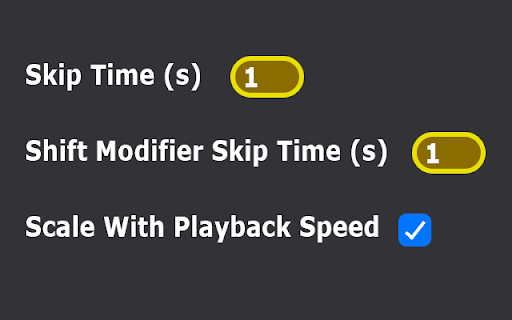
Use the arrow keys to skip forwards or backwards on a video by a custom amount. Supports skipping by a different amount while… Use the arrow keys to skip forwards or backwards on a video by a custom amount. Supports skipping by a different amount while holding shift. You can also choose to adjust the skip amount based on the playback speed (i.e. if you are playing the video at 0.5 speed, the skip amount will be halved).

Netflix Rewind 1 sec
Seek through video with an x amount of seconds (adjustable) Allows you to ↺ rewind the videoplayer on netflix.com by 1 second (instead of the default 10 seconds) each time you press the [

Time Travel
Fake the current date, time and time zone in JavaScript Date or Intl.DateTimeFormat objects. Time Travel helps you debug time-dependent frontend applications without having to change the system time. Usage: - Open the tab you want to change the time in. - Click the Extensions icon in the toolbar, then click Time Travel. - Choose a date from the calendar and edit the time if necessary, or enter a date and time directly (see examples below). - Confirm with Enter or by clicking the "Change Date" button. In Chrome, when first activating the extension on a tab, the page needs to be reloaded once to apply the changes. - Any JavaScript Date or Intl.DateTimeFormat in the current tab now returns the fake date/time you set. Other tabs and origins are not affected. To restore the system time, click the extension icon and switch off the "Enable Fake Date" toggle. When the fake date is enabled, the clock runs forward from the configured time. You can stop the clock by switching on the "Stop Clock" toggle. The fake date will be reset to the last value you set. To change the time zone, open "Options", enable "Change Time Zone" and select a time zone from the dropdown. When enabled, both Date objects and Intl.DateTimeFormat will use this time zone instead of the system time zone. The fake date in the Time Travel UI is still shown and configured in the system time zone, but a preview of the time in the configured time zone plus the Daylight Saving Time (DST) offset is shown if applicable. Example Dates and Formats: - 2025-04-27 12:40 - Local time - 2025-03-30 00:59:55 - Assuming your system time zone is Europe/London (GMT), 5 seconds before a one-hour jump to 2 a.m. (summer time) - 2025-04-27T12:40Z - Set local equivalent for given UTC time - 2025-04-27T12:40+1130 - Set local equivalent for time with +11:30 time zone offset. Note that actual time zone is not changed - 2025-03-25T12:40:00.120 - Local time with milliseconds - 1731493140025 - UNIX timestamp Features: - Fakes date and time for all methods of `Date` and `Intl.DateTimeFormat` objects. - Time zone can be changed, with full support for DST transitions. - Time can be stopped and resumed. - Option to automatically reload page after changing date. - Minimal permissions, only affects current tab after clicking the extension icon. Limitations: - Only JavaScript is affected by the extension. - Some functionality or animations may behave strangely if the clock is stopped. - The extension does not work in iframes with the `sandbox` attribute. This extension is open source software licensed under the MIT license.

VideoSkip
VideoSkip allows you to filter out several types of objectionable content from video streams. It uses the same categories as the "Parents Guide" section of IMDB.com. It can skip sections entirely, or simply mute the sound or blank the video, at your discretion. Because it does not modify the videos in any way, but rather plays them selectively, it does not infringe media copyrights. 1. Load the video from a streaming service normally and begin play so it loads some data (not full-screen), then stop it and click the VideoSkip icon on the upper-right of the browser. A new window will appear next to the video. You can move it, or resize it like a regular page with Ctrl + or Ctrl -. 2. If you have a .skp file containing the skips, you can load it now with the "Load skip file" button. Once loaded, its contents will appear in a box on the "Edit" tab. There is a growing number of skip files for popular films at the VideoSkip Exchange, loaded by a button on the interface. 3. If the skip file has been previously synced with your video service, you will be taken to the "Filter" tab so you can set the filter strengths as described in the next step. Otherwise, you'll be taken to the "Sync" tab. There, you will be asked to scrub the video with the arrow buttons until it looks okay again. When the screenshot finally matches the video, click "Sync times" to sync everything for your service. A new version of the skip file will be made so the people you share it with can skip this step from now on. 4. Set the category filters using the sliders, according to the audience. The higher, the more stringent the filter. High = for children, Medium = for teens, Low = for adults. If a filter is Off, the flagged content will be shown. 5. Start the video from its own page, sit back, and enjoy. Skips will take place when their time arrives. A message will appear on the fullscreen video when you move the mouse, telling you which filters are engaged. You can make your own skip files and share them with your friends freely. They will work even if the videos being played are from a different source. The skip file exchange is located at https://videoskip.org/exchange There's also a standalone web app, which works with videos that you have saved to your computer. Get it at https://videoskip.org/app for computers, or https://videoskip.org/mobile for mobile devices. Legal Notice: Content copyright owners and distributors are hereby informed that users and developers of this software are exercising their right of free speech, guaranteed by law in many nations, by voluntarily refraining from seeing or hearing content without modifying said content in any way. Legal action that ignores this notice will be considered harassment and infringement of basic rights, and prosecuted according to the law.

Video Seeking Everywhere
Allows you to seek through any playing video on most websites using the keys. Allows you to ↺ seek through any playing video on most websites using the keys. The amount of seconds to seek can be adjusted via the 🛠️ Options page.
