
inpbafoldolmpeiebppjbckdpnkkhlej
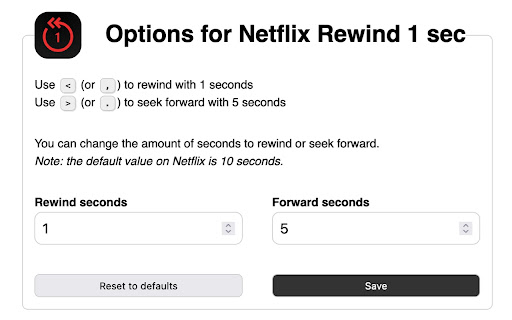
Seek through video with an x amount of seconds (adjustable) Allows you to ↺ rewind the videoplayer on netflix.com by 1 second (instead of the default 10 seconds) each time you press the [

New Netflix 1080p
Forces 1080p and 5.1 playback for Netflix as well as other QoL improvements. This extension unlocks 1080p playback for Netflix and adds other quality of life improvements as well. It was originally developed by truedread, but the original project has not been maintained for a while, so I forked the project and released this new version. - Play movies in 1080p in Chrome. Depending on the DRM used by the title, this may not work, especially non-Netflix ones. - Unlock 5.1 audio where available. - Automatically switch to the highest available bitrate. - Optionally disable use of the AV1, VP9 and AVChigh codec, which use lower bitrates and don't support hardware decoding on some platforms. - Show all subtitle tracks. - Re-enable the Ctrl+Shift+Alt+D and Ctrl+Shift+Alt+B keyboard shortcuts, allowing you to see playback stats and manually picking a video and audio stream respectively.

Netflix Keyboard Shortcuts
Use keyboard shortcuts to control video playback and more on Netflix ™ An extension for Netflix that adds 30+ configurable keyboard shortcuts to control playback and more with your keyboard alone. No need to reach for the mouse to turn on subtitles or go to the next episode. Make the shortcuts your own: each action is configurable. *⚠️ PLEASE READ ⚠️* March 28 2022: Netflix is currently *blocking* rapid time skips, leading to "🛑 ERROR M7375". This is not an issue with the extension, but a protection that Netflix recently added, presumably in order to prevent scripts from downloading movies. An update to this extension is coming soon; in the meantime you might find that some "time skip" shortcuts will not work. Recent testing shows that pressing 0–9 to go to 0%–90% of the video seems to work, but short skips like +/- 10 seconds do not. Each shortcut is easily configurable with a click on the extension's icon at the right of the address bar. Make sure to "pin" the extension icon for easy access! - Play or pause a video: K - Go back 10 seconds: J - Skip forward 10 seconds: L - Go back 60 seconds: Shift-J - Skip forward 60 seconds: Shift-L - (new) View show info or movie info, jump to episode, like/dislike: I - (new) View and edit watch history: H - Go back by 1 frame: , (comma) - Go forward by 1 frame: . (dot) - Toggle subtitles: C - Change subtitles language: V - Change subtitles size: S - Change audio track: A - Play slower: - Play next episode: Shift-N - Play previous episode: Shift-P - Back up (save) current position: B - Restore saved position: R - "Like" with thumbs-up rating: + (plus) - "Dislike" with thumbs-down rating: - (minus) - Remove current rating: Shift-Backspace - Jump to 0%, 10%… up to 90% of the video: press 0, 1… up to 9 - Set custom shortcuts for volume up/down - Configure the amount of volume change for your volume shortcuts - Some variants of the above and more are also available. - Jump forward/backward by *any* amount with a shortcut of your choice. A visual indicator can be configured for each action: there can be a very brief flashing symbol on the screen (with different styles), or just no indicator at all if you prefer it that way. You can also create your own new shortcuts and assign them a custom number of seconds to jump by, forward or backward. For example, you can create a +10 minutes shortcut by setting the "seconds" value to 600 and choosing your own key combination. Other options also built-in: - Automatically skip series intro credits or episode recap (can be turned on or off) - Automatically play the next episode for series (can be turned on or off) - Automatically select your preferred language for subtitles - Automatically select your preferred subtitles size Suggestions, bug reports, feature requests and feedback are all welcome! Please send them by email to keyboard-playback@pm.me Changes in 1.1.1: - New: add "skip recap" option, to skip the recap of a previous episode at the start of a new one. - Fix: toggling subtitles didn't always work. Changes in 1.1.0: - New: view movie info or series info by pressing [I] (configurable). Navigate with arrows and jump to another episode with [Enter]. Vote to like or dislike (can use configured keyboard shortcuts). - New: view watch history by pressing [H] (configurable). Navigate with arrows and delete entries with [Del] or [Backspace]. - New: this extension is now available in English, French, and Spanish. - Better language detection for subtitles. - Cleaner design on Windows. Privacy: The extension does NOT track your data. Your data is NEVER collected or sent anywhere. The extension has access to netflix.com, and nothing else. It does not use any analytics service. Disclaimer: All features are free. The software is provided “as is”, without warranty of any kind. Important: "Netflix™" is a trademark of Netflix, Inc. This extension is NOT built or sponsored or endorsed IN ANY WAY by Netflix, Inc.

YouTube Rewind & Fast Forward Buttons
Enhance your YouTube experience with the Rewind & Fast Forward Chrome extension. This tool adds dedicated buttons for rewinding and fast-forwarding videos. 1. Customizable Time Skips — Choose the skip duration for each button individually, with up to four customizable buttons. 2. Arrow Key Override — Choose whether to synchronize the Left and Right arrow keys with your configured skip durations. (Default: No override) 3. Media Key Integration — Map your keyboard's media keys (Previous/Next track) to use the same skip durations as the extension buttons. How to Access the Options Page 1. If you've pinned the extension, click the extension icon and then click "Open the options page". 2. If you haven't pinned it, click the Chrome extensions icon; you'll have two options: - Click the three dots next to "YouTube Rewind & Fast Forward Buttons" and select Options. - Click the extension name, then click "Open the options page". See the screenshots below for guidance.

NflxMultiSubs 2021 (Netflix Multi. Subtitles)
Bilingual Subtitles for Netflix (fixed) Best ever Chrome/Firefox extension to unleash bilingual subtitles on Netflix! This is a fixed and updated re-release of the original NflxMultiSubs. This version contains a fix for the 2021 Netflix redesign that broke the original, and has various other bugfixes and improvements. Click on the extension button to access the extension settings. Note: this extension will only show the subtitle languages that are available in your country. Features: - Enable secondary subtitles in the available languages (incl. image-based subtitles like Japanese, Chinese, Russian, …) - Smart selection on secondary subtitles. Choose between 3 subtitle activation modes: disabled; automatically match subtitle language to audio language; or remember the last selected language. - Seamless integration with native Netflix player UI -- switch languages in place - Adjust playback speed with a hotkey ( [ and ] ) - Free and open source! Report bugs by creating an issue on Github (https://github.com/gmertes/NflxMultiSubs) or send me an email (click "contact the publisher" on the right of this page). v3.0.0: - Fix Chrome version with experimental manifest v3 support v2.3.5: - NEW: improved font size settings. This should make font size better adaptable to various monitor sizes and resolutions. - Fix a crash in the candidate subtitle server selection. v2.3.4: - NEW: Extra out of region languages can now be used as secondary subtitles. To do so, activate the wanted language as a primary subtitle first. The language will then show up in the secondary subtitle list ready to be used. After selecting the wanted language as secondary sub, the primary language can be switched back. For now you have to do this for every new playback. - Fix the subtitle color picker on Firefox - Fix key binds for the playback rate controller (now [ and ] for all keyboard layouts) v2.3.0: - Fix critical bug in subtitle builder - NEW: You can now change the color of text-based subs from the settings page. v2.2.10: - Fix primary sub scaling - Improve secondary sub scaling for 4K displays - Show vertical scrollbar when subtitle list overflows v2.2.3: - NEW: Add secondary language options (disabled, audio, last used) - Fix subtitles overlapping in certain cases - Fix image-based subtitle scaling - Fix image-based subs sometimes falling outside of top screen edge v2.2.2: - Improve subtitles activating on the first try without requiring a refresh v2.2.0 (first release): - Fix for the September 2021 Netflix redesign that broke the original extension
