
nomnoimacbncclfbnfaingniikblfbji

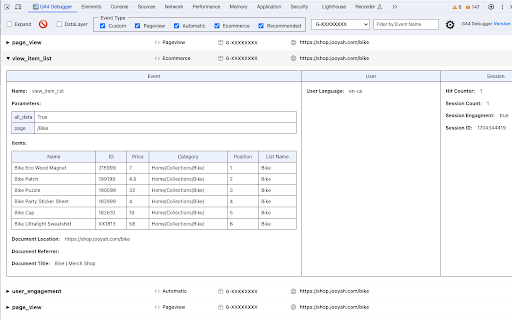
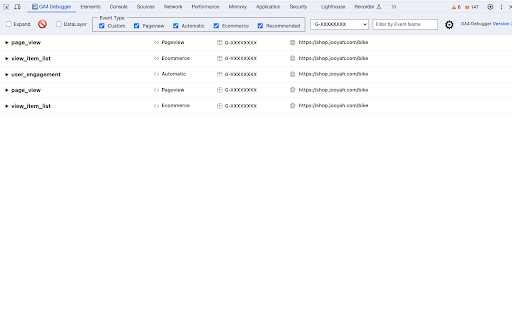

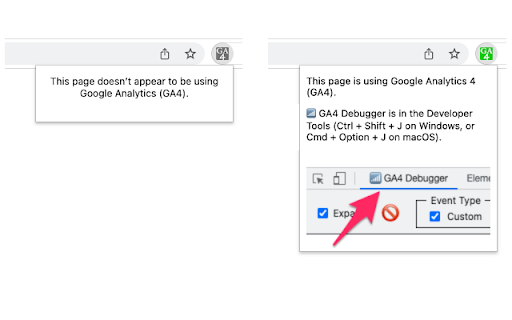
Browser DevTools extension for debugging Google Analytics 4 (GA4) events. Google Analytics (GA) Debugger is a Chrome DevTools extension for Google Analytics 4 (GA4) tracking information to its own tab in the Chrome Developer Tools. This extension supports a debug_mode parameter so that you can monitor events in Admin > DebugView on the GA4 report and the Chrome Developer Tools. It is also possible to opt out tracking events during the testing sessions so GA data can be kept clean. You will get a new tab in your Chrome DevTools: 📶 GA4 Debugger if a current site in the Chrome browser tab uses GA4 tracking.

DataLayer Checker Plus
The simplest way to debug and verify dataLayer implementations without using the browser console Growth Academy is excited to announce the release of DataLayer Checker Plus , featuring several features . NEW FEATURES: - Inspect DataLayer on any website - Auto colouring for different data types - Inspect dataLayer in a Shopify Store if dataLayer is enabled through customer events or theme. - UI Improvements - Connect GTM in any website - Bug Fix All messages pushed to the dataLayer will be listed in the extension tab, whether they occur on page load, through events, or are manually pushed. Simply install the extension, visit any website, and click on the extension icon to display the dataLayer content. The basic setup is compatible with the default dataLayer in Google Tag Manager. This extension also assists you in inspecting the dataLayer enabled through Customer Events on a Shopify store. To enable this feature, navigate to the settings page of the extension and activate the “Shopify Custom Pixel DataLayer Checker”. If you have not enabled the dataLayer through Customer Events, there is no need to make any changes—the default settings will function correctly. You found a bug ? Please contact us on contact@growthacademy.io Thank you for your help and your support!

dataslayer
Debug and test tag management (Google Tag Manager, DTM, Tealium) and analytics implementations. dataslayer adds a panel to Chrome Developer Tools that monitors tag management data layers and displays changes in an easy-to-read, user-friendly format. Supported TMS/variables include: - Google Tag Manager dataLayer variable - Adobe Launch rules and data elements - Adobe DTM page load rules and detection - Tealium data layer - TagCommander data layer - custom data layers (any variable represented as a JavaScript object) dataslayer supports multiple data layers / GTM containers on a single page, including those in embedded iframes. dataslayer also decodes and displays tags (including pageviews, variables, and click events) from: - Google Analytics (including App + Web, Universal Analytics / analytics.js, dc.js, and ga.js) - Adobe Analytics / Omniture SiteCatalyst - Floodlight For feature requests and bug reports, please either use the 'Send Feedback' option in the Chrome Web Store or reach out directly to info@dataslayer.org Source lives at https://github.com/sean-adams/dataslayer if you'd like to contribute!

Adswerve - dataLayer Inspector+
DataLayer Tools for Digital Analysts The Adswerve dataLayer Inspector+ is a tool kit of utilities for a digital analyst. Inspect Google Analytics activity - Monitor the dataLayer in real time - See the Google Analytics hits in the console, as they happen - Evaluate common dataLayer pushes formats: events and ecommerce Insert additional resources in the page - Push a dataLayer message for setup - Add a GTM container to test it - Insert code into the page to monitor and modify How to use the dataLayer Inspector+: https://adswerve.com/resources/adswerve-data-layer-inspector-2 Update for v2024.11.1.1 Due to new restrictions on external script tags in Chrome extensions, the "Insert GTM Container" option has been removed from dataLayer Inspector+. Follow these steps to insert a GTM container into a web page with the "Inject Code" feature instead: Go to tagmanager.google.com. Under the Admin tab for your container, select "Install Google Tag Manager." As shown in the screenshot below, where it says "Paste this code as high in the of the page as possible," copy just the snippet code content. Note: Do not include , only the code between them. In the DataLayer Inspector popup, under "Add Functionality," check "Inject Code." Paste the code snippet from Tag Manager into the text box that appears. Click the button to "Save Settings & Reload." The GTM container will be inserted until the "Inject Code" box is unchecked and "Save Settings & Reload" is clicked again. Be sure to do this when you've finished testing.

GA4 Fixer
Patch holes in GA4 for better reporting. Adds '% of Total' in reports, 'Click to Copy' values, one-click report building and more. Pain, anguish and uncertainty lurk around every corner in GA4 land and there is only one vigilante who can stop it…GA4 Fixer! Bringing back features like '% of total and copy/paste (yes copy/paste is nostalgic now) and a one-click custom dimension builder for GTM. GA4 Fixer will save your day, or at least make you a little less frustrated which is all that we can ask for in this marketing.
