
njcdalefhmobagihpijhjbpmbiobflpl
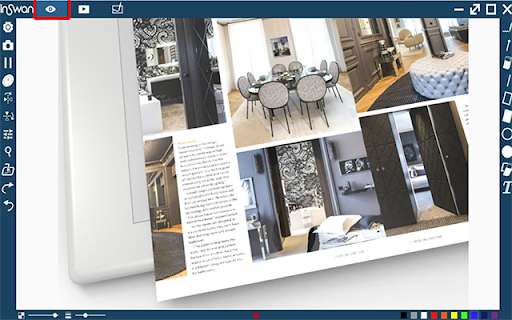
Documate is our recommended software application to control your Inswan document camera. It provides powerful learning-enhancing features such as rotation, snapshot annotation, and video recording, allowing teachers to capture still and streaming images of 2D and 3D objects and display them on large monitors and projector screens. You can also use Documate to scan paper documents and extra text for editing through optical character recognition (OCR). Download the latest version of Doucmate today for Chromebook by clicking the “Add to Chrome” button on the upper-right corner.

uniFLOW Online
uniFLOW Online Chrome Extension – Print with a Chrome device from any location By installing the Chrome Extension for uniFLOW Online users can print directly from their Chrome devices to the cloud, enjoying all the benefits of a secure print environment from any location. All Chrome device printing is included in print reports provided by uniFLOW Online so administrators can easily track and assess printing costs. Google Chrome OS™ and uniFLOW Online are a strong combination in the educational sector where the use of Chrome devices is widespread. As a modern cloud platform, uniFLOW Online meets the full range of today's cloud printing and scanning business requirements. • Students and staff are increasingly flexible in their learning habits and working processes. The Chrome Extension allows users to print from any location, on campus or whilst working at another venue, via their own Chrome device. • All print jobs stay in a user's personal secure print queue in uniFLOW Online until the user authenticates at a printer and releases them. • Print jobs follow users from device to device, allowing the release of print jobs on any printer within their location. • Users can also alter finishing options directly at the machine before printing. • uniFLOW Online allows administrators to track their organiza¬tion's printing costs so they can be allocated to individual users, devices and departments. A range of reports can be created and exported. Whilst uniFLOW Online simplifies the essential processes for both users and administrators, it also maintains the highest levels of security at all times. Integrating with other Google solutions uniFLOW Online also integrates with Google Drive™ as a cloud-based file hosting system, offering additional flexibility to users in the handling their print and scanned documents. Print from Google Drive™ uniFLOW Online enables users to print their cloud-stored documents directly from connected devices to Google Drive™. Folder browsing and an option to change finishing options at the device are available. Documents can either be printed directly or saved to the personal print queue for printing at another time. Scan to Google Drive™ With uniFLOW Online users can scan documents directly to Google Drive™. uniFLOW Online scan profiles allow for easy setup of scanning to Google Drive™. Employees can scan documents, add a file name and meta-data and store documents in either their preferred, pre-selected or previously selected folder for later viewing.

Documate OCR
Documate includes optical character recognition (OCR) functionality to directly extract editable text from scans (JPG, PNG) made with your INSWAN document camera. 1. Connect your INSWAN document camera to your Chromebook using the USB cable. 2. Open the “Documate” software. 3. Capture document images. 4. Go to “Gallery mode” and double click the thumbnail of the captured image. 5. When the thumbnail image is expanded to full screen, click the “Keystone correction” tool to select the area to be scanned and start to correct image distortion. 6. Click on “Save to gallery ” to confirm and save the scanned file as PDF, JPG, PNG, of TIFF. 7. Click the “OCR” icon to extract editable text from the scan. 8. Click on “Return to gallery mode” to return to the thumbnail preview mode to review all captured images. 1. Capture the image and enter gallery mode (Steps 1-6 above.) 2. Click on the “OCR” icon to activate optical character recognition. 3. Select the primary language of the target document. If the document has two languages, select both the primary and secondary languages. 4. Click “Run” to extract text. Extraction may take 2 to 3 minutes, depending on the amount of text. 5. Click “Save” to confirm and save the extracted text file or click on “Exit” to cancel extraction. 1. Go to gallery mode and click on “Import image file” to import a JPG or PNG file to the gallery. 2. Click on the “OCR” icon to activate optical character recognition. 3. Select the primary language of the target document. If the document has two languages, select both the primary and secondary languages. 4. Click “Run” to extract text. Extraction may take 2 to 3 minutes, depending on the amount of text. 5. Click “Save” to confirm and save the extracted text file or click on “Exit” to cancel extraction.

SMART Document Camera 650 Software Lite
The SMART Document Camera app makes it easy to add hands-on excitement to your lessons. When combined with a compatible SMART Document Camera, teachers transform images and videos of everyday objects, students’ work and all sorts of curiosities into interactive content.

DocCam Viewer
Document Camera Viewer for Chromium Browsers Allows for a traditional document camera interface on chromium browsers. Updated to Version 2 for a new look and a much better workflow. Version 2.3.0 Changes from 2.2.2 Refactor of code for faster developement and saving of camera settings for faster usage. Version 2.2.2 Changes from 2.2.1 Fixed an issue with recording when audio is not shared. Thanks Tina! Version 2.2.1 Changes from 2.2.0 Basic Tutorial in the Heart Menu Minimizing of the main toolbar is possible now. Version 2.2.0 Changes from 2.1.10 Emoji Favorites! Picture in Picture from additional cameras, like a webcam. Initial Screen Recording Support! Version 2.1.10 Changes from 2.1.9 Moved Emoji Search to top of screen for easy viewing with on screen keyboards and increased search results to 50. Version 2.1.9 Changes from 2.1.8 Improved feedback Basic sounds for camera and emoji Fix bug where pencil and eraser tools would not draw on initial touch/click Version 2.1.8 Changes from 2.1.7 Better user feedback for button interaction Removed Material Dependency Version 2.1.7 Changes from 2.1.1 Improved Camera Selection and Resolution Detection Tool Preview on Image Updated Styling for Consistency On the way to being the best Document Camera Software Version 2.1.1 Changes from 2.1.0 Emoji Searching and a HUGE SELECTION
