
ngbebejjbijmijmhbbpkllcnjpgkjikl

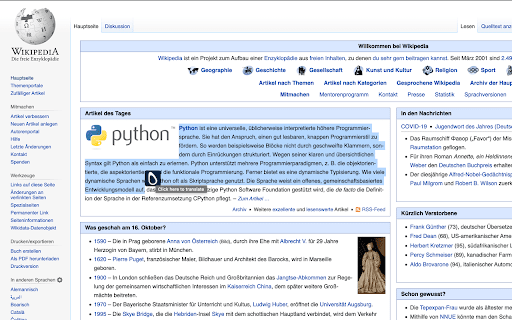
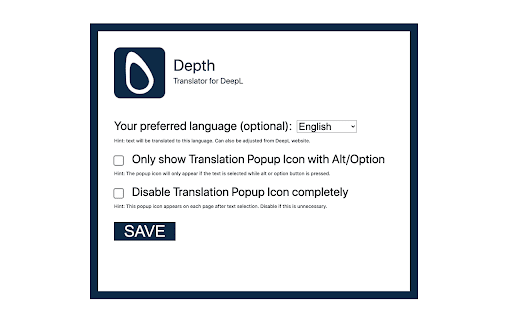
An Assistant to Translate Selected Texts with DeepL Depth Translator is an assistant extension for DeepL. You can invoke the translation in 2 ways: 1. By selecting texts, a popup icon would appear beside your mouse pointer - when you click the icon, you'll be redirected to DeepL in a new tab. 2. You can also select text and do the same from the context menu item. Features: 1. One click translation. 2. Option to disable the icon popup. 3. Option to set a preferred language. 4. Option to invoke the icon only when alt or option key is pressed. The extension requires access to all sites in order to present the icon inside every webpage. You can disable this feature from the settings. If you have feedback or feature request, please send me an to email dev@faisalbin.com. I hope this extension makes your browsing a little easier. * This extension or the developer is not affiliated with DeepL. I wanted to make this mainly for myself.

Unlimited DeepL Pro
Lift the daily translation limit for login accounts Unlimited DeepL Pro is a browser plugin designed to enhance the user experience with DeepL's online translation service.

Lingvanex - Online Text and Voice Translator
Lingvanex online text and voice translator provides instant translations into the language of your choice. Over 108 languages. Lingvanex Translator helps you easily understand words, phrases, on any language! Just highlight a word or phrase, click on Translate icon next to it to translate it to your language. The extension reads words and whole phrases using human-quality text-to-speech. Listen to pronunciation and discover real-life examples of usage. AI-based machine translation will give you a fast and accurate translation on more than 108 languages almost instantly. Word meaning, pronunciation, synonyms, hypernyms, hyponyms and more. Find common expressions and see examples depending on the context. Lingvanex Translator teaches you how to pronounce correctly. It shows phonetic transcription, transliteration and can speak out words and texts with the correct accents. Select an area on any webpage, Lingvanex Translator will recognize text and automatically translate it to your language. ► FULL-PAGE TRANSLATION With only one account, you can get access to your saved words and the translation history in all Lingvanex apps across platforms. Available in 30+ more languages user interface. You can select your language in the settings. You can familiarize yourself with the list of supported languages by following this link https://lingvanex.com/language-features/ . The extension also includes a "More Apps" banner and other promotional banners that allow users to explore additional apps and products developed by us.

Simple Translate
Quickly translate selected or typed text on web pages. Supports Google Translate and DeepL API. When you select text, the translation button pops up and the translation is displayed instantly. If you enable "Do not display the button if translation is not required" option, you will not get frustrated by the button appearing when it is not necessary. In the toolbar popup, translate the input text in real time. If you enable "Automatically switch to the second language" option, you can do : When English is input, it is translated into Japanese, and when Japanese is input, it is translated into English. You can also translate from the context menu. You can select "Translate this page", "Translate selected text", and "Translate selected link" from the menu on the page or tab. Supports Google Translate and DeepL API.

DeepL Box: Translation history management
Save previous translations, show index, compare one by one, search by keyword, copy to clipboard and provide keyboard shortcut. This extension provides the translation history management which saves all of the previous translations, shows index of the translations, compares the source and translation sentences one by one, searches by keyword, copies to clipboard and prepares keyboard shortcut `Command-b` (macOS) or `Alt-b` (other OS) to translate. - Select text by mouse or keyboard. - Press `Command-b` (macOS) or `Alt-b` (other OS). - Or right click to open context menu and choose `DeepL Translate`. − Translation window will open. - Open extensions setting page `chrome://extensions`. - Open menu by clicking `hamburger button` "☰" (triple bar icon) on the left of `Extensions`. - Click `Keyboard shortcuts`. - Click the pencil icon on the right of `Open DeepL page and send selected text`. - Input key stroke. Default is `Command-b` (macOS) or `Alt-b` (other OS). You can change source/translation language and split on punctuation option by extension popup dialog. - Click the DeepL Box icon `D` (if you "pinned" icon). - Change settings by selections and buttons. - `Source Language` specify the language of the text to be translated. > **_Note:_** in most cases, DeepL automatically detects source language. - `Target Language` specify the language into which the text should be translated. - `Splits on punctuation` may improve the readability of long text without newlines, such as PDF. - Keyboard shortcut does not work for local PDF files. In that case, use context menu instead. - When you use context menu, Chrome removes newlines from selected text because `info.selectionText` removes newlines. See [Linebreaks/newlines missing from chrome.contextMenus selectionText](https://bugs.chromium.org/p/chromium/issues/detail?id=116429) - Support keyboard shortcut for local PDF files.
