
nbmkldaonngpkjagofgclbioanahipdp
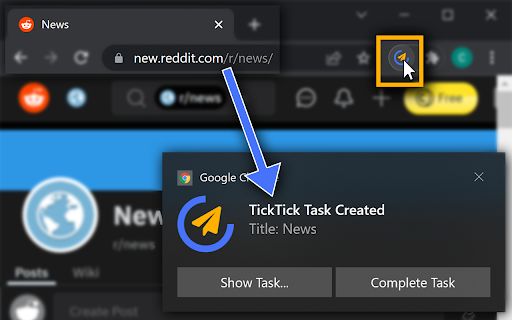

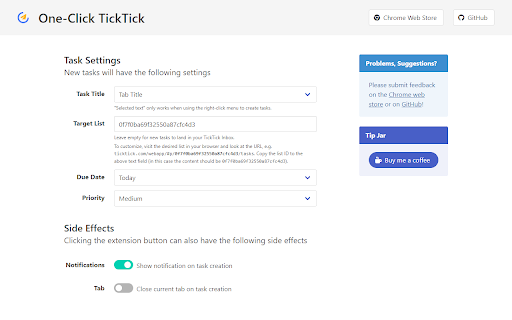
Instantly create a new TickTick task with a link to the current page in just one click! If you frequently create TickTick tasks linking to a website you visit - maybe to visit again later or to remember something - One-Click TickTick is for you! Login once and saving a link to the current page is just one click away. ⚡ Quick and Snappy Task creation is immediate, no waiting for TickTick to load. Click the button and the page is saved! ⭐ Features and Available Options - [NEW] Web clipper functionality! Saves contents of the website as formatted task description (can be disabled in extension options) - Add tags to each created task - Automatically add a due date - Quickly open the created task via the notification to add more information - Right-click anywhere on the page to create a task - Include selected text in the created task or use it as a title - Close the current tab at the same time (use it as a "read later" button) Tasks will directly land in your inbox. In the options page, you can configure additional properties the new tasks should have. Functionality is limited by the official TickTick Open API. This is a community extensions not developed by TickTick.

UpNote Web Clipper
UpNote Web Clipper lets you quickly save all or part of a web page to UpNote app. UpNote is a clean and beautiful app for writing and organizing notes. It's easy to use with rich features and delightful experience. You can download UpNote for free on Mac, iOS, Windows and Android device. 2. Enable UpNote Web Clipper from the Chrome Browser. 3. Whenever you want to save a web page, simply click on the UpNote Web Clipper icon from the browser toolbar and open UpNote app. The web page will be saved automatically to your note. 4. If you want to save a part of the web page instead of the full web page, simply select the part you need, then click the UpNote Web Clipper icon to save into UpNote app. UpNote Web Clipper helps you quickly capture and organize all the articles, research and inspiration, and sync to all devices so you can access anytime, anywhere. Best of all, the web clipper automatically remove ads, navigation and noise so that you could focus on the content.

Notion Boost
Boost Notion productivity with 20+ customizations like outline, small text full width for all, back to top button etc Make Notion more productive and less distractive. Notion Boost is a lightweight extension to add extra features and tweaks to Notion: ✔️ Show sticky outline (table of contents) for pages that have headings or sub-headings. ✔️ Set full width for all pages by default. ✔️ Set small text for all pages by default. ✔️ Add 'Scroll to top' button. ✔️ Disable AI menu when pressing space key. ✔️ Show full text in table cells on mouse hover. ✔️ Close slash command menu '/' by pressing space key. ✔️ Don't show slash command menu when pressing '/'. ✔️ Hide floating help button for all pages. ✔️ Align document images to left instead of center. ✔️ Show line numbers for code blocks. ✔️ Enable spellcheck inside code blocks. ✔️ Don't show popup menu when pasting external links. ✔️ Hide red notification icon from sidebar. ✔️ Add more height to page by hiding top padding, image cover, & icon ✔️ Make bold text bolder when using Notion in dark mode. ✔️ Truly hide 'Hidden columns' in Kanban board view. ✔️ Hide comments section from all pages. ✔️ Hide backlinks section from all pages. ✔️ Open full pages instead of preview. ✔️ Narrow spacing between list items. ✔️ Add indentation lines to lists. ✔️ Make Rollup URLs clickable. ✔️ Add frame to images. ✔️ Hide placeholder: Type '/' for commands. 🙏 If you found this extension useful then please support it by rating ★★★★★. Notion Boost is also available for Firefox, Brave, and Edge. Follow @NotionBoost (https://twitter.com/NotionBoost) for unique tips, tricks, and free goodies. 1. Visit any notion page. 2. Click on the extension icon (clickable only when you are on a notion page). 3. A popup menu will appear, you can toggle features from there. Notion Boost is made by Gourav Goyal (https://gourav.io). I am a tech founder and productivity freak who relies heavily on Notion to organize things and manage work. I made this extension to make Notion more productive (and less distractive) by filling the gaps which I feel are lacked in the product. I hope you find this extension helpful :) Notion Boost extension is an open-source project and has no ads, no analytics, no trackers, and no use of cookies. Furthermore, Notion Boost extension does not store or send any data from your Notion account. https://github.com/GorvGoyl/Notion-Boost-browser-extension/issues

Obsidian Web
Connect your browser with your notes in Obsidian. Obsidian Web is a customizable web clipper for Obsidian with advanced features. This is a Chrome extension for Obsidian* that allows you to more tightly integrate your browser with your notes in Obsidian. Obsidian Web makes clipping content from the web into your notes seamless, but that's just the basic part -- it also has advanced features that help you to find out when you already have notes before you take the time to add them again, and to remind you about what your thoughts were last time you were there. Features: - Templates: Configure how your content will appear in your notes by editing simple templates. Want to add information that isn't the page title, URL, or the text you've selected? You can change the content you are about to send to your notes on a case-by-case basis by clicking on the "Entry Details" dropdown from the pop-up menu. - Note Recall: Have you been to this page before? Maybe you already have notes about it? Obsidian Web can search your notes to see if you've mentioned this page before, and if so, let you open that note in Obsidian or update it with new content. - Periodic Notes: Want to append or patch your daily, weekly, monthly, or yearly notes? This gives you an "Append to current daily note" option out-of-the-box, but maybe you want to use a different interval or insert your content in a specific section of your daily note? Just modify the template and you can. Note that this requires the Obsidian Periodic Notes plugin: https://obsidian.md/plugins?id=periodic-notes 1. Install this extension from the Chrome Web Store 2. Install & enable the "Local REST API" plugin from the Community Plugins section in Obsidian. 3. Click on the "Obsidian Web" icon in your toolbar and follow the instructions. *Please note that the authors of this extension have no affiliation with the makers of Obsidian. Want to have a say in the future of Obsidian Web? Schedule a one-on-one call with me today by going to https://calendar.app.google/2nxkhy5yYvEddBK5A or by clicking the "Schedule a one-on-one" button from the upper-right corner of the extension options page. New in version 3.5.0: - Table Support: Tables will now be properly included in your markdown output if they were present in the page content or what you selected. Thanks @dscherdi for figuring out how to make this a reality via integrating https://github.com/mixmark-io/turndown-plugin-gfm ! - No Lost Changes: If you make changes to the content of the popup modal (e.g. adding notes to the content template) and accidentally do something that would cause you to lose those changes (e.g. closing the modal or changing the preset), we'll warn you that you're about to do that, and give you the option of changing your mind. This came about because I apparently have a tendency to double-click randomly, and I lost quite a bit of work today :laugh:. - Adds support for connecting to Obsidian on ports other than the standard ports of 27123 and 27124; now folks who are juggling multiple vaults have better options! - Fixes a common bug that would cause Obsidian Web to erroneously decide to use a secure connection to Obsidian even when one's certificate was not properly trusted. If folks were historically seeing the green shield icon when in settings, but found that they weren't able to actually use Obsidian Web when they tried, they should now see a reasonable error message on the extension options page. - Adds slightly improved bug reporting information when exporting a bug report. - Adds better warning messages when your version of Obsidian Local REST API is out-of-date. - Distinguishes between local HTTP and remote HTTP connections, and only warns you to use HTTPs if your HTTP connection isn't local. - Do you write notes about a page and want to be reminded of them when you browse to that page again? You can now configure Obsidian Web to automatically open the extension menu and show you a notice when you navigate to a URL you've already written notes about. This is particularly useful if you need to remind yourself about why you might not want to buy a particular thing on Amazon or listen to a particular book on Audible. Read more here: https://github.com/coddingtonbear/obsidian-web/wiki/Automatic-Match-Display - Do you want to remind yourself of notes you have about a page *before* you click on a link to that page? Now you can configure Obsidian Web to show you when you have notes about a page just by hovering over a link to it. You can even set a custom message for it to show you when you hover over a link to that particular page, too. You can find out more about this feature here: https://github.com/coddingtonbear/obsidian-web/wiki/Hover-Messages - Added a new bug report export feature making it easier for issues to be troubleshot. You can find this via the "bug" shaped icon in the upper-right corner of the options panel. - A completely new Pop-Up that's a lot easier to use and understand. - It's now shown inside your page content and allows you to leave the pop-up open while you collect whatever content you want to gather from the page without needing to close and re-open the pop-up every time you realize you need to copy something from your page. You can drag the pop-up around, too, if it's in the way! - Templates are shown and rendered on-the-fly in the interface so you can better understand how your templates are used for generating your notes. - It's now launchable by a keyboard shortcut -- by default Alt+Shift+O. You can find instructions for how to change the keyboard shortcut in Options. Closing the pop-up is also doable from the keyboard now, too -- just press your Esc key. - There's now support for connecting to Obsidian instances other than the one running on localhost for those of you who are using Docker images or have Obsidian running on another machine in your network. - Extra context is provided from Readability (https://github.com/mozilla/readability) in addition to your page content. Now the title, length, excerpt, byline, etc. information that Readability extracts from the document are available as context variables. - Automatic Drafting: You can now open and modify the content in the pop-up menu multiple times without losing what you had previously entered. - Markdown Selections: Selection is provided as Markdown text instead of a plain-text string. - Import/Export: Settings can be exported and imported as a JSON file. - Note Recall (optionally-enabled) - When opening the extension pop-up, the extension will search your notes to see if you've mentioned this URL before and provide you options for opening or editing that existing note if so. - Optionally, will search your notes in the background while browsing the web and let you know (by showing a badge on the extension icon) if you've mentioned this page before or if you have a dedicated note for it without requiring you to open the extension pop-up to find out. - Improved page content snapshots. Since version 2.0.0, page content has been available via the {{page.content}} template variable -- now that content has been trimmed down to include only what matters using Readability.js. - New {{uuid}} template function allowing you to randomly generate IDs for your notes. - Several new template helpers are available including: - {{date}}: Displays a timestamp. Can also receive a second argument for declaring format. - {{filename FIELD}}: Removes filename-unsafe characters from FIELD. Useful when creating a new document from, for example, a page title. - {{json FIELD}}: JSON-encodes the string in FIELD. Useful for including arbitrary page details in YAML frontmatter. - {{quote FIELD}}: Prefixes every line of FIELD with a '>' so as to display it as a blockquote in your notes. - Handlebars is now used as the template language, allowing for much-more-complex template logic. - Page content (as markdown) is available for use in your templates. - A new 'Capture page snapshot' default template exists that will capture as a markdown document and save it into your notes. - A new 'Restore default templates' button allowing you to restore the original default templates should you have accidentally deleted them or want to see the original versions for reference.

Add to Microsoft To Do
It's the easiest way to save anything from the web to your ToDo lists. ❗ This is not an official Microsoft extension. The extension allows you to add information about the current page to ToDo: title, selected text, and URL. FEATURES * Adding using the extension interface - you can add page information, select the desired list, and set the reminder time beforehand. * Quick Add - adds page (or link) information to the default list without demonstrating the extension interface. * Assigning keyboard shortcuts for both types of operations. * Flexible configuration of the expansion interface: time and date formats, default list (with ability to remember last used), default reminder time (or last used). UNEXPECTED BEHAVIOR * If more than 24 hours have passed since the previous use of the extension, then when you start it you will see a browser tab automatically opening in the background. The extension uses this tab to obtain an updated access token. It is due to the features of the Microsoft identity platform. Details: https://github.com/MicrosoftDocs/azure-docs/issues/62164. KNOWN DISADVANTAGES * When you select a list, the lists are shown in an un-grouped form. Reason: the public API does not allow you to get information about grouping lists. * This is not an official extension. But unfortunately, there's no official extension at this time – https://todo.uservoice.com/forums/597175-feature-suggestions/suggestions/32661145-browser-extension-firefox-chrome-edge-opera-s * The extension requires the seemingly unnecessary "Read browsing history" permission. But this permission is needed for an alternative implementation of user authentication. The reason is the inability to use the stock chrome.identity.launchWebAuthFlow with the Microsoft identity platform. More details: https://github.com/MicrosoftDocs/azure-docs/issues/62164.
