
loblkkbfciiklgoblkigehhghfjfjede

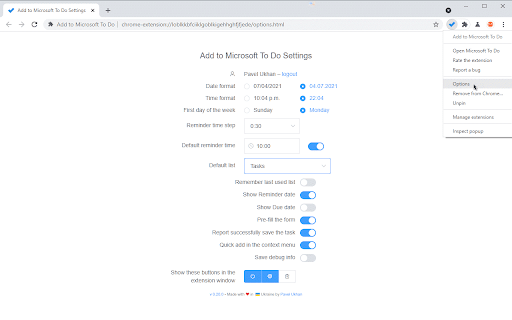
It's the easiest way to save anything from the web to your ToDo lists. ❗ This is not an official Microsoft extension. The extension allows you to add information about the current page to ToDo: title, selected text, and URL. FEATURES * Adding using the extension interface - you can add page information, select the desired list, and set the reminder time beforehand. * Quick Add - adds page (or link) information to the default list without demonstrating the extension interface. * Assigning keyboard shortcuts for both types of operations. * Flexible configuration of the expansion interface: time and date formats, default list (with ability to remember last used), default reminder time (or last used). UNEXPECTED BEHAVIOR * If more than 24 hours have passed since the previous use of the extension, then when you start it you will see a browser tab automatically opening in the background. The extension uses this tab to obtain an updated access token. It is due to the features of the Microsoft identity platform. Details: https://github.com/MicrosoftDocs/azure-docs/issues/62164. KNOWN DISADVANTAGES * When you select a list, the lists are shown in an un-grouped form. Reason: the public API does not allow you to get information about grouping lists. * This is not an official extension. But unfortunately, there's no official extension at this time – https://todo.uservoice.com/forums/597175-feature-suggestions/suggestions/32661145-browser-extension-firefox-chrome-edge-opera-s * The extension requires the seemingly unnecessary "Read browsing history" permission. But this permission is needed for an alternative implementation of user authentication. The reason is the inability to use the stock chrome.identity.launchWebAuthFlow with the Microsoft identity platform. More details: https://github.com/MicrosoftDocs/azure-docs/issues/62164.

Any.do
Any.do helps you remember everything you have to do. Get Organized with Any.do for Chrome Join millions who use Any.do to keep track of everything—from daily tasks to team projects—all in one place. With Any.do for Chrome, stay productive and organized with ease. Seamlessly Manage Tasks: • Quickly create tasks and reminders • Drag and drop to organize your to-dos • Mark tasks complete right from the extension • Save web pages as tasks or notes to track articles, research, and follow-ups • Customize your browsing by setting Any.do as your default new tab Stay on Top of Your Day: • Capture tasks the moment they come to mind • Set one-time and recurring reminders • Collaborate on projects with team members • Assign tasks to others and manage shared responsibilities • Sync your calendar for a clear view of your schedule

Category Tabs for Google Keep™
Better organise your Google Keep notes Tired of wasting time looking look through and re-sorting all of your notes on Google Keep? With Category Tabs for Google Keep™, you can now sort your new and existing notes by category. Each category represents one color. Adding a note to a category is very easy, just change the color of the note. When you want to view the notes you have sorted by color, simply click on the note color you wish to view. If you would like to view your you entire collection of notes/checklists, there is an “All” option next to the color options (this option is set by default). Category Tabs for Google Keep™ seamlessly integrates into the page and the options to look at your notes/checklists in list view or gird view is still available. The ability to post a quick note/list/picture is still available as well and is still placed in the same spot as it usually is. This application supports all the colors offered by Google Keep. You can access the settings by opening the menu in google keep, and hit "Customize Categories"

Full Screen for Google Tasks
Standalone Google Tasks app for desktop! A Google Tasks app for computer users. It can either open in a new tab, or launch an independent window like a desktop app - works the same on Windows PC, Mac, Linux and Chromebook. Try it if Google Task is your daily todo list, but sometimes you want to: - make the sidebar wider / bigger / fullscreen - use it alone in a separate window / separate tab, not on the side of gmail / google calendar - search across all lists - have a dedicated desktop client or PWA that you can pin to the Taskbar / Dock - print or export your list - sort the lists in the order you want - work offline Also available as a web version: https://fullscreen-for-googletasks.com/

Send to Google Tasks
Send the page you are reading to Google Tasks Send to Google Tasks is a chrome extension that performs one simple thing: it send the page or link from your chrome browser to Google Tasks. Attribution for the icons and graphics: - Icons are made by Pixel perfect (https://www.flaticon.com/authors/pixel-perfect) from Flaticon (https://www.flaticon.com).
