
acomfpnllcpggnclcogaiceicgljnbac
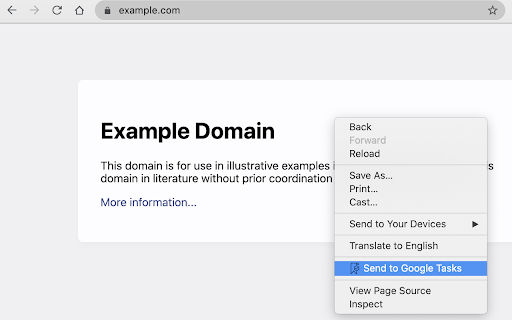
Send the page you are reading to Google Tasks Send to Google Tasks is a chrome extension that performs one simple thing: it send the page or link from your chrome browser to Google Tasks. Attribution for the icons and graphics: - Icons are made by Pixel perfect (https://www.flaticon.com/authors/pixel-perfect) from Flaticon (https://www.flaticon.com).

Tab for Google Tasks
Opens Google Tasks in a new tab. Light and Fast! This Chrome extension makes it easy to get to your Google Tasks without having to open Gmail. Just click the extension icon in your toolbar and your Tasks will open in a new tab. With this extension, you can: - Stay organized and productive by keeping your Tasks separate from your Gmail. - Never miss a Task by having your Tasks open in a new tab that you can easily access. - Be more productive by being able to focus on your Tasks without being distracted by your Gmail.

Desktop app for Google Tasks
Standalone Desktop app for Google Tasks. Export and share your Google Tasks lists in one click. The TasksBoard Chrome extension let you add a task to your Google Tasks in one click from any page on Google Chrome. ✅ TasksBoard lets you manage, edit and share your Google Tasks on a full-screen interface. 👥 Collaborate with your team in real-time with the option to share the lists. ✨ TasksBoard offers a Premium plan with additional features such as unlimited shared lists, customisable boards, tags and more. 👌 Increase your productivity: Drag and drop your tasks from one list to another 🤝 Collaborate with your team: Share your Google Tasks lists with anyone 🗄️ Keep everything organized: Create multiple boards for each of your projects 🌈 Better Task management: Set highlight color to your lists to find them instantly 🏷️ Easily organize and prioritize your tasks with custom labels 📁 Attach documents from Google Drive directly to your tasks ✉️ Make emails actionable by turning them into tasks from within your Gmail inbox 💻 Access your Google Tasks directly on the desktop by installing the desktop app 🔑 Ensure secure sign-on with your team's existing Google credentials through Single-Sign-On authentication Need a helping hand? Have a look to our extensive guides, the documentation on https://tasksboard.com/support and/or contact us at contact@tasksboard.app TasksBoard has individual and enterprise Premium plans available. Check our pricing options: https://tasksboard.com/pricing By design, your data stays at all times on Google servers. We have no access to your data, and we never copy your tasks on our server.. Here's all the data we need in order to make TasksBoard work: - Your email address - to know who you are - Campaigns sent metadata (spreadsheet name, date of sending - that's all) - Emails sent metadata (date of sending, open / clicks events - that's all again) TasksBoard / TaskBoard complies with privacy laws (especially GDPR) to protect your data. Check out the full privacy policy on this page https://tasksboard.com/privacy

Duration for Google Tasks
Duration for Google Tasks: Elevate Your Task Management Experience! Transform your Google Calendar task management with Duration for Google Tasks, the essential Chrome extension that adds time duration to Google Tasks. Streamline your productivity workflow by adding start and end times to tasks, creating visual time blocks that make schedule planning effortless and intuitive. 🔑 Core Features 🔑 ⭐️Time Duration Management: Add precise start and end times to Google Tasks directly in Google Calendar & Google Tasks. Watch as your tasks automatically resize to show their actual duration, providing clear visual time allocation across your schedule ⭐️Right-Click Task Creation: Capture tasks instantly from any webpage using the right-click context menu. Perfect for saving articles, research links, and ideas without interrupting your browsing workflow - ideal for productivity-focused professionals. ⭐️Custom Priority Levels: Organize tasks with personalized priority systems featuring custom names and colors. Visually identify urgent tasks at a glance and maintain consistent task importance across your calendar. ⭐️Task Templates: Create reusable task templates with pre-defined durations and descriptions. Streamline repetitive task creation for common workflows like meetings, project work, and daily routines. ⭐️Dynamic Visual Adjustment: Task blocks automatically resize based on specified duration, eliminating calendar clutter while maintaining accurate time representation in your Google Tasks list. ⚙️ How It Works ⚙️ Method 1 - Calendar Creation: When creating new tasks in Google Calendar view, use the built-in time picker to set start and end times. The extension automatically calculates and displays the appropriate duration. Method 2 - Title Duration: Add duration directly to task titles using parentheses format (e.g., "Team Meeting(1h)" or "Project Review(2.5h)"). The extension parses this information and adjusts the visual display accordingly. Method 3 - Right-Click Menu: Create tasks via the right-menu by Right Clicking on any webpage, and selecting "Add to Tasks". You can then provide all the necessary information, and a task will be created in the linked Google Account, and in the list of your choice. 🌟 Why Choose This Google Tasks Extension? 🌟 Google Calendar's default task system lacks duration visualization - a critical gap for effective time management. This Chrome extension bridges that functionality gap by providing: ◦ Better Time Allocation: Identify schedule conflicts and optimize daily planning ◦ Calendar Organization: Clean, professional calendar appearance with hidden duration metadata 🎯 Perfect For 🎯 ◦ Professionals managing project deadlines and time-sensitive deliverables ◦ Students organizing study sessions and assignment schedules ◦ Anyone seeking better Google Calendar task management and time visualization 🚀 Installation & Setup 🚀 1. Install Duration for Google Tasks from the Chrome Web Store 2. Refresh your Google Calendar or Google Tasks tab to activate the extension 3. Start creating tasks with additional controls immediately 4. Customize priority levels and templates through the extension popup Pro Tip: After installation, refresh Google Calendar to ensure all features work properly. The extension integrates seamlessly with your existing Google Tasks workflow while adding powerful time management capabilities. Enhance your Google Calendar experience today with Duration for Google Tasks - the Chrome extension that makes task duration visualization simple, intuitive, and professionally effective.

keepClipper - web clipper for google keep
📢 Top Features ✪ No Signup or permission required ✪ Open Keep notes in side Panel ✪ Save selected text, images and urls ✪ Capture and insert screenshot ✪ Clip article and multi select text ✪ Al summary, Mindmap and Highlight powered by ChatGPT ✪ Automatically saves to Google Keep ✪ Insert text & images by drag & drop ✪ Insert text by ctrl+C ✪ Insert text & images by right-click menu ✪ Upload webp/avif/heic/tiff image on keep ✪ Embed PDF file in google keep note ✪ Persistent Text Highlighter ✪ Lightweight 50KB only ✪ no tracking, no Ads ✪ Dark mode ℹ️ How to use keepClipper Pin keepClipper after install extension Click on keepClipper or (Alt + K ) to open keepClipper side Panel Drag text & images and drop into notes ✏️ Append text 1. Select text and hover over *clip to keep* from right click menu then select notes 2. Open keepClipper side panel. Open note editor dialog. selected text will auto-copied to keepCliper when you press ctrl+c on any webpage Ctrl+Z for undo Ctrl+Y for redo Shift + Space for extend selection Alt+H for highlight text (work only when copy listener on) 3. Drag text and drop on note ✅ Clip article in one click If you want summarize current webpage or create mindmap then change clip content type. keyboard shortcut: Alt + A (works when popup window open) Clip article from current tab or all open tabs in one click. you can add frontmatter and download articles' images into "images" folder. ✅ AI Summary, Mindmap and Highlight ☛ Note: If you want to clip text contents in markdown format, you need to enable markdown format option on extension's options page 🖥️ Take screenshot Click on screenshot icon for capture and save screenshot. Select note where you want to insert screenshot. keepClipper capture selected area and upload screenshot on google keep Use Keyboard shortcut (Alt + S) 🖍️ Highlight text When you clip selected text, selected text will highlighted automatically Click on Save Highlight button on right bottom corner to save highlight. For remove highlight, Select again highlighted text and press Ctrl + Shift + H. For disable highlight, Go to options page ✅ Clip text, linkUrls and images by right click menu Right click on selected content then hover over "clip to keep" option Select note from sub-menu list and selected content will insert into keep 🚀 Version 0.1.10 ⇒ FIXED: Popup window not open for existing users bug fixed ⇒ FIXED: O.nodes not iterable bug fixed ⇒ ADDED: Embed PDF file in keep note added ⇒ IMPROVED: Remove highlight improved 🚀 Version 0.1.0 ⇒ CHANGED: Extension re-written from scratch ⇒ CHANGED: Sidepanel note list layout changed ⇒ CHANGED: Options page layout changed ⇒ ADDED: Screenshot and clipped article's images auto-upload feature added ⇒ ADDED: Allow to upload webp/avif/heic/tiff image on keep ⇒ ADDED: Clip article and multi select text feature added ⇒ ADDED: ChatGPT AI summary, MindMap and Highlight added ⇒ ADDED: Now you can change new note filename format ⇒ ADDED: keepClipper now available in 24 languages ℹ️ This is unofficial web clipper extension for google keep ℹ️ Google keep trademark and it logo owned by Google Inc. Note: Version 0.1.0 has breaking changes. If extension work unexpectly, please re-install it.
