
amcdpedhkddkciknnpjamibpojcbbigf
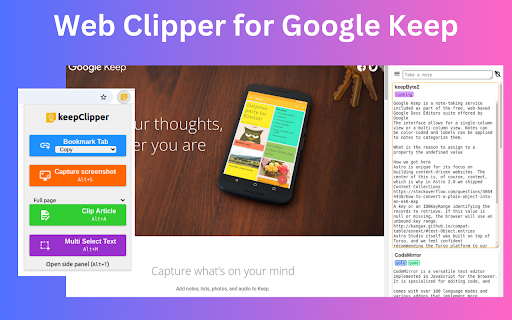


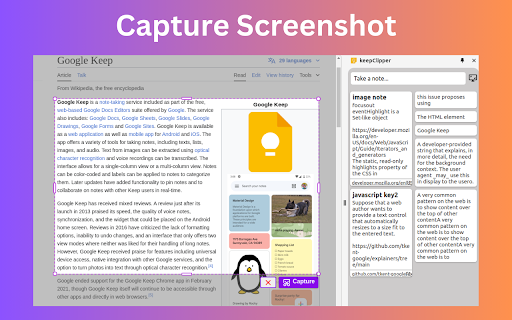

📢 Top Features ✪ No Signup or permission required ✪ Open Keep notes in side Panel ✪ Save selected text, images and urls ✪ Capture and insert screenshot ✪ Clip article and multi select text ✪ Al summary, Mindmap and Highlight powered by ChatGPT ✪ Automatically saves to Google Keep ✪ Insert text & images by drag & drop ✪ Insert text by ctrl+C ✪ Insert text & images by right-click menu ✪ Upload webp/avif/heic/tiff image on keep ✪ Embed PDF file in google keep note ✪ Persistent Text Highlighter ✪ Lightweight 50KB only ✪ no tracking, no Ads ✪ Dark mode ℹ️ How to use keepClipper Pin keepClipper after install extension Click on keepClipper or (Alt + K ) to open keepClipper side Panel Drag text & images and drop into notes ✏️ Append text 1. Select text and hover over *clip to keep* from right click menu then select notes 2. Open keepClipper side panel. Open note editor dialog. selected text will auto-copied to keepCliper when you press ctrl+c on any webpage Ctrl+Z for undo Ctrl+Y for redo Shift + Space for extend selection Alt+H for highlight text (work only when copy listener on) 3. Drag text and drop on note ✅ Clip article in one click If you want summarize current webpage or create mindmap then change clip content type. keyboard shortcut: Alt + A (works when popup window open) Clip article from current tab or all open tabs in one click. you can add frontmatter and download articles' images into "images" folder. ✅ AI Summary, Mindmap and Highlight ☛ Note: If you want to clip text contents in markdown format, you need to enable markdown format option on extension's options page 🖥️ Take screenshot Click on screenshot icon for capture and save screenshot. Select note where you want to insert screenshot. keepClipper capture selected area and upload screenshot on google keep Use Keyboard shortcut (Alt + S) 🖍️ Highlight text When you clip selected text, selected text will highlighted automatically Click on Save Highlight button on right bottom corner to save highlight. For remove highlight, Select again highlighted text and press Ctrl + Shift + H. For disable highlight, Go to options page ✅ Clip text, linkUrls and images by right click menu Right click on selected content then hover over "clip to keep" option Select note from sub-menu list and selected content will insert into keep 🚀 Version 0.1.10 ⇒ FIXED: Popup window not open for existing users bug fixed ⇒ FIXED: O.nodes not iterable bug fixed ⇒ ADDED: Embed PDF file in keep note added ⇒ IMPROVED: Remove highlight improved 🚀 Version 0.1.0 ⇒ CHANGED: Extension re-written from scratch ⇒ CHANGED: Sidepanel note list layout changed ⇒ CHANGED: Options page layout changed ⇒ ADDED: Screenshot and clipped article's images auto-upload feature added ⇒ ADDED: Allow to upload webp/avif/heic/tiff image on keep ⇒ ADDED: Clip article and multi select text feature added ⇒ ADDED: ChatGPT AI summary, MindMap and Highlight added ⇒ ADDED: Now you can change new note filename format ⇒ ADDED: keepClipper now available in 24 languages ℹ️ This is unofficial web clipper extension for google keep ℹ️ Google keep trademark and it logo owned by Google Inc. Note: Version 0.1.0 has breaking changes. If extension work unexpectly, please re-install it.

Link Grabber
An easy to use extractor or grabber for hyperlinks on an HTML page Extract links from an HTML page and display them in another tab. Permissions Required: Link Grabber requires permission to copy links to the clipboard. No other special permissions are required. Features: * No usage information / analytics are collected from you * Use either browser action button or context menu item to activate * Configurable list of blocked domains * Filter links by substring match * Copy links to clipboard * Show/hide links that appear more than once on the page * Show/hide links to the same origin as the source page * Group links by domain

Notebook Web Clipper – Sticky Notes & Save Articles
Clear the clutter. Clip the web. Save to Notebook. Introducing 'Meeting Notes'. Taking notes during an online meeting is now a breeze with Notebook extension on Chrome. When you're on an online meeting using Zoom, Cisco Webex , Zoho Meeting, and Zoho Showtime, you can see a a popped out Notebook icon which helps you to take quick notes. If you have not logged into your Zoho account in the browser, you can export your meeting notes as a .txt file. You can choose a notebook and associate tags before you save your meeting notes to Zoho Notebook. Notebook Web Clipper Clip content from the web to your Notebook with Web Clipper. Clipped content, saved as Note Cards, are immediately synced across your devices. Please download Notebook apps from Google PlayStore(https://play.google.com/store/apps/details?id=com.zoho.notebook) or Apple AppStore(https://itunes.apple.com/us/app/notebook-take-notes-sync-across-devices/id973801089?ls=1&mt=8). You can also view your notes from https://notebook.zoho.com. What can you clip? * Be it a new recipe you want to try or the next place you want to visit, clip text, images, or links into a note card, and save to a specific notebook. * Want to save an article for future reference? With Clean View, you can save the entire article as a note card, minus the ads. * Need to quickly grab a screenshot of a web page? The 'Screenshot’ option quickly saves the screenshot as a Photo Card. * Convert any link to Smart Cards. Refer https://www.zoho.com/notebook/smart-card.html for more details on Smart Cards. * Annotate images / screenshots before you add those in Notebook. We've added a complete annotation tool to edit your images. * Use Meeting Notes to take quick notes on an online meeting using Zoom, Cisco Webex, Zoho Meeting and Zoho Showtime. Web Clipper can also be used to create note cards. Have a quick thought you want to note without leaving your browser? Create a quick note from scratch right from your browser. You can also add photos directly from your computer to Web Clipper. Write your feedback to support@zohonotebook.com zoho.com/notebook

Screenshot - Webpage Screen Capture
Convenient screenshot tool. Capture, edit and save them to jpeg, gif or png, drop comments and share. Screenshot is an all-in-one platform for all your needs. Just choose what you need now! This handy tool integrates seamlessly into your browser, providing a quick and efficient way to capture the content you see on your screen. All for Free & No sign in needed! Here are some features: ▸ Whole Page screen capture - No matter how long the page is, you can turn the page into a picture for easy editing and sharing. ▸ Visible Area screen capture - Fast capture the viewable area of the current web page. ▸ Selected Area screen capture - Select and capture anything you want. Our extension is not only feature-rich but also incredibly user-friendly. You'll be capturing screenshots in no time. Best of all, it's completely free, so there are no hidden costs or subscriptions to worry about. If you have any questions, suggestions or feature requests, feel free to submit to our Screeshot team.

Notix: Notion Web Clipper
Save the Web to Notion. Use AI to create summaries and auto-prefills. Easily create how-to guides with screenshots in Notion. Finally, a reliable Notion web clipper with all the features you need: 🚀 Templates for Efficiency: Quickly populate properties with pre-defined values or pull info from the current website, like page titles or URLs. 📷 Screenshots Made Simple: Notix lets you effortlessly add screenshots from your current page. You have the flexibility to choose between capturing the visible area or the entire page. You can also copy and paste images from your favorite screenshot tool or from your files. 📝 Effortless Page Editing: Edit page content effortlessly using Notix's extension. It's as intuitive as editing a Notion page, directly from your browser. 🧱 Custom Blocks for Content Prefill: Craft custom blocks in Notix to populate page content effortlessly. It's a one-stop solution – automatically capture a screenshot, insert selected text, include page title or URL, and even employ AI for content summarization. Your content, your way. 🤖 AI-Powered Prefill: Prefill properties, generate page titles, summarize web pages and much more with the power of AI. Try it out for free!
