
nblpfncgdloilgeicnnlihegobmhjifb
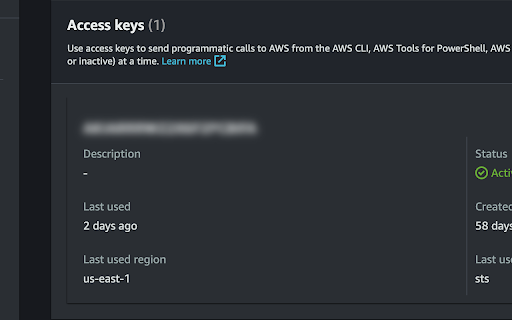
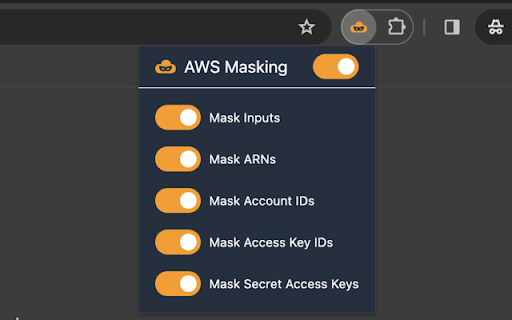
Enhance your security by auto-hiding sensitive information on AWS Management Console. Browsing AWS Management Console just got safer and less stressful with AWS Masking! This simple extension smoothly blurs out important bits of information like: ・Account ID ・ARN (Amazon Resource Name) ・Access Key ID ・Secret Access Key Now, share your screen or snap a screenshot without fears of revealing too much. Add AWS Masking to your browser today, and enjoy a worry-free AWS experience!

Acid Tabs
Auto-Grouping Magic for your Tabs ⚡ Live updating = Instant feedback ✳ Simple but powerful patterns for tab names 🌈 Customizable group colors 🔀 Rule based ordering of tab group layout 📁 Easy "Collapse All" groups button (or Alt + Shift + C) 📝 Bulk Edit Mode Note: Acid Tabs is an open source extension. Github repo: https://github.com/jdhayford/acid-tabs-extension IMPORTANT: If you are using an old version of chrome you will need to update your Chrome to version ~89 (check chrome://settings/help). If you have any issues, requests or questions contact me at jdhayford@gmail.com or ping me on twitter: https://twitter.com/hayford_jack

S3 Batch Downloader
Download multiple checked S3 objects at once from the AWS Management Console. [Features] - Batch download selected objects sequentially - Recursive folder (prefix) download support (toggle on/off in settings) - Adds a dedicated download button to the S3 console - No page reload required (works with SPA navigation) [How to use] 1. Open the S3 bucket objects page 2. Check the objects you want to download 3. Click the round download button (↓) 4. Selected objects will be downloaded sequentially [Settings] Click the extension icon to open settings. - Recursive folder DL: Recursively downloads files inside selected folders This extension only works on the AWS S3 console page. No data is collected or transmitted.

GMailSend Address Checker - 誤送信防止 -
バージョン:0.24.0 * 「Mailtrack for Gmail」と同時使用可能になりました バージョン:0.20 ・不具合対応 Salesforce Inbox for Gmail と併用すると、「確認」後、「確認」ボタンが「送信」ボタンに戻らない不具合解決のため、ロジックを変更。

Amazon Quick
The official browser extension for Amazon Quick. Amazon Quick helps business users make better decisions, faster and act on them, by unifying AI agents for research, business insights, and automation into a single experience. Your AI Assistant, Always Within Reach The Amazon Quick browser extension brings enterprise AI directly into your browser—no tab switching, no context loss. Get instant insights from web pages, uploaded files, and your organization's knowledge base, and trigger actions and workflows right where you work. Instant Access - Type @Quick in your address bar to ask questions instantly - Open the extension from your toolbar anytime you need assistance Web Page Insights - Summarize entire web pages with one click - Right-click any selection in your web page for to chat about with Quick or to get an explanation - Ask questions about multiple open tabs simultaneously Enterprise Knowledge at Your Fingertips - Access your organization's data sources and Spaces on the go - Switch between specialized agents for curated responses - Narrow your search scope by selecting specific data sources and apps Contextual Actions & Workflows - Perform actions in external applications without leaving your browser (e.g., update ticket status using web page context) - Run pre-defined Quick Flows directly from the extension with web page context included Build Your Enterprise Knowledge - Add web pages directly to your Spaces for future reference Quick Access: Type “@Quick” in your browser's address bar and ask any question instantly Analyze Text: Select text on any web page, right-click, choose Amazon Quick, then select "Explain this selection," "Summarize this selection," or "Send to chat" Summarize Pages: Open the extension from your toolbar, click "Summarize" or select multiple open tabs, then ask questions about them Use Flows: Click the Flows icon in the extension, select or search for a flow, and when prompted, select the web page to include as context and confirm Save to Spaces: Open a web page, launch the extension, select the tab to add to context, click "Add to Space," choose your space, and confirm Make your browser work smarter with Amazon Quick by bringing your organizations data and actions to every tab.
