
mnbegbhknalbfphkepeodjnagjgiemca


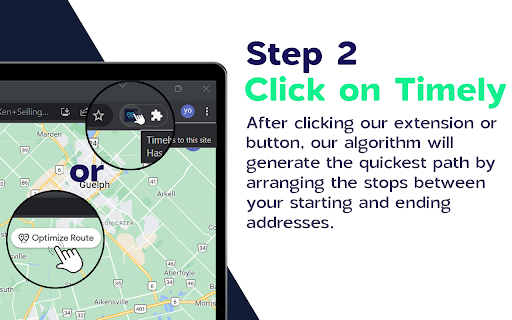
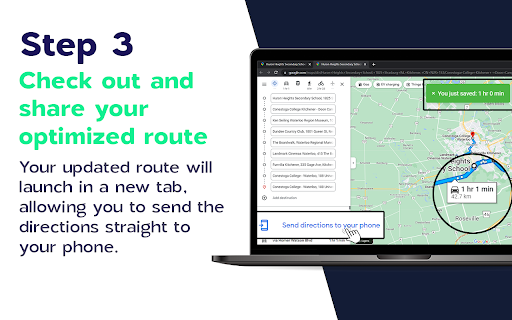
Optimize your Google Maps route with Timely! Check out Timely - the ultimate solution to optimize your Google Maps route! 🗺️🧭 We take your multiple-stop Google Maps route and rearrange the address order to help you navigate your trip in the shortest time possible. 🚀 Say goodbye to taking the long route and hello to more time for the things you love! ⏰ Save time, ⏱ save gas money, ⛽️ and reduce your carbon footprint 🌳 all at once! Who wouldn't want that? Timely is useful for frequent travelers, delivery drivers, small businesses, real estate agents, hikers, cyclists, or when you're just running errands. 🏃🏻♂️🚴♀️ Using Timely is as easy as 1️⃣ creating a route on Google Maps 2️⃣ clicking on the Timely extension or button 3️⃣ viewing or sharing your optimized route. It's that simple! 💡👨💻👩💻 So, what are you waiting for? Install Timely now and start optimizing your Google Maps route like a pro! 💪

Timely - Epoch Converter / Unix Timestamps
Tired of seeing confusing epoch timestamps on websites? Timely - Epoch Converter / Unix Timestamps extension automatically detects and converts all Unix epoch time values on any web page into a clean, human-readable format. Whether you're a developer, data analyst, or just someone working with time-based data, this tool saves you time and effort by removing the need to manually convert timestamps. Make epoch timestamps meaningful at a glance. Install now and take the guesswork out of time!

Slides Captions
Slides Captions allows you to turn Google Slides into a full screen captioning tool idea for those who have hearing loss, auditory processing disorders, or foreign language learners. It allows you to: • Choose the font, • Line spacing, • Font size • Font colours, The extension puts you in control of your Google Slides Captions. To use the extension load your presentation by using /present in the URL with Google Slides, enable captions and then click the extension icon. Preferences can be set by right clicking on the extension icon. You can then enter full screen if you wish. - In a school auditorium, it can be used for providing captions on a projector or TV for students with hearing loss, or auditory processing issues. - In an office, it can be used for captioning a meeting or presentation - At a comedy club, it could be used for captioning the comedy show - There are many other possible uses for the extension. If you're enjoying Slides Captions, try out Zip Captions our browser based dedicated tool at https://zipcaptions.app

PromptEasily ChatGPT - HDTeam
PromptEasily ChatGPT - HDTeam adds a list of curated prompt templates for SEO, SaaS and more to ChatGPT. Try today. PromptEasily ChatGPT - HDTeam adds a list of curated prompt templates for SEO, SaaS and more to ChatGPT. Try today.

SRead
SRead is a smart reading assistant, whether you enjoy reading articles or viewing electronic papers, you can utilize SRead for assisted reading. SRead supports intelligent summarization, capable of extracting key information from the reading material and summarizing it; additionally, it can perform intelligent Q&A, answering any relevant information within the article. Moreover, SRead's mind map feature can help readers quickly grasp the outline of the entire piece. Chrome Extension The new Chrome extension of SRead brings a major upgrade to the browser reading experience. Once this extension is installed, users can directly enjoy all the features of SRead on Chrome browser without the need to download any additional applications. This extension includes a simplified toolbar, making it easy for users to quickly access the intelligent summarization, intelligent Q&A, and mind-mapping features while reading. Another important feature of this extension is that it can automatically recognize web page content, providing real-time intelligent assistance to users, making the reading experience smoother and more efficient. Installation and Usage Installing the SRead Chrome extension is very straightforward. Users first need to log on to the SRead website (https://sread.ai), and register/login with Gmail or WeChat. Then visit the Chrome Web Store, search for "SRead", and click the "Add to Chrome" button. Once the installation is complete, the SRead icon will appear on the toolbar, clicking the icon activates the extension and users can start using it. The SRead Chrome extension can be used for browsing online articles. For instance, when you are reading a technical blog, just navigate to the page of the article, then click the SRead Chrome extension icon, its intelligent summarization feature can help you quickly understand the main points of the article. Meanwhile, if there are contents in the article that you do not understand, you can directly use the intelligent Q&A feature without leaving the current page.
