
mjfibgdpclkaemogkfadpbdfoinnejep
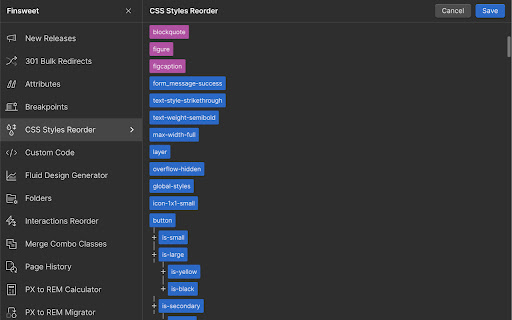


A suite of F'in sweet tools to improve your Webflow development experience. Important: Finsweet Extension has changed! Most features are now in our new native Webflow App. Only site settings remain in this Chrome Extension due to Webflow API limits. Unlock new and powerful tools and functionalities within Webflow's Dashboard, Editor and Designer. Functionalities include: - Bulk 301 redirects upload. - CSS styles sorting, editing and removal. - Interactions, Symbols and Color swatches reordering. - Breakpoints highlighting and removal. - Components marketplace to copy and paste directly in your project. - Direct integration with our Finsweet libraries like Cookie Consent or Attributes. - Vertical Canvas Resizing. - And much more!

Hotkeys for Webflow
Adds hotkeys and dashboard for Webflow. Hotkeys for Webflow offers two main functionalities. 1. Adds shortcuts for your most commonly used elements, like Div, Button, Heading, etc. 2. Your activity is visualized in the dashboard. When you create elements using shortcuts provided by this extension, your actions are recorded and contribute to your activity metrics. Here is a small overview of the most commonly used shortcuts: SHIFT + 'D': Insert a Div Block SHIFT + 'B': Add a Button SHIFT + 'U': Add a Paragraph (P is already used by Webflow) SHIFT + 'C': Create a Collection List SHIFT + 'T': Insert a Text Block SHIFT + 'H': Add a Heading SHIFT + 'I': Insert an Image SHIFT + 'L': Add a Text Link SHIFT + 'K': Create Rich Text SHIFT + 'F': Insert a Form SHIFT + 'Q': Add an HTML Embed SHIFT + ':': (colon) Finsweet Custom Code

Webflow Collection Reorder
Effortlessly rearrange CMS collection items in Webflow with a simple drag and drop interface. ## Overview Welcome to the Webflow Collection Sorter Chrome extension! If you use Webflow to build websites, you know it can be tedious to manually sort the items in a CMS collection. That's where our extension comes in. With Webflow Collection Sorter, you can easily and quickly rearrange the order of your CMS collection items using a simple drag-and-drop interface. No more wasted time trying to manually sort your collection items - just install the extension and organise your content. 1. Once you have installed the Chrome extension, you will see a new "Sort" button on the collection listing page in Webflow. 2. Before you can use the Sort button, you need to make sure that your Collection has a "Sort Order" number field. Note that the field type should be “Number” and the field name should exactly be “Sort Order”. If this field is not present, you will need to add it in order to enable the "Sort" button. 3. Click the "Sort" button to open the modal. The modal displays only the Name, Slug, Sort Order, and Creation Date fields. 4. You can sort the collection items by dragging and dropping them into the desired order. When you are finished, click the "Save" button. 5. The "Sort Order" field will be updated for each collection item to reflect the new order of the items. 6. To view the updated order on the front-end of your website, make sure that your collection is sorted by the "Sort Order" field. This will ensure that the order is displayed correctly on the front-end pages.

Relume Chrome Extension for Webflow
Boost your productivity in Webflow with the Relume Chrome Extension. ★ Access 1,000+ Webflow components from the Relume Library, right inside of Webflow designer. Copy components into your project with 1 click. ★ Class Sync enables you to sync Relume components with updated classes in the designer, preventing class duplication. When you turn on Class Sync and paste a component, the component will adapt to match the styles of your Webflow project. ★ Paste SVGs directly into your Webflow project, with Relume's free SVG to HTML embed converter. ★ Create and save components in your own private Relume Library. Share with with clients and your team. The Relume Library includes everything you need to start a Client-First Webflow project: ✓Navbars ✓Footers ✓Header sections ✓Feature sections ✓CTA sections ✓FAQ sections ✓Contact sections ✓Pricing sections ✓UI Elements (including Buttons, Accordions, Sliders, Dropdowns, Cards, Tabs & more) ✓Page Templates (including Home, About, Blog, Contact, Portfolio & more) Browse the full library online: https://library.relume.io/dashboard Don't waste time rebuilding layouts for every new project. Install the Relume Chrome Extension to access all of these components right inside Webflow. Some features require a Relume account or paid subscription. Find out more inside the extension or online: https://library.relume.io/pricing

ViDesigns Extension for Webflow
Create, share and upload Webflow components from the Webflow Designer Access your backups on any device with the same Google Account using Chrome Sync Storage!💪🏽 Enjoy all these fantastic features: 💜 Create and store components to expedite page creation. 🔎 Seamlessly search for components, saving you valuable time. 🚚 Export and share components with anyone for collaborative work. 🔺 Upload components effortlessly, expanding your library. 🗂 Folders - Organize your components for better accessibility. ⚙️ Backups - Never lose your components again. Automatic backups are taken once every week. Exciting upcoming features on the horizon: ⭐️ Favourites - Mark your go-to components for quick access. 🔗 Link components to code for a streamlined development process.
