
lnckbgaeagindapiodcmccfokcmnfecm


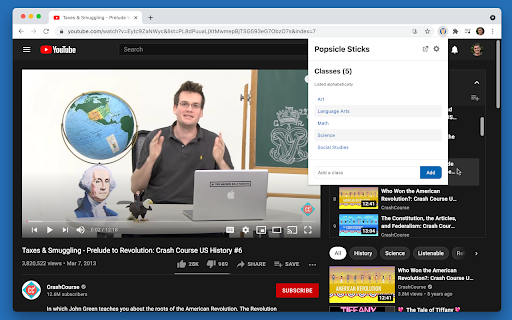

Randomly select a student in your class from any tab Free and ad free! Popsicle Sticks is an easy way to randomly select a student. After cycling through the class, the names are automatically shuffled again to ensure every student gets a chance to answer. - Add and remove classes/periods - Add students one at a time or in bulk - Copy students from existing classes - Saves history so you can click away - Pop out mode for easy projecting - Light and dark mode - Class and student data synced to your Chrome account - Download data for backup

Brisk Teaching – AI Assistant for Teachers
More than 1 million teachers have installed Brisk. Here's what they use it for: More than 1 million teachers have installed Brisk. Here's what they use it for: Create Build lesson plans, quizzes, Google Docs, Forms, and Slides in 30+ languages. Everything saves straight to your Google Drive. Give Feedback Write personalized, rubric-aligned feedback on student work for one student or the whole class at once. Inspect Writing See how students built their work. Replay their writing process to understand their thinking beyond the final draft. Boost Student Activities Create interactive, standards-aligned activities with AI guardrails you set. You monitor progress while students work. Brisk reads the page you're on and works with what's there. Nothing to export, copy, or paste. Why teachers stick with Brisk It fits how you already teach. You don't have to learn a new platform or rework your process. Creating a quiz from a slide deck takes minutes. So does turning a YouTube video into a lesson plan, or writing feedback for 30 students. You stay in control. You set the rubric, the standards, the guardrails. 1. Add the Brisk extension to Chrome and pin it to your toolbar. 2. Open any Google Doc, Slide, or webpage. 3. Click the Brisk icon and start building. Ready to save time and boost your teaching game? Visit www.briskteaching.com and join the 1 million+ teachers who’ve made teaching Brisk!

Annotate: Web Annotations with Screen Sharing
Annotate web pages, PDFs, Google Slides, and Google Docs to improve engagement. Annotate in Google Meet when screen sharing. New in v8.53+ • Support for In-Document questions for converting printable paper worksheets into fully digital assignments. New in v8.22+ • Student note taking on web pages, Google Slides, and PDFs • Student note taking during LiveStreams for Google Slides and PDFs • Livestream student work (Google Slides and PDFs) to student devices and to a classroom display using Chrome Client Lite. • Review student work and provide feedback in real time New in v8.19+ • Livestream support for PDFs and Google Slides • More robust export for web page annotations • General bug fixes Freely annotate web pages, PDF documents, Google Slides and Google Docs content when presenting. Keep your audience engaged with live annotations during your remote learning and Google Meet sessions. New! Annotate PDFs on your Google Drive or on the web by selecting “Open with Annotate”. Annotations are sticky and remain in place as you zoom, scroll, and navigate. The same user interface and annotation tools now work across PDFs, Google Slides, Google Docs, and web pages. With improved compatibility with Google Slides and Google Docs, we track annotations for every slide/ page so your annotations remain in sync as you navigate across slides/ pages. Tight integration with Google Slides and Google Docs also enables switching between app controls/ menus and our annotation tools seamlessly. Our annotations are smooth, fast, and anchored in place as you zoom and navigate, making your content look professional and engaging. Save your annotations in your account for review later. Share them with others or come back and continue working from where you left off. Capture screenshots of marked up pages and insert them directly into your Annotate notebook. All this as you share¹ your entire screen, an application, or just a single Chrome tab with a projector² and multiple student devices. The plugin works seamlessly with your Annotate.net instructor account to enable annotations over web pages and screen sharing¹ during LiveStreams. When installed on classroom devices, you can empower students to take an active role in their learning by giving them the ability to annotate web pages and share their screens using the "Pass Control" feature. Teachers, students, and Google Meet users shall be able to: • Freely annotate web pages, PDFs, Google Slides, and Google Docs using the pen and highlighter tools³. • Annotate PDFs on their Google Drive or on the web by selecting “Open with Annotate”. • Annotate Google Slides in both edit and present modes. Google slides annotations are tracked and saved for every slide. • Save annotations directly into their Annotate web account⁴. • Share their annotations with others⁴. • Capture screenshots of web pages with annotations and add them directly into an Annotate notebook. • Insert images from the web, including image searches, directly into their Annotate notebook with just a click. • Use the laser pointer tool to point out details and draw attention. • Stream their entire desktop screen, a single application, or just a Chrome tab¹. • Stream speaker and microphone audio¹ from their computer to a projector² and student devices. • Select a monitor for sharing if they have multiple screens/monitors connected to their computer¹. ¹The extension provides screen sharing and audio streaming support in your Annotate web account in older versions of Chrome. ²Requires the Annotate Mirror Client v11.0+ or the Annotate Chrome Client Lite running on the PC/ Mac/ Chromebox connected to your projector. ³Feature limitations may apply depending on your account type. Please review https://annotate.net/pricing for the list of features available in different accounts. ⁴Some features are not available in student accounts. New in v7.22+ • Page rotation in PDFs • Blank document/ Infinite canvas support for PDFs and web pages New in v7.00+ • Bug fixes and general improvements Tools and features added in versions prior to 7.0 • Screen Shade tool with Spotlight support • Comments in web pages • Improved compatibility with Canva • Drawing support when toolbar is minimized • Export Google Slides with annotations and media³ • View, add, edit, and reply to comments in PDFs • Export PDFs with annotations and media³ • Add Media (images and videos) • Timer and Stopwatch • Voice notes • Screen + Camera recording • Multi-line Equation Editor • Line, Rectangle (Box), and Ellipse

edpuzzle
Import your favorite educational YouTube video into Edpuzzle with a click! The extension lets you make any YouTube video interactive, by embedding questions (either manually or instantly with Teacher Assist AI), and safe, with no ads, no tracking, and no recommended videos. The extension also includes an amazing screen recording tool so you can create your own educational videos! Record your screen and take your students through a presentation they can watch at their own pace, walk them through a math problem using the interactive whiteboard complete with drawing tools, or use the camera to record a science experiment or any other creative classroom ideas you dream up.

Mote for Google Chrome™
Your AI-powered learning companion - Mote helps everyone to read, write & be heard across Google Workspace and the web. AI-powered tools for reading, writing, and communication—anywhere students learn online. Trusted by millions of educators and students worldwide, Mote empowers students to read, write, and communicate with confidence across any webpage, with seamless Google Workspace integration. What's new? The Mote Sidebar now features three powerful modes that adapt to every learner's needs AND has a Focus Mode to remove visual clutter from web articles, helping readers to stay focused. READING MODE Read Aloud with natural human voices Picture Dictionary & Vocabulary Builder – Click any word for instant definition, illustration, audio pronunciation, and one-click "Add to My Words" for personalized vocabulary growth. Smart Highlighting & Auto-Organization – Five color-coded highlighters (with accessible labels) automatically funnel key terms into your personal vocabulary bank and highlight collections, or export directly to Google Docs. Focus Mode – Adjustable screen mask that reduces visual clutter for better reading focus and comprehension. Instant Translation & Read-Aloud – Highlight to translate and hear natural AI voices in 50+ languages - even when text appears in images. WRITING MODE AI Voice Typing – Fast, punctuation-smart dictation that works in any text box, with context-aware predictive text that grows smarter as you write. Auto-pastes into most websites. Intelligent Text Prediction – Purpose-built for K-12 learners, Mote's AI text prediction supports phonetic spelling and adapts to writing context. CREATING MODE Voice Recording & Transcription – Record your voice, auto-transcribe with AI, and share via link or let Mote read it back in expressive voices or translate to another language. AUDIO UPLOAD Upload pre-recorded audio files and embed them directly into assignments, presentations, and educational content. Core features students and teachers love 🎤 AI Voice Tools – Natural-sounding text-to-speech in 60+ languages, voice typing, and voice recording for human-centered feedback in Google Docs, Slides, Canvas SpeedGrader, or anywhere. 🌍 Multilingual Support – Instant translation and read-aloud in 50+ languages builds confidence and independence for all learners. 🧠 Personalized Learning – Picture dictionary, vocabulary mastery tools, and adaptive text prediction that help students read, write, and comprehend at their own pace. 🔒 Admin & Teacher Controls – Toggle features, view usage analytics, and manage rosters via Classlink, Google Classroom, or CSV upload. ♿ Universal Design – Built-in support for diverse learners including dyslexic, ADHD, multilingual, and students who benefit from assistive technology - no special setup required. How to get started 1. Install the extension 2. Sign up with Google or email 3. Refresh your tab and click the Mote icon 4. Press Play on any text — or try a 5-second voice note in a Google Docs comment Perfect for: - Google Workspace for Education users - Multilingual classrooms and ELL support - Personalized and self-paced learning - Universal Design for Learning (UDL) implementation - Students who benefit from assistive technology
