
llmhgjjbgbbahlfofmnhhoacaghhmdop
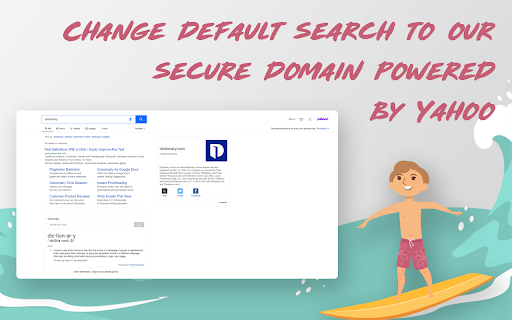


Surf Secure allow parents to customize the default search settings based on user profiles Surf Secure updates default search settings to allow for separate parents and kids profiles. Surf Secure provides parents a simple way to make sure their kids are searching the internet via a properly filtered search engine when the search is made from the address bar. After the extension is installed, parents will need to setup a PIN to access or switch back from kids to parent profile. The PIN protects from kids accidentally switching to parent profile and being exposed to inappropriate content on the internet while searching from the address bar. Extension uses Yahoo as search engine for parent profile and Kiddle is used as the search engine for kids profile.

ZenToons - Online video filter
This extension helps prevent overstimulation in children when they are viewing YouTube, Netflix, and other platforms. It's worth noting that intense colors and stimulating visual experiences can impact children's behavior, similar to the effects of drugs on the brain. ZenToons - Online video filter allow for the application of custom filters to online videos, offering a gentler visual experience on popular platforms like YouTube, Netflix, and many others. - Natural Colors: Reduce vibrant colors for a soothing viewing experience. - Low Saturation: Colors less saturated than "natural colors" profile. - Night Mode: Prepare your child for sleep with dimmed and calming colors, while reducing the blue light, which can help promote better sleep. - No Filter: Disable filters when not needed. 1. Install ZenToons - Online video filter from the Chrome Web Store. 2. After installation, click on the extension icon in your browser's toolbar. 3.Pin the filter to the toolbar using the pin icon 4. Select your preferred filter mode from the dropdown menu. Enjoy safer and more child-appropriate video content. The filter may deactivate after refreshing the page or restarting the browser, but this can be advantageous, especially if a child shares the computer with an adult.

FilterFred YouTube Age Filter
Browse YouTube safely with FilterFred Visit the Website link to see more 👉 Discover a safer and age-appropriate YouTube experience for your children with Filter Fred! This innovative Chrome extension uses advanced AI technology to provide a kid-friendly browsing experience by filtering content based on your child's age group. Key Features: 🤖 - AI-powered content filtering for age-appropriate videos 💻 - Configurable YouTube access schedules to manage screen time 📜 - Viewing history dashboard to monitor your child's online activity 🔒 - Personalized parental controls for a customized experience Get started with Filter Fred in just 4 simple steps: 1️⃣. Sign up for an account 2️⃣. Add the Filter Fred extension to your Chrome browser 3️⃣. Set your preferred controls and age group settings 4️⃣. Activate Filter Fred on YouTube and let the safer browsing begin! 7-day free trial, to find the perfect fit for your family. Keep your kids safe online and promote a balanced digital lifestyle with Filter Fred - the ultimate age-appropriate YouTube experience powered by AI!

SafeBrowse Parent Control
Protect kids from adult and harmful content on the web SafeBrowse Parent Control – Free parental control extension for Chrome. Block inappropriate websites, blur adult images, and filter bad words to keep kids safe online. BEST PARENTAL CONTROL EXTENSION FOR CHROME SafeBrowse helps parents protect children from adult content, inappropriate websites, and harmful material while browsing. Simple to set up, no account required. Your data stays on your device. ✓ Block inappropriate websites – Built-in blocklist of adult and unsafe sites. Add custom sites to block or allow. Block porn, adult content, and any domain you choose. ✓ Blur adult images – Automatically blurs inappropriate images on Google Images and risky sites when kids search adult terms. Safe searches (e.g. school, games) show normally. ✓ Word filter – Replaces bad words and inappropriate language with ***** on any webpage. Customize your word list in the dashboard. ✓ Parent and child profiles – Switch to Child profile when kids use the browser; switch to Parent to browse without restrictions. Each child can have their own profile. ✓ Activity reports and insights – See what each profile tried to access and when. Blocked site attempts, top blocked domains, and per-profile activity. Know what your kids are doing online. ✓ Ask parent – Kids can request access to a blocked site. Parents approve for 15 minutes, 1 hour, or always from the dashboard. ✓ Schedule blocking – Set time-based rules so the web is blocked or allowed during specific hours (e.g. homework time, bedtime). ✓ PIN protection – Lock settings with a PIN so only parents can change rules or switch profiles. ✓ Privacy first – No cloud required. Blocking and filtering happen on your device. Export or delete your data anytime. 1. Install the free parental control extension. 2. Set a PIN and create Parent and Child profiles. 3. Switch to Child profile when your child uses Chrome. 4. Open the dashboard (extension options) to view reports, adjust blocklists, and manage settings. WHO IS SAFEBROWSE FOR? • Parents who want to block inappropriate content for kids • Families looking for free parental controls for Chrome • Anyone who needs to filter adult websites and images • Households with shared computers used by children

TubeGuardian - YouTube Parental Control & Screen Time for Kids
Parental control for YouTube: block videos, set time limits, and more. 📺 TubeGuardian – Parental Control for YouTube Take control of your child’s YouTube experience with TubeGuardian, the ultimate parental control tool built specifically for YouTube. ✅ Block Specific Channels — Add any channel to your blocklist instantly to keep unwanted content away. ✅ Allow Only Whitelisted Channels — Create a safe list of approved channels your child can watch. ⏱️ Set Time Limits — Limit daily YouTube usage to encourage healthy screen time habits. 🚫 Block Shorts and Live Streams — Optional controls to disable YouTube Shorts or live content. 👨👩👧👦 Parent Mode — Password-protected settings and optional email verification for added security. 🔔 Real-Time Monitoring — Detects the currently watched video and shows channel info for easy decisions. 🌐 Privacy-First — No tracking. No data sharing. All controls are handled securely within your browser. 🎯 Designed for Parents, Loved by Families TubeGuardian is simple, lightweight, and focused — built to give parents peace of mind without overcomplicating the YouTube experience. 🛡️ Privacy & Safety TubeGuardian does not collect or sell personal data. All features are designed to respect your family’s privacy. See our Privacy Policy and Terms of Service for details.
