
lgdjbhmmimmgenckodpogdgakjepiicm
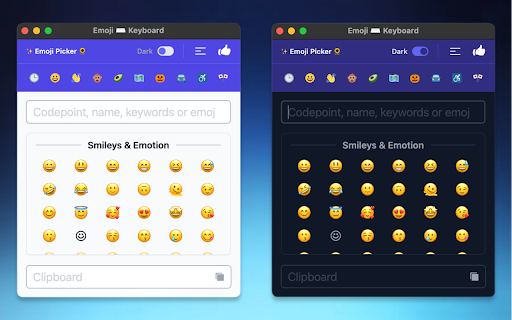
Emoji Picker is a free extension, enables the integration of emojis directly. Multi-language fast search and developer-friendly. We've made sure you search for your favourite emoji in your own language. And for developers, we have added technical data. Enjoy it.

Simple Color Picker
A Simple Color Picker extension to pick colors and copy them to clipboard A Simple Color Picker extension is a tool that allows users to easily select and copy colors from any part of their computer screen. This can be useful for a variety of tasks, such as web design, graphic design, and digital art. How to use ? 1. Add the Simple Color Picker to chrome through Chrome Web Store 2. Pin the extension 3. Click on the extension and click the Pick a color button 4. Now you can move the eyedropper to and select any color on any screen 5. The selected color will be stored and user can easily copy the HEX code by clicking on it and paste it anywhere 6. User can store multiple colors 7. When Clear All is clicked all the colors stored will be deleted Highlighted Features - Select colors from any part of the screen - Store multiple colors - Can easily copy and paste - Clear All the colors in a click Overall, A Simple Color Picker extension is a convenient and easy-to-use tool for anyone who needs to work with colors on their computer. It can save time and effort by eliminating the need to manually enter color values and can be helpful in any industry where color is important. IMPORTANT We don't collect any user data and we don't display any ads

Copy Emoji: Emoji Keyboard, Emoji List & Instant Copy
Fast emoji keyboard, emoji list, and instant emoji search. Quickly browse the emoji list, search, and copy emoji to clipboard. Copy Emoji is the fastest and easiest emoji keyboard for Chrome! Quickly search, browse the emoji list, and instantly copy emoji to make your messages, social media posts, emails, and documents more fun and expressive. 🧩 This extension lets you copy emoji quickly from a handy popup in your browser. Whether you already know which emoji you want or just want to explore, Copy Emoji is here to help. 🚀 Instant Emoji Search: Can’t find the right emoji? Just type a word like "smile," "heart," "food," or "car" into the search bar. Our smart emoji finder shows you matching emojis right away. It’s the easiest way to do an emoji search! 🖱️ One-Click Emoji Copy: Just click any emoji you see in the list or search results, and it will be copied to your clipboard. Then you can easily paste emoji anywhere—on websites, in chats, or in documents. 📚 Full Emoji List: Browse through a full and well-organized emoji list. Emojis are sorted into clear categories like Smileys & People, Animals, Food, Travel, Objects, Symbols, and more. Finding the right emoji has never been easier. 🎨 Light and Dark Themes: Choose the look you like best. Use a clean Light theme or a sleek Dark theme to match your Chrome style. Switch themes any time from the popup. 🧲 Easy-to-Use Popup: Access Copy Emoji directly from your Chrome toolbar. Quickly find and copy emoji without leaving your current page. ⚡ Fast & Lightweight: Enjoy a speedy, lightweight emoji keyboard extension that won't slow down your browser. It’s always ready to use. ⏱️ Save Time: No more searching the web for emojis. Do a quick emoji search, find what you need, and copy emoji instantly. 💬 Make Messages Fun: Add emotion, style, and fun to your texts, posts, and comments with the perfect emoji. 🧰 Always Ready: Your emoji keyboard, emoji list, and search tool are always just a click away in Chrome. 👌 Simple Design: No setup needed. Install and start using it right away. The interface is clean and easy for anyone to use. 🌟 Great for Everyone: Whether you’re a social media manager, writer, student, or just someone who loves emojis — Copy Emoji makes it easy to find and copy emoji anytime. 1️⃣ Click the Copy Emoji icon in your Chrome toolbar. 2️⃣ Search: Type keywords in the emoji search bar to quickly find emoji. 3️⃣ Browse: Browse the emoji list to explore all categories. 4️⃣ Click: Click on any emoji to copy emoji to your clipboard. 5️⃣ Paste: Use Ctrl+V (or Cmd+V on Mac) to paste emoji where you want. 6️⃣ (Optional) Switch themes with the toggle button in the popup. 🙌 No more emoji struggles! Get Copy Emoji today and enjoy the fastest way to do emoji copy and paste in Chrome. The best emoji keyboard, emoji list, and emoji search extension for Chrome.

Favorite Emojis Copy Popup
📋 Streamline work with Favorite Emojis Copy Popup: easily copy and paste emoji, special characters and text snippets! 🌟 Boost Your Productivity with Favorite Emojis Copy Popup: The Ultimate Tool for Effortless Symbol Insertion Are you tired of wasting time searching for special characters, struggling with formatting, or crafting lists in your documents? The Favorite Emojis Copy Popup Chrome extension is here to streamline your workflow and give you complete control over your favorite symbols. Perfect for anyone who needs quick access to frequently used characters, this extension works seamlessly across Excel, Google Docs, Google Slides, and more. 🚀 How Does Favorite Emojis Copy Popup Work? 1️⃣ Quick Symbol Shortcuts Configure up to 3 keyboard shortcuts for your most-used symbols or custom text: ➔ Click Set next to any shortcut to configure the keyboard combination. ➔ Click the symbol box to edit the symbol or text for that shortcut. ➔ Use the shortcut anywhere to instantly insert or copy the symbol. 💡 Pro Tip: When in a text field, the symbol will be inserted directly at your cursor. Otherwise, it will be copied to your clipboard with a notification confirming the action. 2️⃣ Favorites Popup for Quick Access Save up to 32 favorite symbols for fast and easy access: ➔ Click any empty slot (+) to add a new symbol or custom text. ➔ Hover over existing symbols to reveal options for copying or removing them. ➔ Click on a saved symbol to edit or replace it anytime. ➔ Use the favorites shortcut (Alt+V by default) to quickly open the popup. ⚠️ Note: Symbols and custom text are limited to 4 characters maximum, ensuring clean and concise formatting. Moving, Pinning, and Resizing the Favorites Popup The favorites popup is designed for flexibility: • Move the Popup: Use the drag handle (⋮⋮) at the top to drag and drop it anywhere on the page. • Pin the Popup: Click the pin icon (📌) to keep the popup visible even when clicking outside. Click again to unpin. • Resize the Popup: Drag the resize handle (◢) in the bottom-right corner to show more or fewer symbols. The popup will automatically adjust to fit the visible symbols. 💡 Note: The popup remembers its size between sessions. Symbols that don’t fit in the current size will be hidden until you resize the popup. 3️⃣ Insert or Copy: Two Ways to Use Your Symbols The flexibility of Favorite Emojis Copy Popup lies in how it lets you use your favorite characters: • In Text Fields: The symbol is inserted directly at your cursor position. • Outside Text Fields: The symbol or text is copied to your clipboard, with a notification confirming the copy action. 👨💻 Pro Tip: This extension is versatile enough to handle more than just symbols! Use it for emojis, checkmarks, short phrases, or even bullet points to speed up your workflow. 🦾 Save short terms or custom text (up to 4 characters), such as “Hi” or “OK,” to use them as shortcuts in your writing. ✨ Why Use Favorite Emojis Copy Popup? This extension isn’t just about symbols—it’s about creating a seamless experience when working with special characters, lists, and formatting. ➤ Save Time: Stop searching for the right symbol or figuring out how to add special characters in spreadsheets or documents. ➤ Stay Organized: Keep your most-used symbols or text just a shortcut away. ➤ Boost Productivity: Whether you’re making a report, presentation, or spreadsheet, this tool ensures you get it done faster. 🛠️ Perfect for Every Platform The Favorite Emojis Copy Popup extension works smoothly across all popular tools and platforms like Google Slides, Excel, Word, Google Docs, Notion, and more. 📌 Common Uses for Favorite Emojis Copy Popup Symbols are essential for making information clear, organized, and easy to read. Here are some examples of how you can use them: ➤ Notes: Organize brainstorming sessions, meeting agendas, or lecture notes with clarity using symbols or bullet points. ➤ Blog Posts: Format articles with symbols or bullet points for better readability and scannability. ➤ Spreadsheets: Use symbols in Excel to create cleaner, more structured data entries. ➤ Project Management: Streamline to-do lists, task tracking, and action plans with consistent, formatted symbols. ➤ Content Creation: Add creative symbols to social media posts, email campaigns, or marketing materials for a unique touch. 💡 How to Insert Symbols in Google Slides, Excel, or Word One of the most common struggles is figuring out how to add special characters in Excel or how to use symbols effectively in Google Slides. With Favorite Emojis Copy Popup, it’s easier than ever: • Use the hotkey to insert symbols directly into text fields in Excel or Google Docs. • Open the favorites popup to copy and paste symbols into tools like Google Slides, Notion, or any app. • Customize your keyboard shortcuts to match the specific symbols or text style you need for your project. 🎯 Transform Your Workflow Today with Favorite Emojis Copy Popup Say goodbye to formatting frustrations and hello to effortless productivity with the Favorite Emojis Copy Popup extension. Whether you’re dealing with symbols in spreadsheets or organizing your notes with clear bullet points, this tool is designed to enhance your efficiency across platforms. Streamline your tasks and elevate your document formatting with ease!

Gitmoji Browser Extension
The Gitmoji extension to easily search and copy gitmojis 😜 This extension allow to easily search the gitmoji you want to use and then copy its shortcode or the emoji in your clipboard. Lean more about the features on https://github.com/johannchopin/gitmoji-browser-extension
