
leelcgmlfncnjldfomkmpefndongkijg
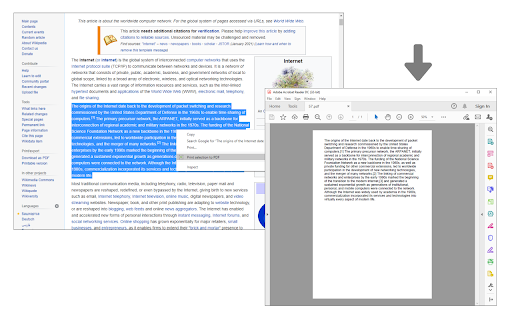
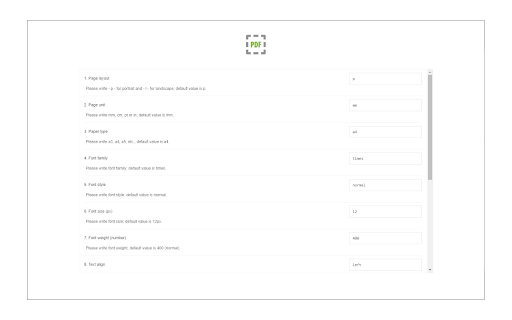
Select a text and print it to PDF via mouse right-click. Print Selection to PDF is an extension that helps you print a selection of words or sentences to a PDF document. To work with this addon, simply select a word or sentence with your mouse, right-click on the selection, and then click on - Print Selection to PDF item. The selection (only the text content) will be downloaded as a PDF document to your machine in the default download folder. If you want to change the download folder, please head to the settings page in your browser and change the download folder from there. There are also several settings to adjust for this addon which you can find on the options page. For example, you can adjust the page layout, unit, type, font family, size style, etc. Note: This add-on uses the jsPDF library to print a document to PDF. jsPDF is a free and open-source client-side JavaScript PDF library; to get more information about this library please visit this (https://github.com/parallax/jsPDF) GitHub page. To report bugs, please fill out the bug report form on the addon's homepage (https://mybrowseraddon.com/print-selection-to-pdf.html).

Print Image Pro
This extension allows you to scale an image to fit the page before printing it. This extension allows you to print any image stretched to fill the paper. Ideal for printing photo's and coloring pages. This is done as follows: right-click on the desired image and select 'Print Image Pro'. A preview window is openend which displays how this image is stretched to fit the page. You can then press print to send the image to the printer. There are 3 printing modes: color, grayscale and black/white. There is even a toner-save slider. Landscape images are automatically rotated to fit the paper.

Save as PDF
This add-on allows you to easily save web pages as PDF. It adds an icon to your browser's toolbar, which you can click to save the current page as PDF. The add-on is powered by the PDFCrowd HTML to PDF online service. *Please note* that for security reasons, it is not possible to create PDFs from pages that require a login, such as your webmail inbox, online banking, shopping cart contents, payment checkouts, and similar sites. Learn more about how the add-on works at https://pdfcrowd.com/save-as-pdf-addon/ If you need support or have suggestions, please visit https://pdfcrowd.com/contact/.

Make the page printer friendly with customizable options Print Friendly and PDF any Webpage Save Paper and Ink now. This removes ads, navigation and junk before you press print. Pages are optimized for the ultimate reading experience. Edit Before saving to PDF/printing out the page Click-to-delete any content first to save on ink. Remove all images or individual images. Change the text size from larger to smaller. Generate PDFs for archiving, sharing, or saving. PDFs include clickable links, and source URL so you can continue to interact. * Preview the page * Save as PDF * Email Page * Remove Images and text you don't want * Change font size

Veeva Web2PDF
Create a PDF of your website that captures user interactions and links. We understand that dynamic and interactive elements can make up a large portion of your website. Dynamic elements are any aspects of a webpage that may not be displayed immediately as the page loads, such as an image slider, dropdown menu, or questionnaire. These elements are usually JavaScript-based and may require some user interaction. You can browse your site and drop hints along the way with Hintify mode. Right click on anything you want to add a hint to and the Veeva Web2PDF Chrome extension automatically translates your clicks into hint actions that you can easily preview by generating a PDF directly from the Chrome extension. These hints are saved locally to your computer and you can share them with others by downloading a .json file from the Hint Tab. You can also download your hints as a .js file to make them permanent on your website via touchless hints. To learn more, please visit https://www.veevaweb2pdf.com.
