
ladceggegjmncgmjnnenegojgcinflci
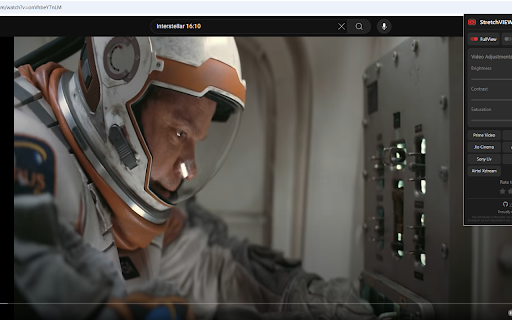


Remove black bars from streaming videos. Control aspect ratio, use PiP mode, and enhance video playback on popular platforms. Remove annoying black bars from video to fit your screen resolution.

Zoom Video - UltraWide Fill
Zoom Video Chrome extension is designed to eliminate black bars from videos across popular streaming platforms like Netflix, Amazon Prime, Disney+, HBO Max, YouTube, and more. Additionally, it provides the option to adjust the aspect ratio of any video, enabling you to enjoy content in full screen on your ultrawide monitor. Why do you need Ultrawide Video extension? It's for everyone who wants power over the video aspect ratio. This extension is primarily for Ultrawide Video monitors, but that does not mean it's only good for it. You can manipulate the video's size that contains horizontal or vertical black bars and let the video fill your entire screen for a better experience. Here's how to utilize it: 1. Install the extension from the Chrome Web Store. 2. Navigate to a website containing videos. 3. Click the extension icon located in the upper right corner of your browser. 4. Choose your desired aspect ratio. The video will be resized to fit the chosen aspect ratio. Although primarily intended for ultrawide screens (21:9, 32:9), this extension is compatible with any resolution and video. It proves particularly beneficial for 16:9 screens, enhancing the experience with 4:3 videos. Select a predefined aspect ratio (16:9, 18:9, 21:9, 32:9). Selecting it again will reset the video aspect ratio to the original size. This extension enables the support for 21:9 monitors on YouTube, Netflix and others video sites full screen mode. It is great for wide aspect ratio videos, that have black bars at the top and bottom and don't scale correctly. Automatic aspect ratio detection This feature ensures that video will be cropped without you having to lift a finger. It runs continuously and will even detect aspect ratio changes that happen in the middle of the video. You can also use shortcut keys to do everything, they can be customized on Settings page. Define single keys for multiples aspect ratios or define multiple keyboard combos separately also. Notable features include: Elimination of black bars from videos on various websites. Ability to modify the aspect ratio of any video. Compatibility with ultrawide monitors. Your support is appreciated; if you find the extension valuable, kindly consider rating it with 5 stars on the Zoom to Fill extension.

Theater Mode Pro – Fullscreen for YouTube
One-click theater mode for YouTube, Twitch, Netflix & any web video. Dim the page, fill the screen, watch immersively. 功能描述(Description): —使影片填充整個瀏覽器畫面 —(Let the video fill the browser view) 使用說明(User guide): —已啟用(Enable): 插件按鈕為紅色(The color of the extension button is red) —已停用(Disable): 插件按鈕為灰色(The color of the extension button is gray) —步驟一(Step 1): 點擊插件按鈕以啟用(Click the extension button to enable the feature) —步驟二(Step 2): 點擊影片全螢幕按鈕(Click the full screen button of the video) —步驟三(Step 3): 享受劇院模式(Enjoy the theater mode) —※若您想使用傳統全螢幕而非劇院模式, 點擊插件按鈕停用即可 —(If you want to watch the video in whole screen, click the extension button to disable the feature) —※當發生以下狀況, 插件將自動停用: (1)切換Chrome頁籤(2)切換不同的Chrome視窗(3)瀏覽器全螢幕 —(The extension will disable automatically when encountering the following situations: (1)Switch to another chrome tab(2)Switch to another chrome window(3)Browser full screen)

YouTube Inline Fullscreen
Make the most out of your screen space with a single click! This extension gives you a true fullscreen YouTube experience without forcing your browser into fullscreen mode. Enjoy videos that fully use your screen real estate, while still keeping comments, suggestions, and other features accessible. - Inline Fullscreen: Expand the video to fill your browser window, no borders or sidebars. - Responsive Layout: Keep comments, recommendations, and other elements within reach. - Fast Toggle: Instantly switch modes with a custom button in the player or a quick keyboard shortcut. - Customizable Settings: Click the extension icon to fine-tune the behavior to your liking. *Note*: After installing, please reload YouTube for the new player button to appear. 1.3.9 - Pressing "t" now exits fullscreen mode - Made auto enable and theater mode detection more robust. 1.3.5 - Searchbar hide bugfix - Made auto fullscreen more reliable - Fixed a case where the button would not be added 1.3.3 - Now ignoring modifier keys for shortcuts - Made shortcut editable 1.3.2 - Changed fullscreen shortcut from w to d to avoid conflicts with YouTube’s default shortcuts 1.3.1 - Added "Show Player Button" preference - Settings now take effect immediately after changing them - Now checking if content scripts are installed when opening the settings popup - Fixed a bug where autoEnable would fail if player is in default mode - Fixed theater mode preference not being properly restored 1.3.0 - Added Settings screen when clicking extension icon - Added Automatic Fullscreen option - Searchbar automatically shows/hides when in fullscreen. Similar to the seekbar.

Ultrawidify
Removes black bars on ultrawide videos and offers advanced options to fix aspect ratio. Removes unnecessary black bars from the videos. Youtube and Twitch are officially supported by default. You can enable it for other sites as well, but support for other sites is not guaranteed. 1️⃣ Automatic aspect ratio detection (not supported on websites that utilize DRM. You may want to turn this option off when on battery power or when experiencing performance issues) 2️⃣ Crop to aspect ratio 3️⃣ Stretch video 4️⃣ Zoom video to aspect ratio
