
kmpjlilnemjciohjckjadmgmicoldglf


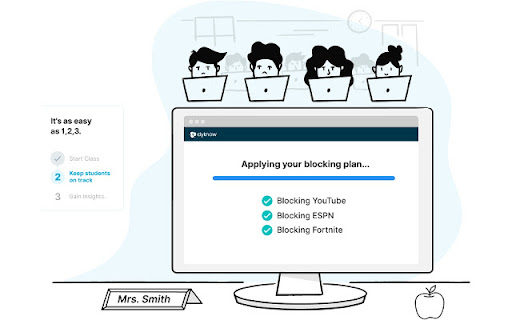

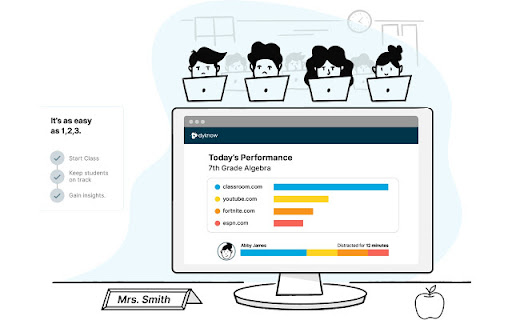
The Chromebook extension for Dyknow Cloud. This extension is required for customers using Dyknow Cloud to monitor Chromebook devices. For help or more details, please contact us at support@dyknow.com

Dice Thrower
Why roll it if you can throw it? A dice throwing app with a purpose. Packed with amusing animations, sound effects, and constantly changing background colors, this is the ideal dice rolling app for the classroom and family game night. To start throwing the dice, simply click the icon in the top-right of your Chrome browser to open the extension's mini-window. Press the keyboard or click the mouse to throw up to nine dice at once. 2022 Update: Thank you for throwing dice! This extension was created many years ago by a student now entering their first semester at university. Please consider supporting their tuition at http://paypal.me/cameronjsamuels

classroom.cloud Student
classroom.cloud delivers a set of stress-free, simple yet effective cloud-based teaching, online safety/safeguarding and technician… classroom.cloud delivers a set of stress-free, simple yet effective cloud-based teaching, online safety/safeguarding and technician tools that help deliver engaging and meaningful learning experiences for students in a safe online environment – no matter the location of you and your students! Perfect for schools and districts, the Student extension can be easily deployed by the IT team to the schools' managed Google accounts enabling you to connect instantly and securely to the students' Chrome OS devices from the classroom.cloud Administrator and Teacher portals. If you are yet to create your classroom.cloud account, please visit classroom.cloud\signup to get started. Choice of flexible connection methods - connect to a pre-defined group of student devices or on the fly using a Class Code. Open a watch window to zoom in and take a closer look at activity on a single student device. You can view the open Browser and prompt students to share their full desktop. (The latter can be disabled if you prefer to remain with the browser capture only.) Ask students to register with their names at the start of a class. Present students with the lesson objectives and their expected learning outcomes. Broadcast the teachers screen and audio to connected student devices to help show/talk them through explanations and lesson activities. The teacher can mute the audio playing in the active browser window on student devices. Get a feel for students’ understanding of the topic you’ve just taught them by sending out a quick survey for students to respond to. Chat, send a message, and support your students via prioritised help requests – all without their peers knowing. Acknowledge examples of good work or effort by assigning rewards to students during the lesson. The teacher can randomly select students to answer a question during a Q&A session. Choose the websites they can and can't see or block all website access. See details of the website that students are currently viewing to check they are focused on the task at hand. Save yourself a heap of time and maximize lesson time by launching a website on the student devices. Keyword and phrase monitoring: The Safeguarding/Online Safety tools help you protect students from being exposed to inappropriate online content. It alerts staff when students type or search for any terms that match with those in the classroom.cloud keyword database (multiple languages supported) – providing safeguarding and internet safety indicators for self-harm, bullying, sexual and criminal exploitation, and much more. Staff can also manage the pre-populated list in the classroom.cloud web portal and add any additional ones they feel are appropriate. For focused monitoring of specific year groups or students considered vulnerable, you can create groups of student devices and apply specific settings to them. Dedicated safeguarding/online safety user roles can be assigned to the required staff members and is given to classroom.cloud Administrators by default. Reporting Concerns: Using the Safeguarding/Online Safety button on their device, students can report concerns in confidence to a trusted member of staff via the Report a Concern option. The component also offers students who do feel vulnerable instant access to a list of relevant online resources should they want to seek external help with a particular problem or concern. Please note: The Safeguarding (Online Safety) tools are free to use during your evaluation period and are an optional extra when you purchase classroom.cloud. classroom.cloud also provides school IT teams with a range of tools to deliver pro-active support and to help monitor activity across the network. View Student Desktops The 'Watch' feature is available to classroom.cloud Administrators and Technicians, allowing them to view activity at a selected device. Inventory The Inventory tool lets you retrieve a real-time view of the hardware and software installed on each school device. Audit Log The Audit Log provides a central record of actions taken and system changes made by classroom.cloud users. Activity Monitor The Activity component provides a single chronological view of user login sessions, application usage, and internet usage for all available classroom.cloud devices. Acceptable Use Policy Distribution classroom.cloud Administrators can create custom Acceptable Use Policies and assign them to specific user groups. When the user signs into a Chromebook, any policies requiring their acknowledgement will appear. A dedicated user role for school techs can be assigned to appropriate staff members but access is automatically given to classroom.cloud Administrators. A step-by-step guide to managing and deploying the classroom.cloud Student extension using the Google Admin Console is available on our website. The classroom.cloud Privacy Policy can be viewed at: classroom.cloud/privacy-policy/ Latest updates and fixes in version 3.10.0.0: - Performance and operability enhancements

Mobicip Parental Control with Screen Time
Create a safe experience for your family using Mobicip's powerful parental control software with internet filter and screen time. Mobicip is the most popular Internet filter and screen time parental control software for families to enjoy a safe and secure experience on Chromebook. With Mobicip, parents can: - Filter the internet & block objectionable content - Limit screen time - Monitor browsing history & online activity - Use intuitive web portal or mobile app in Parent Mode, 24x7 on the go Take charge of your family’s digital experience! Enjoy quality family time with Mobicip, the perfect app for today’s “constantly connected” digital family. 1. Set daily screen time limits on your child’s Chromebook to ensure healthy levels of digital immersion and manage bedtime and family time; or set recurring weekly screen time schedules. 2. Block websites, keep a watchful eye and draw a healthy boundary around the web. Stay on top of the usage/browsing history to spot online threats. Block pornography, gambling, violence and other inappropriate web content. 3. Instantly lock all devices for dinnertime or family-time. 4. Check your kids' browsing history on the go or set up weekly or daily reports to see a snapshot of their browsing trends. 5. Invite another parent to help manage and be informed of your kids' digital experience and ensure digital safety. 6. Keep track of the entire family's devices through an intuitive dashboard on the web or mobile 24x7 on the go. Family Time allows parents to lock down all the family devices instantly with a single touch for a certain period. Now family meals, bedtimes, family interactions and outdoor time can be completely device-free & without distractions! As your children and teens move across a wide variety of devices, Mobicip allows you to monitor and control all such devices irrespective of the platform or OS. “Mobicip is designed for the modern multi-device family, and its range of supported platforms is impressive” - PCMag. Parents can choose from our annual pricing bundles: $49.99 for 5 devices, $89.99 for 10 devices, $124.99 for 15 devices, & $159.99 for 20 devices. As an introductory offer, the 5-device plan is offered at $39.99 per year. Please visit our helpdesk (www.mobicip.com/support) for how-tos, videos, and articles. For additional assistance, contact us at support@mobicip.com.

iboss Classroom Management
The iboss platform enhances Google Classroom by adding more tools to help you manage student learning activities remotely, from any location. Whether you are in a brick-and-mortar classroom or teaching from a remote location, iboss Classroom Management empowers instructors with the tools to ensure students are focused on their assignments. The iboss platform natively integrates with Google Classroom to take full advantage of its capabilities. This integration enables you to visually monitor the screens for all of the students in any of your classrooms and manage student’s browsing activities, ensuring that they are focused and engaged on your lesson.
