
kjdgcmmoaeifmefdlibkadebnlknhbjo
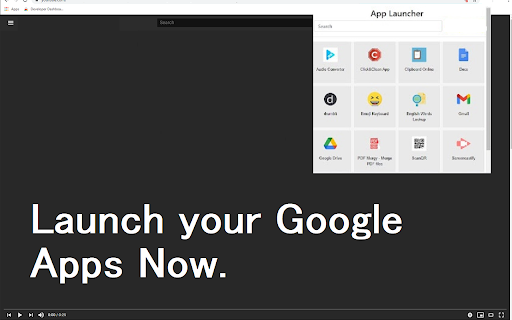

FREE! Quickly access all your Chrome applications. This extension provides quick, easy access to all your Chrome apps. The Launcher for Chrome Apps extension provides a quick and easy way to access your installed Google Chrome applications. Get instant access to your Chrome Apps once you install this chrome extension today. Disclaimer: Please note this extension is NOT made by Google and is made by an independent development team. All copyrights belong to their respective owners. Google doesn’t endorse or sponsor this extension. Apps Launcher for Google Chrome™ is not owned by, is not licensed by and is not a subsidiary of Google Inc.

GLaunch
GLaunch is a simple tool which provides a popup panel linking to various Google services - Chrome Extension. GLaunch is a simple extension that provide a popup link panel to numerous Google services. Services can be quickly filtered by typing the name of the desired service name. GLaunch can be used as your new tab page, opened as a new tab or standalone window along side the Chrome extension panel. Features: - Improved Material based Design. - Quickly search and find Google Services (+ Quick actions to common functions). - Ability to add custom links. - Filters services as you type. - Links open in a new tab (+ Incognito window support). - Open with Key binding (CTRL + SHIFT + Y) or customise to your own preference. - Discover Google Services you did not know existed! - Right click context menu based quick searches for Google Maps and YouTube. - Select & Search; you can use GLaunch to highlight an address and right click to search Google Maps. - Select & Search; You can also highlight sentences and search Youtube for videos. Please note that the icons used to represent each service are the official icons by Google they were sourced from the service itself. Any of the trademarks, service marks, collective marks, design rights or similar rights that are shown, mentioned or cited on the extension are the property of their respective owners and not of Integrated Brands, its contributors or visitors. The word mark, "Google" and the logo, and any associated service logos are copyright. The copyright is held by Google.

Extensions Manager for Google Chrome™
FREE! Easily manage all installed extensions in the browser directly from the chrome window. Manage extensions, Quickly enable/disable your extensions. - Enable/Disable extensions by checking/unchecking the ticked box - Find out whether the extension is running on this current website - Sort through your extensions via the scroll bar - Go to the options page of each extension - Go to the details page of each extension Use this manager software to enable/disable your extensions quickly. Disclaimer: Please note this extension is NOT made by Google and is made by an independent development team. All copyrights belong to their respective owners. Google doesn’t endorse or sponsor this extension. This extension is not owned by, it is not licensed by and is not a subsidiary of Google Inc.

Extension Manager
Extension that manages other extensions If you have tons of extensions but don't want to leave them all on at the same time - this extension is for you. You can use this to turn them on and off. Ctrl+L is the default keybinding to open the popup Move with arrow keys Press enter to turn toggle extensions on and off This is mostly for personal use but if you find it useful as well then great :)

Shortcuts for Google™ Products
The "Shortcuts for Google Products" extension lists all Google products in your browser's toolbar popup. Clicking on an icon will open the product in a new tab. Operation: Click: Opens in a new active tab next to the current tab Shift + Click: Opens in a new window Ctrl + Click or Command + Click: Open in a background tab next to the current tab Updates: 1. Drag & drop to re-arrange your icons. 2. Re-size popup and also icons. 3. Add a new custom product to the list Notes: 1. In order to change the popup width, please enter an integer value from 5 to 24 in the designated space. This value represents the number of columns in the popup. 2. In order to change the icon's size, please enter an integer value from 16 to 64 in the designated space. This value represents the icon size in pixels. 3. in order to see the new icons after each update (not for the first install), you need to reset the toolbar popup once. To do so, open the toolbar popup, click on the settings icon at the bottom left corner, and then click on the reset button.
