
kflkpdnjoccoknecjipnjeokahflebgo
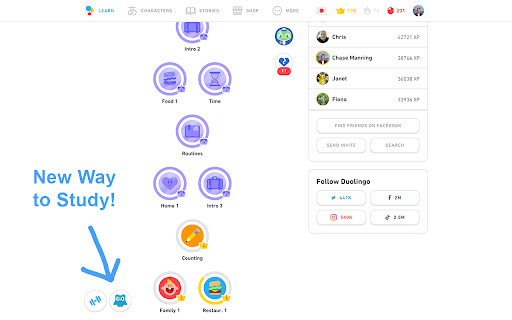
A Chrome Browser Extension to Add Spaced Repetition to Duolingo Spaced repetition is an evidence-based learning technique that has been proven to increase the rate of information retention. It works by presenting the user with new and more difficult lessons more frequently, while older and less difficult lessons are shown less frequently in order to exploit the psychological spacing effect :brain: It is commonly used for studying languages, however good tooling currently only exists for flashcard based studying systems such as Anki and SuperMemo. The Duolingo Spaced Repetition extension aims to bridge the amazing power of Duolingo with the proven methodology of spaced repetition by introducing a new study mode! :sparkles: Simply install the extension and you will see a new study mode button for spaced repetition. Use the new study mode and it will auto select your study lessons based on what evidence shows will help you retain information the best! :tada:

Duolingo Annoyance Blocker
Remove annoying stuff from Duolingo such as pop-up ads, mid-lesson motivation cards and 'let's review missed exercises' card Click on the extension to open the settings menu and configure what annoys you - disable pop-up ads, mid-lesson motivation cards or 'let's review missed exercises' card. Or all of them. The settings are synced with your Google account.

Duolingo Memo
Remembers and auto-fills your answers on Duolingo. This extension was originally conceived with the intention of addressing the tediousness of some Legendary Challenges. For each Legendary Challenge (and inside a same unit), the exercise pool is quite reduced, and you're only allowed two mistakes. This makes retrying a Legendary Challenge specially annoying, since you'll most likely have to retype the same answers over and over again. This extension aims to solve that problem by remembering your correct answers and automatically filling the input with the remembered answer. Legendary challenges contain almost exclusively exercises of type "Translate", that is, those where you must translate the proposed sentence by typing the answer in the input. Nevertheless, the extension has been expanded to support other types of exercises and it will continue to be expanded in the future.

Duolingo Unicode Normalizer
Duolingo expects answers to be NFC-normalized strings (see the Unicode Normalization FAQ here: http://unicode.org/faq/normalization.html). But, depending on the input method, those values may contain decomposed characters, making them internally different from their normalized versions. For example, the Vietnamese word một (one) can be written in (at least) 3 different ways: một : m \u1ED9 t (NFC) một : m \u00F4 \u0323 t (VN keyboard) một : mo \u0323 \u0302 t (NFD) The extension aims to prevent false positives in typo detection by automatically normalizing relevant inputs.

Duolingo TTS Controls
Provides playback controls for some of the challenges on Duolingo. For more detailed information, screenshots, or if you have any support request, visit the development page of the extension here: https://github.com/blmage/duolingo-tts-controls - Adds controls to each sound of the listening / speaking / translation challenges. - Full controls are available by hovering over the buttons or using the keyboard shortcuts, and feature: - a rate (speed) slider, - a volume slider, - a seek bar, - a play/pause button, - a stop button, - a "pin" button (to define the current position as the new starting position). - Strives to blend seamlessly in Duolingo's UI, and to be compatible with custom themes such as Darklingo++. The selected control panel is identifiable by the keyboard icon that is added next to its buttons. In order to use the keyboard shortcuts, the selected control panel must be focused by pressing [ Ctrl ]. Once focused, the keyboard icon becomes highlighted, and you can use: - [ Ctrl ] to focus back the answer input, - [ Tab ] to select (and focus) the next control panel, - [ ] to decrease / increase the playback rate (speed) (or [ Ctrl ] + [ ← ] / [ → ]), - [ ↓ ] / [ ↑ ] to decrease / increase the playback volume, - [ ← ] / [ → ] to move the position backward / forward, - [ 0 ] .. [ 9 ] to set the position at 0 .. 90% of the duration, - [ Home ] to set the position at the start, - [ End ] to set the position at the end (think of it more or less as a stop button), - [ Space ] / [ k ]to play / pause the sound (or [ Ctrl ] + [ ↑ ]), - [ p ] to "pin" the current position (the sound will now start from there each time it is played) (or [ Ctrl ] + [ ↓ ]). Shortcuts behind parentheses are provided as alternatives for when the main ones are not available. This can happen for example when a "keyboard-aware" word bank is available for the current challenge. - The extension is deeply tied to the inner workings of Duolingo, meaning that significant changes on their side could (temporarily) break it. If that happens, you can either: - wait for me to fix it (you can open an issue on the support page if there is none about it yet), - if you're a developer, try to fix it yourself, then open a related PR on the development page. - Due to hard limitations with the underlying technology (sounds are not accessible via Ajax requests, preventing us from using the Web Audio API), the volume can not be raised over 100%. Duolingo is a registered trademark of Duolingo, Inc. This extension is not affiliated with or endorsed by Duolingo, Inc.
