
kedlbojealkpdllmgjeciofngjeokhno


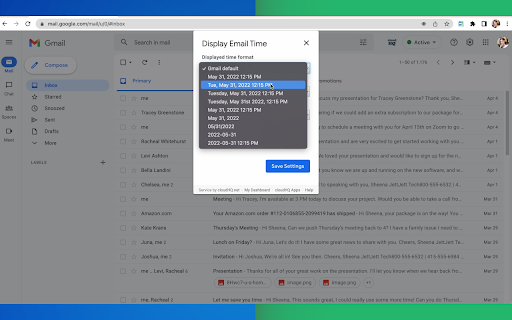

Show full date and time of email messages in Gmail Gmail shows the date and time of an email in the last column of your inbox. Depending on how old the email is, the display date format changes, which can cause confusion and oversights. This extension shows *the exact* date and time of your emails–no more confusing information like: showing only time, showing only date, time locale, etc. With Display Email Time, you can easily alter how you see your email date and timestamps in Gmail with these features: ✅ Custom date and time formats ✅ Custom font styles ✅ Custom font sizes ✅ Custom font colors ✅ Custom background colors You can select from a variety of display email formats. Great if you prefer: 🗓️ Date and time format consistency 🗓️ Time Locale 🗓️ Your email weekday format displayed alphabetically 🗓️ The day and month sequence reversed for international users 🗓️ Bold, Italics 🗓️ Larger or smaller sized fonts 🗓️ Different font or background colors Give it a try and see how you like it. This is part of cloudHQ's ecosystem of over 50 freemium email productivity apps that can be found on https://cloudhq.net/apps, where we're happy to welcome you as part of our family to help you work smarter, not harder. cloudHQ. Helping your productivity, 1 click at a time. cloudHQ website: https://www.cloudhq.net Website: https://www.display-email-time.com/ Pricing: https://www.display-email-time.com/pricing Support page: https://support.cloudhq.net/category/browser-extensions/display-email-time/ Support email: support@cloudhq.net Blog: https://blog.cloudhq.net

Gmail Message Preview by cloudHQ
Do you want to be able to see your emails quickly, without having to actually open them? Now, instead of just reading the subject headline of your emails, Gmail Message Preview lets you preview your emails in 4 different ways. You can preview your inbox emails without actually opening them with the following choice of views: ✔️ 1st line of your email ✔️ First 2 lines of your email ✔️ First 3 lines of your email ✔️ Entirety of your email This lets you quickly scan your emails without ever even clicking on them. And Gmail Message Preview by cloudHQ will never trigger "tracking pixels" - we will block *ALL* tracking attempt during previewing an email. cloudHQ. Helping your productivity, 1 click at a time. cloudHQ website: https://www.cloudhq.net/ App website: https://www.gmail-message-preview.com/ Pricing: https://www.gmail-message-preview.com/pricing Support page: https://support.cloudhq.net/category/browser-extensions/gmail-message-preview/ Blog: https://blog.cloudhq.net Gmail and Google Workspace are trademarks of Google LLC. Use of these trademarks is subject to Google Permissions.

Gmail Tabs by cloudHQ
Which can be time-consuming when scrolling through your labels in order to find the one you want. Cut the time you spend sorting through Gmail labels with our newest (and free!) email productivity tool, Gmail Tabs! Gmail Tabs lets you customize Gmail to give you clear visibility (and easy access) to: - Your favorite Gmail Labels - Common Gmail search queries, like: receipts with attachments, or emails from your customers or boss Key features: ✅ Add any query as a tab in Gmail ✅ Add tab with all emails in a label ✅ Add tab with all emails in a label and sublabels ✅ Change font color of your tabs ✅ Change background color of your tabs ✅ Modify tabs descriptions and queries Try it today, and start working smarter to save more time. 1) Install the extension. 2) Select a label or enter a search query 3) If you selected the label, in label menu select "Add to tabs" or "Add to tabs (including sublabels)" 4) If you entered the query, click on the "Add to tabs" button cloudHQ. Helping your productivity, 1 click at a time. Website: https://www.gmailtabs.com/ Pricing: https://www.gmailtabs.com/pricing Support page: https://support.cloudhq.net/category/browser-extensions/gmail-tabs/ Blog: https://blog.cloudhq.net

Copilot for Gmail™ by cloudHQ
Mini CRM for your Gmail Copilot for Gmail™ is a mini CRM that lets you see a snapshot view of your email contact's profile information, and any past emails conversations you've had. This is crucial to have so that you can respond intelligently, and help you dramatically cut down your search time when you're looking for a past email conversation you had with your email contact. Right within Gmail, you can: ✔️View profile information of the person you're emailing, or who emailed you ✔️Create private notes about this contact (For example: This client has needed support for over 4 hours last week) ✔️Set up a reminder alarm for this contact (For example: Follow up with client on a specific date/time) ✔️A list of all the email conversation history you have with that email contact ✔️A list of all documents and attachments related to that email contact This is great for anyone who wants to appear more professional, and have everything neatly organized in their email. Key features: ⭐️ person and company profile info ⭐️ easy access to all email messages ⭐️ easy access to all attachments ⭐️ notes (private or shared with the team) ⭐️ reminders cloudHQ. Helping your productivity, 1 click at a time. cloudHQ website: https://www.cloudhq.net/ App website: https://www.gmail-copilot.com/ Pricing: https://www.gmail-copilot.com/pricing Support page: https://support.cloudhq.net/category/browser/gmail-copilot Blog: https://blog.cloudhq.net Demo: https://www.cloudhq.net/demo Google Workspace, Google Sheets, Google Drive, Google Alerts and Gmail are trademarks of Google LLC. Use of this trademark is subject to Google Permissions.

ChatGPT for Gmail by cloudHQ
Automatically write emails using ChatGPT for Gmail 🚀 Supercharge Your Email Game with ChatGPT for Gmail! 🚀 Introducing the ultimate Chrome extension for Gmail that revolutionizes the way you write emails! Unleash the power of cutting-edge AI technology to elevate your communication skills and make every email count. 🌟 What's in store for you? 🌟 🔥 AI-Powered Email Composer: Generate entire emails and messages using the groundbreaking OpenAI AI, meticulously crafted to work seamlessly with Gmail. 🎯 Key Functions Tailored for You: ✅ Instant Grammar Guru: Say goodbye to embarrassing typos! ChatGPT intelligently checks and edits your grammar on the fly. ✅ Context-Smart Replies: Create contextually appropriate responses for any email you receive, boosting your efficiency and professionalism. ✅ Effortless Outreach: Generate persuasive and engaging outreach emails from scratch, making connections easier than ever. 🌠 Exclusive Features: ✅ Privacy-First AI: ChatGPT for Gmail respects your privacy, ensuring your data stays safe and secure. ✅ Unparalleled Quality: Experience the finest responses, outshining all other natural language processing AIs in the market. ✅ Gmail-Optimized: Enjoy a seamless integration with Gmail, designed for your convenience. ✅ Multilingual Magic: Break language barriers with support for all languages, empowering global communication. 🎉 Download ChatGPT for Gmail now and experience email mastery like never before! 🎉 ~~~How to use it~~~ 1. Go to https://chat.openai.com/chat and create an account. 2. Install this extension. 3. Open Gmail and compose a new email. 4. Click on the "ChatGPT for Gmail" icon and enter your ChatGPT prompt to complete your email message. You can also type @chatgpt 5. If you are satisfied with the message, simply click on send. Text Enhancement: Simply select any text in your email, right-click to access the context menu, and choose options like "Fix Grammar" or "Summarize" for instant improvements. Smart Reply Assistance: Click on our extension's icon adjacent to the 'Reply' button to access a variety of response prompts. For instance, select "Answer to the Best of Your Knowledge" for AI-assisted responses tailored to the email's content. Custom Prompts: Personalize your experience by adding your own prompts. To do this, click on our extension icon located in the top-right corner of your browser. ~~~FAQ~~~ Q: What is ChatGPT for Gmail? A: It's an extension that integrates OpenAI with Gmail to assist in drafting and replying on emails. Q: What are the requirements to use it? A: A valid OpenAI account is necessary. Go to https://chat.openai.com/chat and create an account. Q: What functions does it offer? A: Creating or replying to emails, correcting grammar and spelling, enhancing or rewriting text, and sending instructions to ChatGPT directly. It also includes prompt library. Q: How does it help draft emails? A: Through writing suggestions, automated responses, and grammar and spell checking. Q: Can I use my own API key with it? A: Yes, you can use your own OpenAI API key. Q: Can I use my own fine-tuned model? A: Yes, you can use your fine-tuned model. Please contact us to help you setup a system to create a fine-tuned model. Q: How can I create a library of prompts? A: Yes. You can use Gmail Snippets by cloudHQ extension to create shortcuts for prompts. You can also customize context prompts and auto-reply prompts. cloudHQ website: https://www.cloudhq.net/ App website: https://www.chatgpt-for-gmail.com/ Pricing: https://www.chatgpt-for-gmail.com/pricing Support page: https://support.cloudhq.net/category/browser-extensions/chatgpt-for-gmail/ FAQ page: https://support.cloudhq.net/google-chatgpt-faq-frequently-asked-questions/ Blog: https://blog.cloudhq.net Gmail, Google Calendar, and Google Workspace are trademarks of Google LLC. Use of these trademarks is subject to Google Permissions.
