
jofhoojcehdmaiibilpcoofpdbbddkkl


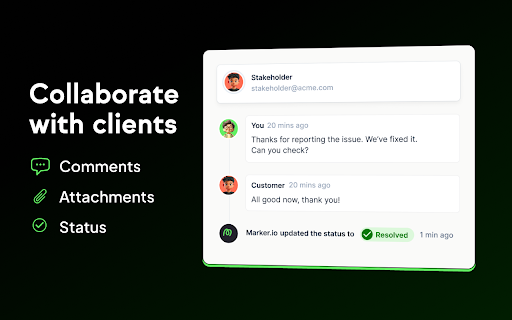

Report visual bugs directly into your favorite tools, without leaving your website or web app Have you ever felt frustrated with internal testing and bug reporting, either as a reporter or as a developer? So did we, and we created Marker.io to streamline those workflows. Set up Marker.io to integrate with your preferred bug reporting tool (like Jira, Asana, Trello, and many more) and start reporting! Capture a screenshot of the visual bug, highlight, crop, fill in the form to create a ticket/issue/card, and continue browsing, so you never have to leave your website. Want your developers to love you even more? Tickets created through Marker.io are automatically enriched with technical metadata and console logs, making it easier and faster for your developers to recreate and resolve any issue. The forms in Marker.io are deeply connected to your issue tracker. The fields in the form are mirrors of your tickets, so you never miss any information. Need custom forms? No problem! You can change the visible fields for both your team members and your guests and clients. Your sensitive information will remain protected. Marker.io currently integrates with: ✔ And even more project and issue tracking tools! Go to https://marker.io to start your 15-day free trial. Get a free demo for more information or to get started.

Screenshot & Screen Recorder w/ Webcam-Droplr
The Easiest All-In-One Screenshot & Screen Recorder Capture screenshots and screen recordings instantly: it's saved to the cloud with a link you can share with anyone, anywhere. Simple and easy to use. Screenshots: Capture part of your screen, the entire screen, or the full webpage: then mark it up. Screen recorder: Screen record with audio and optional webcam as a GIF or HD video. Features: * Your screenshot or screen recording automatically saves to the cloud with a link saved to your clipboard. Paste it and share it with anyone, anywhere like email or Slack. Or download your screenshot as a PNG or screen recording as a WebM right to your device. * Annotate by adding text or color highlight. Use the image editor to add shapes like lines, circles, arrows, and boxes. Have fun with over 30 emojis to add to your screenshots 😀👌💯🎉 * All your screenshots and screen recording are saved to your personal Droplr cloud account, so you can access them anytime. Add our top-rated Chrome app; used by 5 million people to share billions of screenshots and screen recordings.

ClickUp: Tasks, Screenshots, Email, Time
ClickUp is a productivity platform that makes your personal and work lives more productive, saving you time. ClickUp's revolutionary Chrome Extension replaces five separate apps, virtually allowing you to do anything! 1. Create Tasks & Save Websites as Tasks 2. Time Tracking: Easily attach time to ClickUp tasks 3. Screenshots: Capture, mark up, and edit screenshots 4. Email: Create tasks and attach emails to tasks 5. Notepad ClickUp is free forever for up to 100MB of files storage. Installing the Chrome Extension 1. Click ADD TO CHROME 2. Click Add extension in the next popup 3. Click the ClickUp extension icon at the top of your browser window. 4. Log in to your ClickUp Account 5. Select the Workspace(s) that should have access Creating a new task 1. Select the "New Task" tab 2. Write a title for your task 3. Add assignees and a due date 4. Write a description for your task. (Pro tip: Use Markdown Shortcuts in your description fast rich text editing) 5. Click Create New Task Bookmark a site as a task 1. Click on the Bookmark tab 2. This automatically sets the page title & URL as the task title 3. You can also add a description here 4. Then you'll also be given the option to attach a screenshot of the website to the task by clicking Include screenshot Set a Default List Save a default destination for tasks making this the fastest way to add new tasks! Simply locate a task in the extension and select it to begin tracking time. From the Time Spent window, you are able to view time logged on recent tasks and even remove time that was accidentally logged. Back in the ClickUp task, the time has been logged, and we can even start the extension's timer from within the task. Screenshots: capture, mark up, and edit screenshots Capture Capture your entire browser tab or select a certain area to add to a task or download to your computer Attach Attach the file to an existing task or create a new one Mark Up The extension grants you extremely detailed mark up functionality: Paintbrush - draw what you want on top of the screenshot - set a color and brush size Arrow, line, circle, square - quickly add shapes to highlight areas of the screenshot - set a color and brush size Text - add notes right onto a screenshot - set a color, size, and substrate (background) Blur - select an area of the screen you would like to remain hidden. Numbers - drop increasing numbered markers on your screenshot - dragging and dropping allows you to create a box with the number - perfect for sharing steps with a team member Pointer - select things you've already added to the screenshot and make adjustments Undo / Redo Attach to comments 1. Take a screenshot with the Chrome Extension 2. With the screenshot still in the extension, open a task in ClickUp 3. Open the comment editor 4. Click the "Chrome attachment" button Email: Create tasks and attach emails to tasks Capture an email Click the Add to ClickUp button in your email to generate a full HTML record of the email. Attach emails to tasks and create tasks from emails ClickUp will attach the email to a task or create a brand new one with the email attachment included so you can quickly view, jump back, or download the email! For more info, check out our doc on attaching emails to ClickUp! You can also access your ClickUp notes from any page. Open the extension to the Notepad tab, and all of your notes are available from ClickUp. Your notes will sync across all your devices. Use Markdown Shortcuts and Rich Text in any note. When hovering over a note, you will be able to rename the note, archive, delete, and convert the note to a task. While inside a note, at the bottom are the options to see earlier versions of the note, open the fullscreen editor, as well as the option to convert the note to a task. The ClickUp button gives you quick access to the Notepad, Bookmarks, Screenshots, Time Tracking, and creating a task from any webpage. To move the button, click and drag it to any spot on the page. To hide the button, hover over the x icon. You can choose to hide the button for the current session, always for the current website you're on, or turn them off all together.

Scrum for Trello
Adds Scrum story points to your Trello Scrum for Trello adds functionality to the awesome trello.com for use in Scrum projects. ** Update December 12th, 2023 ** Scrum for Trello is working again. Thank you to https://github.com/Swandog for creating the fixes. In the mean time there is a workaround: If you go to https://trello.com/labs you can disable the option “Board experience enhancements”. That will revert Trello to the old state and the extension works again while we work on a fix. ** Update Jun 24, 2022 ** - Update to manifest v3 - cards that are off-screen are now counted again ** Update Jun 29, 2017 ** - Works with latest Chrome ** Update Apr 8, 2016 ** - Fixed compatibility with latest Trello version ** Update Sep 4, 2015 ** - Fixed compatibility with latest Trello version ** Update Sep 2, 2015 ** - Fixed compatibility with latest Trello version ** Update Feb 26, 2015 ** - Fixed compatibility with latest Trello version ** Update Mar 29, 2014 ** - Fixed compatibility with latest Trello version ** Update Jan 14, 2014 ** - List totals show again in the new Trello.com ** Update Dec 23, 2013 ** - Upon frequent request: Settings screen to add your custom storypoints range. - compatibility new version of Trello.com ** Update Nov 6, 2013 ** - fixed issues on Windows 7 + 8 - added integration with Burndown for Trello. Thanks to @seancolombo ** Update July 31, 2013 ** - new load model in Trello. Extension is working again! ** Update June 17, 2013 ** - many fixes. Thanks for the pull requests! ** Update Apr 10, 2013 ** - Fixed compatibility with latest Trello release ** Update Dec 20, 2012 ** - Fixed count when filter is applied and fixed total count ** Update Sep 8, 2012 ** - Fixed compatibility with latest Trello release. Scrum for Trello is working again! - Added a nice feature contributed by Cedric Gatay: One thing we use often is surrounding points of done tasks with [] to prevent them for being counted by the plugin in the list total. This contain the ability to display such tasks with a decent style (half-transparency) on cards and a differentiated total shown on lists. Trello is the perfect online equivalent of the whiteboard with sticky notes aka the Scrum board. We love this app and started using it immediately after launch. One element we use a lot in our projects are the storypoints. Scrum for Trello gives you the ability to make use of story points within Trello. Scrum for Trello is a Chrome extension and you can install it via the Chrome Webstore. In the card titles you can add the storypoints between parentheses. The assigned points will be picked up by Scrum for Trello and displayed in the upper right corner of the card. For each list the total amount of story points will be calculated and shown in the title of the list. Every second the story points will be detected and calculated. So changing a number or moving a card will be reflected almost immediately. Great improvements made by @nicpottier and @paullofte: * The point value is moved to be a badge on the card. * Added support for Zero Point Cards (0), Unknown Point Cards (?), Decimal Value Cards (.5) * In addition I added the functionality to have the list total reflect the current filtered set of cards. More great improvements * @bastiaanterhorst created a storypoint icon to fit in nicely with the Trello style * bugfixes by @mgan59 * A very cool storypoint picker made by @nicpottier was integrated and adapted. Click on the title in the card view and a little menu shows you available points to quickly select. Of course you can add your own points between parentheses still. Scrum for Trello was developed by Marcel Duin (http://webglmarcel.q42.net/) and Jasper Kaizer (https://twitter.com/jkaizer) during our pet projects time at Q42 (http://q42.com). They team up with Sean Colombo (https://twitter.com/seancolombo). You can download the source code at http://github.com/Q42/TrelloScrum. Or even better, improve it and do a pull request! Scrum for Trello runs locally only and stores nothing on any server!

Ruttl
Download this extension and sign-in to to your Ruttl account, and get the ability to review password-protected sites or… Download this extension and sign-in to to your Ruttl account, and get the ability to review password-protected sites or login-based apps on Ruttl. Go through the 3 simple steps explained below to begin reviewing: 1. Download our Chrome extension: Download the extension and pin it for easier access. 2. Click on the extension to login with your Ruttl account: Once you’ve added the extension to your browser, please click on the same to login with your Ruttl account. 3: Open your site or app in a new tab, click on our extension and select the type of project you'd like to create: For website projects - Add new projects, or add new pages to your existing projects & review them quickly. For web apps - Once you open your web app in the logged-in state, scroll to the bottom of the page, click on our extension and add it to your project. For bug tracking - Once you open your site in a new tab, click on our extension, create a new project and you'll be able to instantly see the floating action pill on the bottom-left of your screen. Now create tickets, which will reflect on your project (dashboard/workflow). You can also add tickets to your existing project(s) respectively once you switch the toggle on for that project.
