
jhjmopmegnfaboaidbggelokaadjjgif

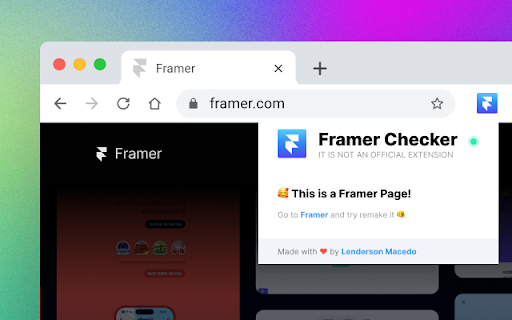
Need to check if a website was made with Framer? With Framer Checker, you can automatically verifies if a website was created using this popular design tool. With just a few clicks, you can quickly check if a site was built with Framer. As a designer, it's a great way to see how other professionals are using this tool, and for anyone curious about the tools used to build their favorite websites, Framer Checker has you covered.

Designer Daily Report
This extension opens a daily Designer Report on a background tab (non-distracting) roughly around 00:00AM PST time as the report is ready. ✦ Curated Inspirational Websites ✦ Daily Products for Designers ✦ Portfolio of the Day ✦ Font of the Day ✦ Color Palette of the Day ✦ Branding of the Day ✦ Articles from popular Design Blogs ✦ News from Reddit ✦ Curated Inspiration from Dribbble and Behance ✦ Inspirational posts from Instagram ✦ Job listings for Designers and more Coming Soon! Be one of the first adopters of Designer Daily Report.

Relume Chrome Extension for Webflow
Boost your productivity in Webflow with the Relume Chrome Extension. ★ Access 1,000+ Webflow components from the Relume Library, right inside of Webflow designer. Copy components into your project with 1 click. ★ Class Sync enables you to sync Relume components with updated classes in the designer, preventing class duplication. When you turn on Class Sync and paste a component, the component will adapt to match the styles of your Webflow project. ★ Paste SVGs directly into your Webflow project, with Relume's free SVG to HTML embed converter. ★ Create and save components in your own private Relume Library. Share with with clients and your team. The Relume Library includes everything you need to start a Client-First Webflow project: ✓Navbars ✓Footers ✓Header sections ✓Feature sections ✓CTA sections ✓FAQ sections ✓Contact sections ✓Pricing sections ✓UI Elements (including Buttons, Accordions, Sliders, Dropdowns, Cards, Tabs & more) ✓Page Templates (including Home, About, Blog, Contact, Portfolio & more) Browse the full library online: https://library.relume.io/dashboard Don't waste time rebuilding layouts for every new project. Install the Relume Chrome Extension to access all of these components right inside Webflow. Some features require a Relume account or paid subscription. Find out more inside the extension or online: https://library.relume.io/pricing

html.to.design
Convert any website into fully editable Figma designs. Requires the associated Figma plugin! With html.to.design, convert any website into fully editable Figma layers. Leverage an existing website and import its HTML to Figma to start your own designs, without building each element from scratch. This Chrome extension is a companion to the html.to.design Figma plugin, which you’ll need to install for certain features. If you are using the “Copy to clipboard” option, you do not need to run the Figma plugin — simply paste (⌘+V) your captured webpage in your canvas! This extension also has built-in support for AI Tools like ChatGPT, Bolt and Lovable, and can directly capture their results without any extra steps. You can find the full list of AI tools supported here: https://html.to.design/docs/import-from-ai-tools 1. Install the html.to.design Chrome extension by clicking on [Add to Chrome] on this page. 2. Navigate to the page you would like to import into Figma. 3. Click on the html.to.design extension icon in your Chrome top bar. 4. Hit 'Capture' and the extension will automatically start capturing the page. Once your webpage has been captured, there are several ways to import it into Figma: a) Store it locally as an .h2d file that must be dropped into the html.to.design Figma plugin b) Send it directly to the Figma plugin d) Copy it to the clipboard to then directly paste the result in Figma --- Notes: In order to best map what you see in your browser to Figma, we need to access Chrome's debugging features.

HTML to Framer
Bring your own website into Framer with a few clicks. Simply copy and paste web elements and edit them directly in Framer. Once you have installed the extension, simply hover over any element such as text, images, buttons, or entire layouts. Click to copy, then go to Framer and press ⌘V (or Ctrl V on Windows) to paste. Your elements will be pasted with a clean layer hierarchy, ready to be further edited or published immediately within Framer. Pro tip: Hold Shift to copy multiple items for even greater speed. To select a parent element of a site item, press Esc while hovering over it. Framer is where teams design and publish stunning sites. Try it for free today at framer.com
