
jhicfboifemagnlehpcificopmkehdcp
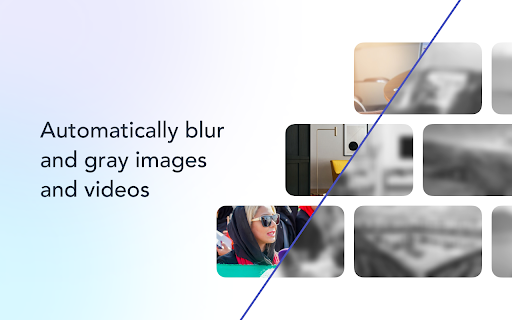
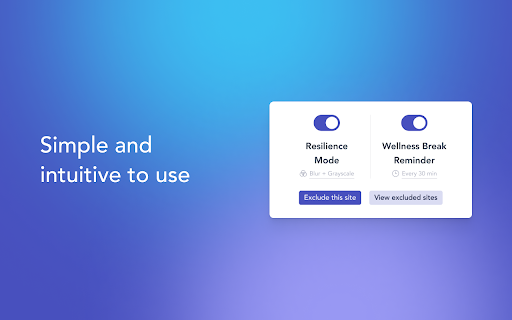
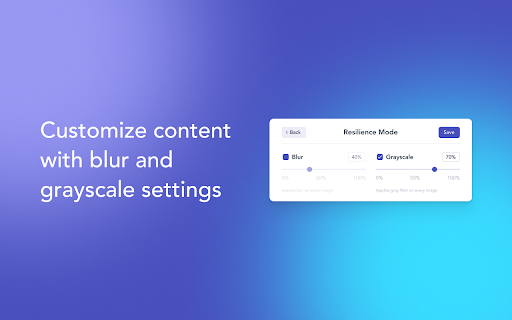


Blur and gray difficult content, schedule mindfulness breaks, with ActiveFence's resilience toolkit for Trust & Safety professionals Resilience Toolkit for Trust & Safety and Online Security Professionals CleanView by ActiveFence is a free browser extension designed for the online safety, security, and intelligence community to help build resilience and provide control for content reviewers and researchers when faced with difficult content. The CleanView by ActiveFence extension enables you to: - Automatically blur and grayscale difficult visual content - Choose the sites for which you want to blur and gray images and videos (or which ones you don’t) - Set wellness break reminders with guided breathing and mindfulness exercises Who Will Benefit From Using CleanView? - Trust & Safety professionals - Content reviewers and moderators - Researchers and analysts - Anyone working with difficult content online About ActiveFence ActiveFence empowers Trust & Safety and online security professionals with the actionable insights--at scale--needed to detect threats before they cause damage. Merging world-class intelligence, domain and language expertise with cutting edge AI, ActiveFence protects billions of people online, and partners with Fortune 50 technology companies, brands, NGOs and government agencies in the quest to enable a better and safer online world. Learn more at https://ActiveFence.com

Blur Page
Hide sensitive information on page This BlurPage extension provides a different ways to hide any information on the page without leaving your Chrome. It allows you to hide anything on your screen including: 1. Hide multiple words You can hide multiple words in the same or different paragraphs 2. Hide multiple lines It is easy to hide multiple lines at the same time 3. Hide an area You can create an area that you want to hide everything behind 4. Hide an element This is the easiest way to hide an element. Just click a magic icon in the toolbar, and hover on any element on the page There are different effects that you can apply for an area or multiple areas: 1. Blur Make existing areas blurry. It also provides the ability of changing the level of blur 2. Redact Redact areas with different colors 3. Mask Replace text with asterisks In addition to that, BlurPage provides a smart way to manage the areas. 1. Persists areas Prepare areas and reload the browsers by accident! Don't worry, the areas are still there and ready to be blurred! 2. Do more Apply an effect to multiple areas at the same time For more information on the extension, you can visit its official website at https://blur.page

TAG Image Filter
The TAG Image Filter blocks out skin color when it senses any skin colors in an image. This way you can surf safely without accidentally seeing any adult images and not modest pictures. *Comments and Feedback* • We regularly monitor this google form, for your comments and feedback https://forms.gle/XeepEpexzu8tWTr26 Always on (Default) - • By default the filter is on for every website. Use the options to enable/disable different filter features. Note that filters currently do not wok on IFrame contents (embedded content from third parties, such as ads). You can select to hide all IFrames in the options, but this may cause issues with some normal website functionality (e.g. captcha). *Warnings* • This is not a replacement for an internet filter and should not be relied upon. It is only to provide you with an extra level of protection or for situations where you don’t have the option of installing a filter, such as your office computer. • Flash will not be blocked by the filter; you will also have to set Flash not to run automatically. To back Flash, type chrome://settings/content in the address bar, scroll down to the 'Plug-ins' section, and select 'Click to play'. • Videos will not be blocked by the filter. *Our mission* • Our mission is to help people surf safely, especially where a regular internet filter is not an option. • The extension will update itself automatically as we improve it and will always be 100% free. • This filter is donated for the hatzlacha of Moshe ben Ruth, and family. • This filter is donated for the Refuah Shelemah of Moshe Ben Chana by the Setton Family. • This filter is donated in memory of Elan Ganeles by the Simhon Family.

DataMask
Mask sensitive data in screenshots. Take full page screenshots and export to PNG/JPEG/WEBP using online screenshot editor DataMask extension helps to blur images, scramble text and take website screenshots. DataMask opens screenshots in online editor by default where additional editing can be performed: draw, text blackout and reduce screenshot file size. DataMask is great fit for personal, support and editorial use. DataMask can help to make screenshots for news articles, video reports, graphic assets and support tickets. Free features: auto scramble all text and images on a website, take website viewport screenshot Paid features: edit website text, irreversible blur (blur+), hide parts of a website, take HTML element screenshots and freely draw blur rectangles You can try Pro features with a 7 day free trial by logging in with your Google account. How to use - Open a website - Click on DataMask icon or use the keyboard shortcut. Windows: CTRL+M, MacOS: Command+M Other useful features - Hide action hides DataMask banner without exiting masking mode - ESC keyboard shortcut is the same as Hide action - CTRL+Z undoes last change - Clear action returns website to initial state Permissions - activeTab is used to analyse and edit current tab content to hide sensitive information - storage is used to persist extension settings - sidepanel is used for displaying website script editor - communication with cooperating websites is used to transfer screenshots to DataMask Editor web app (https://datamask.tech/editor/) Follow DataMask updates and provide feedback Twitter: @DataMaskExt Facebook: https://www.facebook.com/datamaskext

Skimmet - Squint Testing Tool for Designers
Skimmet is a UX tool to evaluate skimmer friendliness of your website. If you design, write, or visualize data, you know this: People don’t read. They skim. They skip details. They look for what stands out. Skimmet adds a toolbar button with two filters: Blur and Grayscale. They show you how well your design directs attention. 🔍 How Skimmet filters help you + What’s the first thing your eyes land on? + How strong is your Call-To-Action (CTA)? + How do skimmers move through your page? + Do your headings stand out, or do they disappear? ⚫ Grayscale Mode – Test visual weight. + How balanced is your contrast? + Do your colors create enough hierarchy? + Does your design guide or confuse? Together, these filters show you what’s working and what’s missing.
