
olfnnakonkojpehcikfoooejonacljel
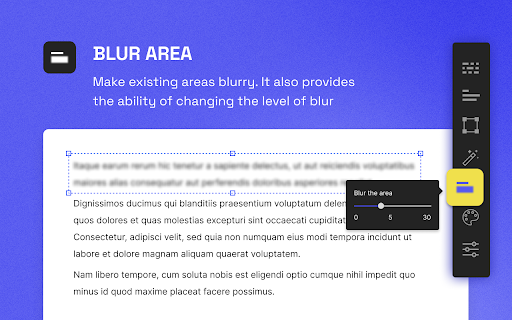

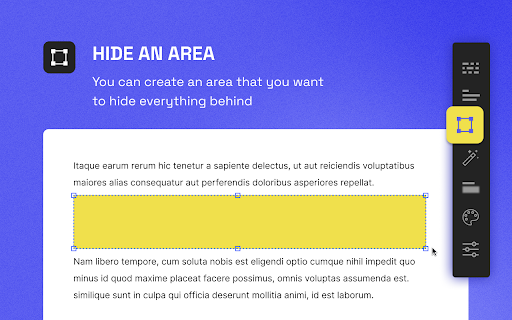
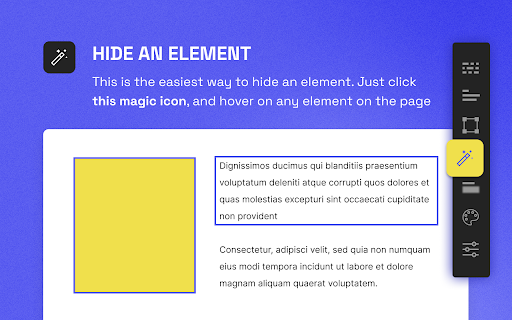
Hide sensitive information on page This BlurPage extension provides a different ways to hide any information on the page without leaving your Chrome. It allows you to hide anything on your screen including: 1. Hide multiple words You can hide multiple words in the same or different paragraphs 2. Hide multiple lines It is easy to hide multiple lines at the same time 3. Hide an area You can create an area that you want to hide everything behind 4. Hide an element This is the easiest way to hide an element. Just click a magic icon in the toolbar, and hover on any element on the page There are different effects that you can apply for an area or multiple areas: 1. Blur Make existing areas blurry. It also provides the ability of changing the level of blur 2. Redact Redact areas with different colors 3. Mask Replace text with asterisks In addition to that, BlurPage provides a smart way to manage the areas. 1. Persists areas Prepare areas and reload the browsers by accident! Don't worry, the areas are still there and ready to be blurred! 2. Do more Apply an effect to multiple areas at the same time For more information on the extension, you can visit its official website at https://blur.page

Content Edit & Blur
This is an OPEN-SOURCE project: https://github.com/HasanAboShally/web-content-edit-and-blur--browser-extension "Content Edit & Blur" is a simple browser extension that allows users to edit or replace texts and images on any webpage directly from the browser, and also blur content when needed. Some use-cases this plugin can be useful in: - Creating quick mockups based on existing pages - Communicating changes in web pages - Bluring (hiding) sensitive data when taking screenshots for example How to use: - Click on the extension’s icon to switch between the 3 modes: Idle, Edit, Blur - In Blur mode: Click any element once to blur it, click twice for extra blur, click again to unblur - In Edit mode: Double-click any image to replace it - In Edit mode: Select a text and press ALT+R to replace all occurrences - Press the ESC key anytime to switch back to Idle mode

Greeked and blurred
Blurs, greeks (dummy text, 'lorem ipsum') web elements and focuses on the form. 1. Capabilities ● Hides unnecessary information on the web page. You yourself choose the necessary information that you want to hide or show. ● Keeps the structure of the page as clear as possible using greeking and adaptive blurring. The blur is applied to individual elements, not to the entire area. It looks much better and clearer. The text greeking option allows you not to use blur to hide information, which looks even better. ● Allows you to select elements of a web page to display in its original form. The extension allows you to select the content area that you want to leave unchanged. Also, you can select a group of elements. For example, if you want to keep the icons, then often the icons are the elements of the SVG. If you want to hide ads, then these can be large empty elements or iframes. ● Continues to work while adding data to the page. You can enable the extension and scroll down. If infinite scrolling is implemented, then the extension will strive to perform its work on new elements. On some sites (YouTube), you can even navigate by clicking on links while the extension is running. This extension is designed to hide unnecessary information from web pages. It tries to bring the visual structure of the page closer to the original by blurring and replacing the text with "lorem ipsum ...". It is useful when you use sites with someone else's content in videos or screenshots. Text and images on sites may be protected by copyright. Have you ever made an instruction with a screenshot? Perhaps you tried to take a better screenshot and cut something out. By cutting out the excess, you probably forcibly focused the user's attention without giving the slightest chance to understand what was in the cut out places. His imagination could finish drawing details of the image, which were very far from reality. Such a screenshot could mislead him. It is possible that for him it was necessary to leave at least a hint about the cut out part. On the one hand, it would be better to leave hints so as not to confuse the user, and on the other hand, it would be desirable to focus attention on the essence. This extension allows you to refuse the complete removal of information, using blur, leaving a hint of what was there. At the same time, attention can be focused if you restore the selected part of the blurred page. Have you noticed how strangers react to big bright pictures from your phone? Many sites specifically resize images to fit the width of the screen. This allows the image to be scaled up to fill the width of the screen, which helps the user see better, but also grabs a lot of other people's attention. This extension allows you to hide all images automatically, leaving the text unchanged. This helps you hide unnecessary details of your hobbies from prying eyes. What are the risks when you take a screenshot of a web page? Imagine that you need to take a screenshot of a web page and then publish it to other users. The web pages may contain videos, images, fonts and svg that are copyrighted. You need to understand whether your activity is fair use or not. If not, then you may need to pay the owner of these resources to obtain permission to use. And then you understand that the solution to your problem does not depend on the shape of the icons or the content of the text of the site. Excessive details can distract the user's attention and ruin the overall experience of your work. How to make a screenshot better? To concentrate on the form and hide the details, designers use "dummy text". And with blur, you can hide unnecessary images or even text, however, it should be borne in mind that blurring does not mask the text well in all cases and often changes the appearance of the text too much. Blurring web elements If you want to use blur, then you need to specify the blur radius. The blur radius is very important, a large radius will change the structure of the entire image, and a small one will not hide information. How to blur smarter? The elements of the web page were designed by professionals, information about the structure of the web page can be used to calculate the blur radius automatically. This application uses this information to calculate the radius of the blur. The extension cleverly uses HTML elements to blur, what else do we get from this approach? Many elements of a web page do not allow blurring to go beyond their boundaries. This application allows you to take advantage of this property, which makes your work even more accurate. What are the disadvantages of blurring elements? The blur radius can be used smartly, but it must exist. If the HTML element is not configured to hide the overflow, then blurring can damage the appearance of other elements. It is necessary that textual information is fundamentally different in its essence from images or videos, but if we use blur, then we can not distinguish textual data from graphic data. Is it possible to separate text data from graphical data and do without blurring? Text data can be replaced with other text to hide the original information without blurring. The text used should not distract from the essence. So that the text does not distract and helps to concentrate on the form, and not on the details, designers use "dummy text" in the form of meaningless words: "Lorem ipsum ...", it is also called "greeked text". This extension makes it possible to replace unnecessary words with the text: "Lorem ipsum ...". 3.1. Enabling 1) You need to click on the extension icon next to the browser address bar. 2) In the appeared window (further window) click on the "Enabled" switch. 3.2. Hiding the window To hide it, click on the close button in the upper right corner of the window. 3.3. Changing the position of the window To change the position of the window, you need to click on the arrow in the top right corner of the window. 3.5. Restoring a page area When the extension starts working (using a switch inside the window), by default the algorithm tries to blur all elements. To return some of the elements to its original state, you need to select them and restore. To select you need to click the “Select” button, and to restore you need to click the “Restore” button. 3.6 Saving settings for a page You can customize this extension for each individual URL path. In the address bar of the browser you can find the path to the page. If you see two different addresses that only differ in the part after the "?" or "#", then the same settings will be used for these addresses. The settings are saved on the local machine. 4. Functions The extension hides the content of a web page using greeking and blurring. 4.1. Greeking Greeking ("dummy text" or "lorem ipsum") can only be applied to text elements. The greeking can be turned on, off and used along with the blur option. This feature is implemented by replacing the original text with the following paragraph: "Lorem ipsum dolor sit amet, consectetur adipiscing elit, sed do eiusmod tempor incididunt ut labore et dolore magna aliqua. Ut enim ad minim veniam, quis nostrud exercitation ullamco laboris nisi ut aliquip ex ea commodo consequat. Duis aute irure dolor in reprehenderit in voluptate velit esse cillum dolore eu fugiat nulla pariatur. Excepteur sint occaecat cupidatat non proident, sunt in culpa qui officia deserunt mollit anim id est laborum". The length of the replaced text is limited to the length of the original text. The algorithm tries to preserve leading and trailing spaces and line breaks. 4.2. Blur Blur can be applied to both text elements and other types of elements. The blur radius in pixels is different for different types of elements. For text, this option is proportional to the font size, and for other types of items it is proportional to the minimum of the width and height of the viewport. 4.2.1. Blur the empty items This option is primarily necessary to blur closed shadow DOM elements.

Blur. The Image and Video blur extension
A browser extension that blurs all images on a page, for when you want to be discreet or don't want to look at certain images. Celebrating 100,000 installs, we've updated your favourite browser extension with a new look and feel! Here's to many more years of blurring! Watch this space as we continue to roll out new and exciting changes. The Blur Team. We’ve all had those times when we've 'accidentally' searched for something online and ended up seeing images we didn't want to see. Or maybe you’ve experienced browsing Facebook or Instagram at work or in a public place, only to catch someone glancing at your screen. Or perhaps you just want to read an article without being distracted by all the images and videos. Well, now you can. This add-on blurs all images and videos on a webpage, so you can concentrate on what’s important. You can choose to view the content or not. To see or not to see? The choice is yours. Shortcuts: ALT + K: Blur or unblur an image or video when hovering over it ALT + L: To quickly enable or disable the extension Language Support: We now support over 5 languages including English, Mandarin, Russian, Arabic, Bangla, Hindi and Urdu. Simply change your preferences via the settings tab. Themes: Change between light and dark theme or choose the system default. Two additional fun themes have been added, install to find out what they are. Allow list: You can also white list websites, simply open the extension and add the site to your allow list!

Blur
Toggle blur effect on web pages with customizable excluded URLs Automatically blur images on the chrome tab
