
jbhnejndccdjigppalbbiphlbaaehpln


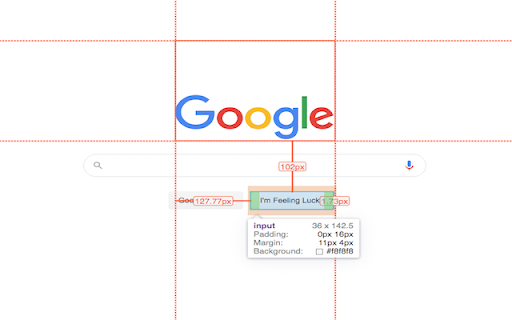

Inspector is the tool which mimic display dimension between selected and hover element. It would be good for designers, QA version 3.0.2 - fix bug: prevent click(thanks Marcelo Alejandro) - add background rule permission for save setting version 3.0.1 - fix bug: extension dropped (thanks @invisioN7) version 3.0.0 - refactor core(prepare for the new features) - add sidebar (setting, more details of selected element) - add freezing selected element after 2 click - press 'space' for unfreeze selected element - add link to discord - add uninstall form - fixed calculation position of popup version 2.0.0 - used ReactJS (expected simplifying of maintain and support) - add data: padding, margin, font, color, background, line-height, class, id - fixed calculation position of popup version 1.1.0 - add highline padding(green color) and margin(orange color). - fix bugs version 1.0.5.1 - minify file for more faster loading version 1.0.5 - add top bar with styles(padding, margin, font-size, height, width) for hover and selected element - fixed bugs (when user scroll label and lines position not display correctly) - add change style for label which display height and width hovered element - change active and regular icon: - add 2 hotkeys: -- command + enter / ctrl + enter - for hide/show topbar -- esc for close extension

Better Ruler
A page ruler which can snaps around web elements for easier measurement. Provide convenience for front-end development and ui design **A smart web ruler with element snapping for easier frontend development and UI design.** - **Smart Snapping**: Hold `Alt` (or `Option` on Mac) while moving the cursor to automatically detect and snap to web elements. Supports snapping to **edges, 4 corners, and 4 edge midpoints**, displaying dimensions instantly. The snap preview uses a contrasting color to distinguish from measurement boxes. - **Easy Measurement**: Click and drag to create a measurement layer that snaps to element edges automatically. - **Flexible Editing**: Double-click any layer to enter edit mode: move, resize, or fine-tune. - **Esc**: Exit edit mode - **Backspace**: Delete the selected layer - **Status Indicator**: The extension icon changes based on status (colored = active, gray = inactive) for easy identification. - **Shortcuts Help**: Hover over the `?` button in the toolbar to view all available shortcuts. - **Customization**: - **Individual Colors & Opacity**: Each measurement box can have its own color and opacity; editing when selected only affects the current item - **Global Mode**: When enabled, changing color or opacity affects all existing measurement boxes simultaneously - **Single Mode**: When enabled, only one measurement box can exist at a time; new boxes automatically clear old ones - **Size Position**: Configure where dimension labels appear (center, corners, etc.) - **Dashed Background**: Choose between solid or dashed background for measurement boxes - **Reference Lines**: Automatic horizontal and vertical reference lines with X, Y coordinate labels - **Crosshair Display**: Configure mouse crosshair display mode - **Quick Controls**: - Press `f` (configurable): Toggle toolbar visibility - Press `r` (configurable): Toggle reference lines - Press `s` (configurable): Toggle snap mode (when on, snapping is always active without holding Alt; Alt temporarily disables snapping) - Press `Shift`: Toggle dimension labels - `Ctrl+Z` / `Cmd+Z`: Undo (supports draw, delete, move, resize operations) - `Ctrl+Shift+Z` / `Cmd+Shift+Z`: Redo - `Alt + z` (customizable): Global shortcut to toggle the extension - Double-press `z` (configurable): Quickly activate/deactivate within the page (after first launch) - **Copy Dimensions**: Click the dimension label on any measurement box to copy its size (e.g., `320 x 180`) to clipboard. - **Toolbar Hint**: A toast notification shows how to restore the toolbar after hiding it. - **Shadow Color**: The snap preview color is independently configurable, no longer derived from the measurement box color. - **Local File Support**: Enable "Allow access to file URLs" in `chrome://extensions` to measure local HTML files. - **Mobile Simulation**: Works in DevTools mobile simulation mode (ensure `device type` is set to `no touch`).

Tape
Measurement tools, rulers and grids Tape is a tool for pixel-perfect website development. It lets you put down guides that snap intelligently to the page content (and stick to it if it moves on scroll or resize), and helps you easily measure positions and sizes of elements. It knows about borders and padding, and will even snap to the baseline of text. There is on-screen help, the ability to display user-defined column and row grids, a built-in magnifying glass for pixel-perfect measurement, and all guides can be quickly toggled on and off with a single keystroke. Unlike some extensions it will not interfere with any webpage you visit unless you click the Tape icon. Once installed: Click icon to activate. Read help, or press Space to dismiss it. Mouse over document, observe that rules snap to useful positions (including baselines!), and use keys as follows: H – drop Horizontal rule here (or remove if there's one here already) V – drop Vertical rule here (or remove if there's one here already) B - drop Both horizontal and vertical rules here arrow keys – fine adjustment (+shift, +alt for larger adjustment) S – toggle snapping on and off. P – toggle pointer events on and off O – set origin to current position. C / R – set column or row grid L or backquote – toggle loupe. (To refresh loupe image, press L twice.) Space – toggle help Press ESC to toggle everything on and off. Press X to reset all guides on a page.

element-spacing
page css ruler;page measure tools;Get page's/element's size/margin/padding/spacing info Measure the size of the element and the spacing between elements on webpage. Hold down Alt (Windows) / Option (Mac) key, and move the cursor on the target element.

VisBug
Open source web design debug tools built with JavaScript: a FireBug for designers. - Point, click, move, resize & tinker - Edit or style any page, in any state, like it's an artboard - Inspect styles, spacing, distance, accessibility and alignment - Nitpick layouts & content, in the real end environment, at any device size - Leverage adobe/sketch skills - Edit text, replace images - Design within the chaos: use production or prototypes and the odd states they produce, as artboards and design opportunities - Design while DevTools simulates latency, i18n, media queries, platform constraints, CPUs, screensize, etc - Make more decisions on the front end of your site/app (a11y, responsive, edge cases, etc) - No waiting for developers to expose their legos, just go direct and edit the end state (regardless of framework) and execute/test an idea Give power to designers & content creators, in a place where they currently feel they have little to none, **by bringing design tool interactions and hotkeys to the browser**
