
iomokcfebnfiflpgcpcijfkfmafgkjgh
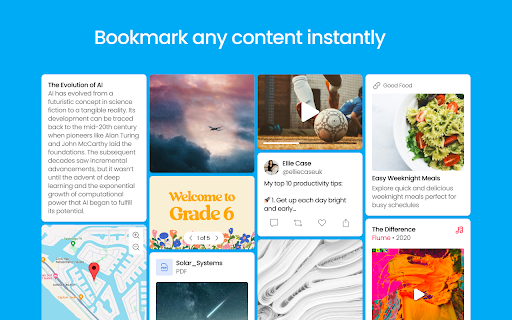


Save, organize and share content from across the web! The Wakelet Browser Extension makes saving, organizing, and curating content from the web easier than ever! Hit the blue Wakelet icon to capture content as you browse, organize it into collections, and share those collections with whoever you want. All of this is done through the Wakelet side panel, which allows you to quickly capture the website you’re visiting, edit the description and cover image, and save it directly into a collection. You can even create new collections from within the side panel itself! 💥 Bookmark any content instantly 🗂️ Organize content into collections 📸 Capture text, screenshots and images 🚀 Curate faster than ever with the Wakelet side panel! 📋 Capture X Links (Tweets) with one click Wakelet is the ultimate curation tool, empowering you to save the things you love, and share them with the people who matter. Don’t forget to share your feedback, ideas and suggestions with us on social @Wakelet!

edpuzzle
Import your favorite educational YouTube video into Edpuzzle with a click! The extension lets you make any YouTube video interactive, by embedding questions (either manually or instantly with Teacher Assist AI), and safe, with no ads, no tracking, and no recommended videos. The extension also includes an amazing screen recording tool so you can create your own educational videos! Record your screen and take your students through a presentation they can watch at their own pace, walk them through a math problem using the interactive whiteboard complete with drawing tools, or use the camera to record a science experiment or any other creative classroom ideas you dream up.

Symbaloo Bookmarker
Easily save the website you are visiting and organize all your bookmarks in a personalized and safe online environment. Save and organize your favorite websites effortlessly with the Symbaloo Bookmarker extension. As you browse the web, this handy tool allows you to instantly save any website or link directly to your Symbaloo Webmixes. No more lost bookmarks or scattered links – keep all your digital resources neatly organized and accessible in one place. Ideal for educators, students, and professionals, the Symbaloo Bookmarker ensures that your essential online tools and resources are always just a click away. Simplify your digital life and enhance productivity with Symbaloo’s user-friendly bookmarking solution. The Symbaloo Bookmarker connects directly to your Personal Symbaloo account, where they are stored safely for later use. Bookmarking can be easily done for the page you are visiting with the icon in the Browser Toolbar. Alternatively you can bookmark and link with a right click on the link which will open en contextMenu to save the link. With Symbaloo you surf with one click to all of your favorite websites. Symbaloo is an easy-to-use online application and best of all, it’s free. You will have all of your favorite websites at your fingertips, anywhere and always. Choose your favorite websites and within a few clicks, you can create your very own homepage. With an account, your favorites are available on any iPhone, PC, Mac, iPad, and tablet. Wherever you go, you always have access to your favorite websites. The main advantages are: ✔️ Never have to type in an address manually ✔️ With one click you go anywhere on the web ✔️ Add a new website with one click to your account ✔️ Never lose your favorite websites again ✔️ Free! Features: 📱 Your favorites automatically sync between your iPhone, PC, Mac, and iPad. 🌎 Instantly add new websites to your homepage 📰 Integrated RSS reader for all of your favorite news sources 🔗 Share your favorites with others 🖼️ Personalize your homepage with custom backgrounds

InsertLearning
Insert instructional content on any web page InsertLearning saves teachers and students time while keeping students engaged. Teachers can insert questions, discussions, and insight directly into any website. When students go to that website, they can respond to those questions and discussions, see that insight, and take their own notes. - Click on our extension button to make our toolbar appear. This button has our logo and is located at the top right of your window. - To insert a question, click on the question icon on our toolbar and then click on a paragraph. Inserting a question within an article is a good way to assess what your students are learning as they read. - To insert a video, the first step is to insert a sticky note. To do so, click on the sticky note icon on our toolbar and then click on a paragraph. After inserting a sticky note, either paste in a YouTube link or an embed code from another video provider. Inserting a video is a good way to address different learning styles in your classroom. - As the previous tip suggests, you can also insert other interactive items with sticky notes by pasting in an embed code. Again, interactive items are a good way to address different learning styles. - To insert a discussion, click on the discussion icon on our toolbar (looks like two speech bubbles) and then click on a paragraph. Inserting a discussion is a good way to have students learn from each other. - To highlight text, click on the highlight icon on our toolbar (some people think it looks like a pencil) and then select the text you want to highlight. You can add a comment to a highlight by clicking on the plus that appears when you first make a highlight or whenever you click on the highlight. Similarly, you can change the color of a highlight by clicking on the paint brush that appears when you first make a highlight or whenever you click on the highlight. - Students can also highlight text and insert sticky notes. Having them annotate like this can be a good way to assess what they are learning. If there are student annotations available to view, a button will appear at the top left of your screen with an icon that looks like a group of people. Click on this button and then select a student to view their annotations. When you have a student selected, you'll even see what they annotate in real time. - To assign your lesson to a class, click on a our logo on our toolbar and then click on the class you want your lesson assigned to. Once your lesson is assigned to a class, every student enrolled in that class will be able to see the things your inserted into the article. - During the assigning process, you can choose to share your lesson to Google Classroom. Below the list of your classes, is a button that says "Share to Google Classroom." Click on that button, select the classes from Google Classroom you wish to share to, and then click the button that says "Share to these classes." After doing this, a link to your lesson will appear in Google Classroom. Also, if you haven't already imported your class, this process will import your roster from Google Classroom into InsertLearning.

Mote for Google Chrome™
Your AI-powered learning companion - Mote helps everyone to read, write & be heard across Google Workspace and the web. AI-powered tools for reading, writing, and communication—anywhere students learn online. Trusted by millions of educators and students worldwide, Mote empowers students to read, write, and communicate with confidence across any webpage, with seamless Google Workspace integration. What's new? The Mote Sidebar now features three powerful modes that adapt to every learner's needs AND has a Focus Mode to remove visual clutter from web articles, helping readers to stay focused. READING MODE Read Aloud with natural human voices Picture Dictionary & Vocabulary Builder – Click any word for instant definition, illustration, audio pronunciation, and one-click "Add to My Words" for personalized vocabulary growth. Smart Highlighting & Auto-Organization – Five color-coded highlighters (with accessible labels) automatically funnel key terms into your personal vocabulary bank and highlight collections, or export directly to Google Docs. Focus Mode – Adjustable screen mask that reduces visual clutter for better reading focus and comprehension. Instant Translation & Read-Aloud – Highlight to translate and hear natural AI voices in 50+ languages - even when text appears in images. WRITING MODE AI Voice Typing – Fast, punctuation-smart dictation that works in any text box, with context-aware predictive text that grows smarter as you write. Auto-pastes into most websites. Intelligent Text Prediction – Purpose-built for K-12 learners, Mote's AI text prediction supports phonetic spelling and adapts to writing context. CREATING MODE Voice Recording & Transcription – Record your voice, auto-transcribe with AI, and share via link or let Mote read it back in expressive voices or translate to another language. AUDIO UPLOAD Upload pre-recorded audio files and embed them directly into assignments, presentations, and educational content. Core features students and teachers love 🎤 AI Voice Tools – Natural-sounding text-to-speech in 60+ languages, voice typing, and voice recording for human-centered feedback in Google Docs, Slides, Canvas SpeedGrader, or anywhere. 🌍 Multilingual Support – Instant translation and read-aloud in 50+ languages builds confidence and independence for all learners. 🧠 Personalized Learning – Picture dictionary, vocabulary mastery tools, and adaptive text prediction that help students read, write, and comprehend at their own pace. 🔒 Admin & Teacher Controls – Toggle features, view usage analytics, and manage rosters via Classlink, Google Classroom, or CSV upload. ♿ Universal Design – Built-in support for diverse learners including dyslexic, ADHD, multilingual, and students who benefit from assistive technology - no special setup required. How to get started 1. Install the extension 2. Sign up with Google or email 3. Refresh your tab and click the Mote icon 4. Press Play on any text — or try a 5-second voice note in a Google Docs comment Perfect for: - Google Workspace for Education users - Multilingual classrooms and ELL support - Personalized and self-paced learning - Universal Design for Learning (UDL) implementation - Students who benefit from assistive technology
