
iinbnkcidamhlklkapebjknpfdelahel
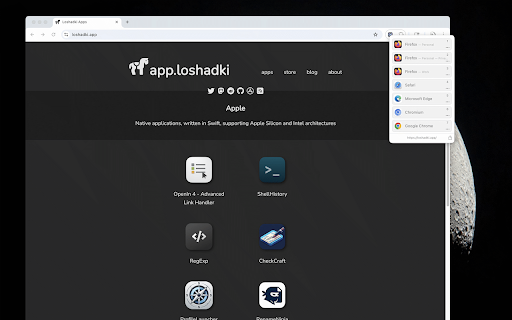
What is OpenIn? OpenIn is a macOS app that lets you choose which browser or application handles any link you click. It integrates with browser profiles, so you can redirect links to a specific profile, browser, or app based on your own rules and conditions. Extension Features - Toolbar icon Quickly open the OpenIn App Selection dialog to send any link to another browser, profile, or application. - Context-menu command “Open in OpenIn” appears when you right-click a link, letting you forward it directly without leaving the page. - Automatic link overrides In the add-on settings, configure domains or link patterns so they’re sent to OpenIn automatically.

Raycast Companion
A browser extension to give more context to Raycast Interact with the web in a new way by leveraging Raycast AI to summarize websites or videos, analyze content, and automate tasks in your browser. The extension gives Raycast a better understanding of what you are looking at in your browser. Create custom AI Commands with the {browser-tab} dynamic placeholder in Raycast. Explores commands on https://ray.so/prompts. Features you'll love: 🤏 Summarize the focused tab with the built-in "Summarize Website" command 🔤 Create custom commands that use AI to interpret the focused tab 🔁 Get inspired by our community (https://raycast.com/community) and share your commands Note: The extension requires Raycast to be installed.

Open with Switchbar
Integrate Switchbar with your browser, so you can move a web page from one browser to another at the click of a button. This extension integrates the Switchbar app to your browser, so you can move a web page from one browser to another with a single click. Switchbar is a desktop app that lets you choose where links open. Whenever you click a link, it prompts you to select the browser, browser profile, or email client you want to use. Learn more at https://webcatalog.io/switchbar. With this extension installed, you can right-click any link and select “Open with Switchbar” to send it to another browser, or use the toolbar button to move the page you’re currently viewing. Switchbar must be installed on your computer to use this extension.

iLaunch: Manage Bookmark,History,Tab and More
Manage bookmark, history, tab, extension & Quick command launch tool With commands, you can use browser like a pro. Using iLaunch, you can use browser like a professional, with shortcut commands, quickly start and manage open tabs, bookmarks, browsing history, efficiently manage your extensions, you can also perform all sorts of actions and more, it is your efficiency multiplier tool. Quick start hotkey by default Windows: alt+Q Mac: control+Q You can also visit "chrome://extensions/shortcuts" management interface to set it by yourself "/action" - enter "/a" quick start. Integrate more than 50 actions to improve efficiency, such as mute tabs, create various documents, full screen, clear cache, etc. "/bookmarks" - enter the "/b" quick start. With this command you can quickly search and browse your bookmarks. "/extensions" - enter the "/e" quick start. With this command, you can quickly manage your extensions. "/history" - enter the "/h" quick start. With this command, you can quickly search your history. "/tabs" - enter the "/t" quick start. With this command, you can quickly switch, open, search tabs. "/remove" - enter the "/r" quick start. With this command, you can quickly search and close open tabs and delete useless bookmarks. ●Associative search Support search engine customization, and it can intelligently associative search to quickly find what you need. ●Multiple themes It contains multiple themes, light mode, dark mode..., you can use different color schemes according to your own preferences. ●Minimalist mode Hide shortcut command buttons to let you use browser like a pro. iLaunch lets you use browser more efficiently.

Choosy
Send pages and links to another browser using Choosy (macOS only). Provides integration with Choosy (a smarter default browser for macOS). Quick access Choosy's browser prompt via a button in the Chrome toolbar so you can send the page you are looking at to another browser.
