
ieandfkgbncmapkpgchnffbodegkemea
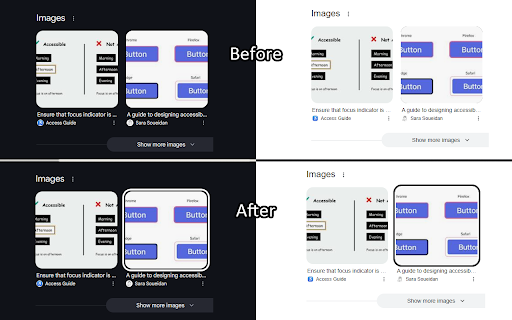
Adds a high-contrast outline around the element with keyboard focus I predominantly use my keyboard to navigate websites, but many sites don't always make it clear where the keyboard is focused. This extension aims to help solve that issue by putting a white or black border around the focused element, depending on whichever results in a higher contrast. Focus Indicator uses multiple strategies to aim for it to work effectively across all websites, but it can't account for every improper accessibility setup. For example, if a site has a focusable element out of the screen's bounds, it won't show any difference. It also doesn't affect which elements are able to be focused with the keyboard. It prioritizes function over form. If you'd like, you can disable the extension on certain sites (blacklist them) or you can enable the extension only on certain sites (whitelist them). All settings can be configured by clicking on the extension's icon. There are two focus indication methods, depending on your preference: 1. Overlay (default, new with version 2) - Works by having a floating outline above the current focused element's position - Almost guaranteed to show the outline if it is possible to, EVEN IF the focused element is behind another element 2. On Element - Works by modifying the current element's focused styles - The indicator will sometimes end up partly or fully covered up by other elements, but it can be less intrusive Overlay Mode settings: - Indicator color mode - Solid (default) - The outline will be either solid black or solid white - Hybrid - The outline will be a black and white inversion of whatever is directly behind each individual portion of it - Outline width (default: 4px) - Adjust the thickness of the outline - Outline offset (default: 1px) - Set how much space there is between the element and the outline - Use transition between focused elements (default: off) - Animates focus shifts for better visual tracking - Use "On Element" mode for text input elements (default: on) - The overlay may cover text while typing in certain text input elements, mainly in online code editors, so "On Element" mode can be used for just those elements instead

Keyboard Navigation
Allows you to brows only with your keyboard. Press '.' and required chars to jump to link. Press 'n' or 'p' to scroll down or up. Web Navigation with keyboard. Press "." to view links and their character combination to open the link. The "n"-key is used to scroll down, where the "p"-key is used to scroll up. (Emacs navigation) Use the "b"-key to jump back in the tab history and the "f"-key to jump forwars in the tab history.

ARC Toolkit
The ARC Toolkit is a set of accessibility tools which aids developers in identifying accessibility problems and features for WCAG 2.0, WCAG 2.1, WCAG 2.2, EN 301 549, and Section 508 The toolkit is designed to be integrated into automated and manual accessibility tests and works alongside the auditor or developer in order to simplify repetitive tasks and interactively explore accessibility features and problems. The ARC Toolkit is tightly integrated with Chrome’s Developer Tools and uses the ARC rule set, the same rules used by default in the ARC platform. This allows developers and quality assurance testers to take their ARC testing into their development environments and thoroughly investigate issues raised in ARC scans. Launched from the Developer Tools, the ARC Toolkit panel includes a set of tests that shows results both in the panel and in the page itself. Each test can be toggled on and off so types of issues can be isolated. Issues can be selected and viewed directly in the Elements panel. It runs completely local within Chrome and works within iframes, so it can evaluate any page you can browse to. If you would like to pages that are not live on a website but are in development, turn on the option to "Allow access to file URLs". Because this tool is actively used by the TPGi team, there are frequent updates as we further develop and refine the rules and features. If you would like training on how to use ARC Toolkit for testing, please contact TPGi at https://www.tpgi.com/contact/. This extension is governed by the license agreement at https://www.tpgi.com/arc-toolkit-the-service-terms-of-service/.

HeadingsMap
To show, browse and audit (for accessibility and SEO) the headings structure The extension generates a document map or index of any web document structured with headings, allowing direct access to content by clicking on any of its items. It now also displays the Landmarks analysis. Although the extension was initially meant to assist web developers, consultants, and accessibility auditors, it turned to be useful for many users, facilitating the reading and navigation in long structured pages Features: * Lists headings with optional information about their levels and any breaks in the correct hierarchical structure. * Lists sections with header information, including optional details about structural errors. * Lists the landmarks and can identify details about them, and optionally details about structural errors. * Provides information from the main document and documents within frames, featuring a document selector when multiple documents are present. * Clicking on headers scrolls the document to the corresponding position and highlights it. * Detects changes in the DOM and updates content as necessary, with an option for manual refresh. * Allows collapsing of the header list by levels. * CSS outline for identifying headers or sections when clicking the tree. * Does not display hidden headers or sections (hidden from assistive technologies). * If a header or section is an anchor, the link in the results points to it. This is useful for copying directly from the tree using the browser's contextual menu. Optionally, it shows anchor-links that copy the link to the clipboard when clicked. * Two themes available.

Accessibility Insights for Web
Accessibility Insights for Web helps developers quickly find and fix accessibility issues. The default keyboard shortcut to launch Accessibility Insights for Web is [Ctrl+Shift+K]. If that doesn't work, follow these instructions: 1. Select Shift+Alt+T to move focus to the Chrome address bar 2. Select the Left arrow key to move focus to the Accessibility Insights for Web extension. 3. Select the Space key to open the extension.
