
hpljjefgmnkloakbfckghmlapghabgfa
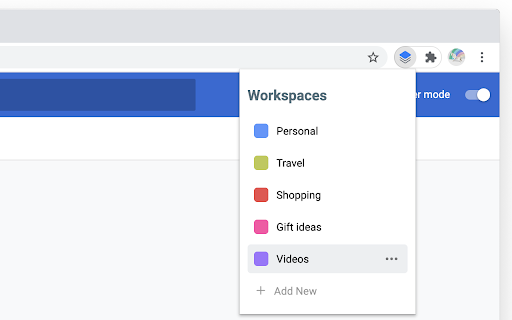

Too many tabs open? Create workspaces, put your tabs in there, and switch between them whenever you need. Workspace automatically saves all your tabs whenever you close the window and restores them once you open it again. You can create a workspace for a particular subject in school, personal project, gift idea, travel plan, or others. Version 0.7 ========= - New option to keep workspaces sorted by name - New option to add new workspaces to the top - Open workspaces are visually marked in the list - Import & Export - Better local files handling - Fixed restoring workspaces in fullscreen mode

TABLERONE tab manager
All-in-one tab manager to save tabs, restore sessions, and organize bookmarks. Having too many tabs open reduces your productivity. Your computer becomes slow, it takes you longer to find the right tab, and you often get distracted in the process. TABLERONE tab manager solves this problem by enabling you to close all tabs without losing them. It’s like a better History combined with bookmarks, except you won’t forget about them. It will make you faster, more organized, and focused. Free. No accounts. 100% privacy. 🗂 Save tabs as bookmarks with screenshot preview 🗄 Organize bookmarks with tags and notes 📚 Set up workspaces and switch between them 🔄 Reopen sessions exactly where you left them ♻️ Restore tabs after a browser crash 🔍 Search open and saved tabs 📦 Share multiple links with one link Whether you call it a tab manager, session manager, bookmarks organizer, bookmark manager, or something else, Tablerone will improve your focus, accelerate multitasking, and automate grunt copy-paste work. Stay in the flow and get more done from day one. Then watch your personal knowledge system effortlessly grow over time just by browsing the web. Why? So you can stop leaving tabs open. Instead, save tabs for later, safely close them and reopen them when needed. - Close tabs without losing them - Reopen closed tabs after a browser crash Save multiple tabs with one click. Organize them by topic and later recall them visually with generated screenshot previews. - Search bookmarks with screenshot preview - Organize bookmarks with tags and notes MULTITASK FASTER WITH WORKSPACES Organize accounts, projects, holidays, research,… the way it suits you. Quickly switch between sessions and pick up exactly where you left off. - Open multiple tabs with one click - Add sessions to favourites It does what you’d expect from a tab manager: - Save all tabs - Save multiple tabs - Save one tab - Automatically save tabs overnight - Save all tabs to file - Close all tabs - Close multiple tabs - Close one tab - Reopen all tabs (restore sessions) - Reopen multiple tabs (open multiple URLs) - Reopen one tab - Restore tabs you accidentally closed - Restore tabs after a browser crash - Organize bookmarks with tags - Organize bookmarks with notes - Organize bookmarks with favourites - Open bookmarks - Move bookmarks - Copy bookmarks - Search tabs - Switch between tabs Plus a few less-common things: - Preview tabs and bookmarks with automatic screenshots - Share multiple links with one link - Copy all URLs and metadata to clipboard - Copy selected URLs and metadata to clipboard Export tabs as: - .txt list - .txt table - Markdown list with thumbs - Markdown table - HTML list with thumbs - HTML table - JSON - CSV - Tablerone backup And also: - Import bookmarks - Import OneTab data - Import Session Buddy data - Suspend idle tabs manually to free memory and CPU - Discard idle tabs automatically to free memory and CPU - Support for selected 3rd party tab suspender extensions - Change appearance (light theme & dark theme) - Customize preferences and settings Tablerone’s 100% privacy guarantee means: 1. The extension stores your application data only locally 2. Usage analytics data is completely anonymous 3. We never share any data with third parties Please note that Tablerone has no control over the privacy settings of your browser, operating system, computer, or network. User manual and documentation: https://tabler.one/help-and-support/ Get involved and contribute: https://discord.gg/qSXjcBbczy As a company we: - We take pride in great product design and user experience - Built the extension as a free client app — our next goal is to build a premium SaaS solution and extend client support to other browsers and devices - Want to revive the old idea of social bookmarking and take it to the next level - Are dedicated to developing a business model around 100% private technology to ensure we never fail users on that promise

Edge Workspaces
Effortlessly organize and manage multiple projects or tasks by saving and restoring entire browsing sessions. Edge Workspaces empowers Chrome users with advanced tab management: * Preserve context: Save and restore entire browsing sessions * Reduce clutter: Keep your browser organized by project or task * Improve focus: Easily switch between different work contexts * Automatic saving: Never lose your place with continuous workspace updates * Keep in sync: Your workspaces stay in sync across computers via Google sync Install Edge Workspaces to take control of your tabs and boost your productivity. Ad-free and free to use, forever! This extension is open source. Check out the GitHub repository: https://github.com/Elec0/chrome-edge-workspaces ## Creating a Workspace ## 1. Open the extension popup by clicking the icon in the toolbar (pinning the extension is recommended). 2. Click the "+" icon to open the new workspace modal. 3. Select either "New workspace" or "New workspace from window". 4. Enter a name for the workspace. 5. Click "OK". 6. A new Chrome window will open with the New Tab page. 7. All tabs in the current window will be saved to the workspace as you work. 8. Close the window when finished. ## Opening a Workspace ## 1. Open the extension popup. 2. Click on a workspace to open it. 3. The saved tabs will be opened in a new Chrome window. ## Managing Workspaces ## - Click the trashcan icon to delete a workspace. - Click the pencil icon to rename a workspace. ## Saving Workspaces as Bookmarks ## - Ensure "Save workspaces to bookmarks" option is checked in Settings. - Workspaces will now be copied to "Other bookmarks -> Edge Workspaces (read-only) -> [Workspace Name]". - Note that changes to the bookmarks will **not** be reflected in the workspaces themselves, as they are just a copy. - When installing a new version, make sure to open old workspaces at least once to allow for them to be saved as bookmarks. ## Importing/Exporting Workspaces ## 1. Open the extension popup. 2. Click the hamburger icon to open the settings window. 3. Click "Export" to save all workspaces to a file. 4. Click "Import" to load workspaces from a file.

Anything Copilot: Sidebar, Mini Window, Pip, Split-Screen
AI, right where you need it. Free in the sidebar & Mini Window. Turn your browser into an open AI workspace. Instead of constantly switching tabs, keep your AI assistants, research materials, productivity tools, and favorite websites organized in one place. Whether you're writing, coding, studying, researching, or creating content, Anything Copilot helps you stay focused and work faster. 🧩 Sidebar — Your Persistent Workspace Open almost any website inside a powerful multi-tab sidebar and keep it available while browsing. • Work with multiple AI assistants without losing context • Ask ChatGPT for a draft, validate ideas with Gemini, or explore alternative approaches in Claude • Read documentation, translate content, watch tutorials, or browse references alongside your current page • Open research tools, social platforms, developer resources, and productivity apps without leaving your workflow • Enjoy true side-by-side browsing and multitasking Unlike regular browser tabs, your sidebar stays available as you move across different pages, making research, comparison, and AI-assisted work significantly more efficient. 💡 Mini Window — Your AI Companion Everywhere Need help outside the browser? • Use the same multi-tab experience available in the sidebar • Stay on top of applications such as VS Code, Excel, Word, Figma, and more Your tools remain accessible without interrupting your flow. • Compare responses, reasoning paths, and generated content in real time • Monitor industry news, trending projects, and research sources from one dashboard • Follow product launches, developer communities, and emerging technologies without opening countless tabs Perfect for power users, researchers, developers, creators, and anyone who works with multiple information sources every day. 🔒 Use Your Own Accounts, Not a Middleman Anything Copilot does not replace the services you already use. • Sign in directly through the official websites and accounts you already trust • Continue using your existing subscriptions and premium plans • Conversations go directly to the service provider • Greater transparency, privacy, and reliability Your data stays between you and the services you choose to use. ⚡ Built for Productivity • Lightweight and fast Install Anything Copilot and create your own AI-powered workspace. Organize conversations, research, tools, and websites exactly the way you work.

パネルメモ
サイドパネルで編集できるメモ帳 ・メモを読み書きするのに、その都度アプリケーションやタブを切り替えるのは面倒くさい ・Chromeでメモを管理したい ・シンプルなメモ帳を使いたい そう思っているあなたへ(私も思っていました) この拡張機能は、上記全てを解決します。 ・メモ帳として必要最低限の機能を提供 ・サイドパネル上にあるので、ブラウザでの作業を中断する必要なし ・メモをGoogleアカウントで同期するか、デバイスごとに別々に管理するか選択可能 ※同期する:同じGoogleアカウントであれば、どのマシンからも同じメモにアクセス可能(容量に制限あり) ※同期しない:ほぼ無制限にメモを保存可能 使ってみればわかると思います。 意外と有能です。
