
honfpfbinpcjiacbeglllobafambglpn
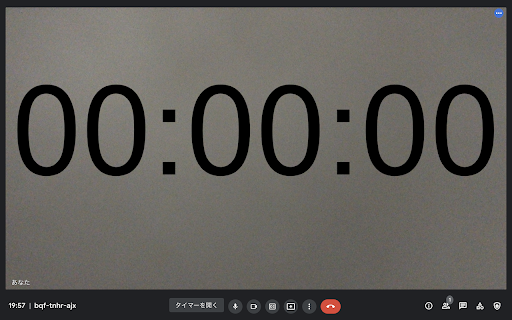

プレゼンタイマーです Google Meet上でプレゼン用のタイマーをビデオに重ねて配信できます。 基本機能: ★ 自身のビデオ配信に重ねてタイマーを表示します。表示の問題上ミラー表示は解除されます。 ★ 終了時間を設定すれば,カウントダウンモードで終了時間になればゼロになります。 ★ ベルが1回鳴る時間,2回鳴る時間,3回鳴る時間を設定できます。(ベルは自身のPC上で鳴りますのでマイクをオンにしてヘッドホンやイヤホンでは使用せずスピーカーでのご使用をおすすめします) 使い方: ① 拡張機能をインストール後,Google Meetに参加します ② Google Meet の下のバーにあるタイマーを開くボタンをクリックして設定します ③ タイマーを開始してください

Snack Time - Online Timer
A timer that appears on websites to help with timekeeping for meetings and tasks A versatile floating timer that enhances your online meetings and break management. Perfect for timeboxing, meeting facilitation, and quick breaks - all with a sleek, customizable interface. - Quick preset timers (1, 3, 5, and 10 minutes) - **End time-based timer** - Set timer by target time (e.g., "until 3:30 PM") - Floating timer window that moves anywhere on your webpage - 5 beautiful color themes (Light, Dark, Lemon, Rose, Mint) - Customizable alarm sounds with volume control - Timer history tracking with recently used timers - Full-screen mode for better visibility - Clean, intuitive interface with real-time theme preview - Stays on top while browsing - No complex settings or configurations needed ### Perfect For 1. Click the SnackTime icon 2. Select a preset time OR enter a custom duration/target time 3. Customize your theme and sound preferences 4. Drag the timer wherever you want on the page 5. Start/Stop with a single click 6. Toggle full-screen mode when needed - Ultra-lightweight and responsive - Highly customizable with live preview - No unnecessary permissions - Zero learning curve - Enhanced compatibility with Shadow DOM isolation - Professional timer with both duration and target time options Keep your meetings on track and breaks well-timed. SnackTime - professional time management made simple.

Google Meet TimeKeeper
Google Meetでの会議の時間管理をサポートします この拡張機能を有効にすると、Google Meetの左下に表示される会議名の横に経過時間が表示されます。 タイマーを何も設定しなければ、30分になると表示されている経過時間の色が赤く変わります。 タイマーを設定すれば、設定した時間を経過すると経過時間の色が赤く変わります。 ついつい長引くMTGや無料プラン(1時間)でのMTGの時間管理に最適です!

GMailSend Address Checker - 誤送信防止 -
バージョン:0.24.0 * 「Mailtrack for Gmail」と同時使用可能になりました バージョン:0.20 ・不具合対応 Salesforce Inbox for Gmail と併用すると、「確認」後、「確認」ボタンが「送信」ボタンに戻らない不具合解決のため、ロジックを変更。

Meeting Timer - for Google Meet
Google Meet Timer with Calendar Sync and a shareable SubTimer for tasks, speaking time, and agenda items. Meeting Timer is a lightweight timer for Google Meet with Google Calendar Sync, a Mini SubTimer for agenda items, and a shareable timer that stays visible when you present. • Automatic countdown from your Calendar – join a Meet, and the Google Meet countdown timer starts with the correct duration. • Mini SubTimer (new) – time tasks, speaking turns, or agenda points without touching the main timer. • Share across tabs – show the timer on every tab so it appears on your shared screen. • Stay on track – halftime/overtime color cues, optional sound alerts, and overlap warnings. • Drag & drop – place the timer where you want; we remember the position. • Quick access to upcoming events – open the extension popup to see and join your next meetings. • Automatic: Connect Google Calendar once. The timer counts down for any Meet that matches your event. • Manual: Set a duration yourself. Great when there’s no calendar event, or an event couldn't be matched. • 🕒 Automatic Timer (Calendar matched) • ⏰ Manual Timer (Calendar event not matched) (set duration, see progress/halftime/overtime) •➕ Mini SubTimer for topics, Q&A, exercises • 🤝 Shareable timer (visible while screen sharing) • 🎛️ Drag & drop + saved position • 🌈 Progress, halftime & overtime color states • 🚨 Overlap alerts for back-to-back meetings • 🔊 Sound alerts (optional; configurable volume) • 📍 Favicon badge before a meeting starts • 📅 See all upcoming meetings from your Google Calendar in the popup 1. Install the extension. 2. (Optional) Connect Google Calendar. 3. Join a Google Meet. The meeting timer overlay appears automatically. 4. Click the SubTimer icon to add a mini countdown for agenda items or controlling speaking time. 5. Click Share to mirror timers across tabs so they appear on your shared screen. • Open settings from the gear icon on the timer. We don’t store data on our servers. Your settings and meeting data stay in your browser. Google Meet Meeting Timer's use and transfer of information received from Google APIs to any other app will adhere to Google API Services User Data Policy, including the Limited Use requirements.
