
hoaompfiokdedaleilfcmmincofjopgf
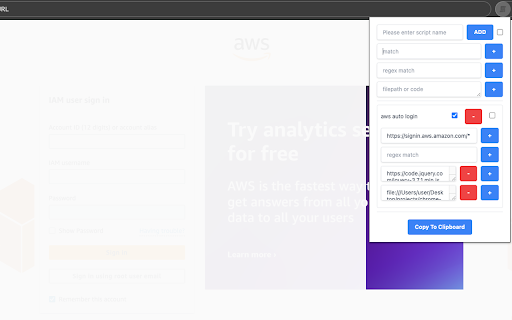
Simple user scripts for Chrome ※Needs Chrome Extensions Develop Mode to be enabled. Go to chrome://extensions/. At the top right, turn on Developer mode. https://support.google.com/chrome/a/answer/2714278?hl=en#:~:text=Go%20to%20chrome%3A%2F%2Fextensions,right%2C%20turn%20on%20Developer%20mode. Simple User Scripts is a powerful Chrome extension designed for users who want to inject custom JavaScript into specific webpages seamlessly. Similar to Tampermonkey, this tool allows you to personalize and automate your browsing experience by running predefined scripts on chosen websites. Navigate easily through an intuitive dashboard to upload, edit, and manage your JavaScript files. Custom Script Execution Assign scripts to specified URLs or URL patterns, ensuring they run only where you want them to. Real-time execution lets you see the immediate effects of your scripts upon loading the target webpage. Advanced Configuration Utilize wildcard characters and regular expressions for precise script targeting. Manage execution order to account for dependencies between multiple scripts. Export Functionality Export your entire script setup, including all configurations, into a single file. Easily share your setup with others or import it onto another device. Security and Privacy Runs only user-defined scripts, protecting against unauthorized code execution. Simple User Scripts offers a robust yet straightforward way to customize website behaviors, enhance productivity, and streamline your web development workflow.

Chrome Notes
A simple notepad extension for Google Chrome NEW: You can now use speech to text NEW: You can now open Chrome Notes with Ctrl+Shift+X (Command+Shift+X on mac) NEW: You can now download and upload complete backups NEW: Chrome Notes adds a right click menu option to send the selected text to a new note! NEW: You can now have multiple notes! NEW: You can now customize the font size! A simple notes extension, right in your browser! Easily copy around a few words to and from different browser windows and other apps. Thank you for over 100,000 users, 100 ratings and 4.5 stars! Chrome Notes remembers your notes and mode, even after closing your browser or restarting your computer! Notes are stored in local storage, so nobody else will ever see them, not us, and not Google, Microsoft, or Apple. Features: * Resizable notepad * Shortcut buttons for cut, copy, paste, and select all * Normal keyboard shortcuts work too * Save as a .txt file * Open in new window * Speak selected text out-loud * Remembers last notepad size for you next time * Store multiple notes, and quickly create, edit, share, or delete * Focus mode for distraction free writing * Adjustable font size * Right click and send selection to new note * Download and upload full backups * Speech to text (click the mic and speak to put your words on the notepad) * Keyboard shortcut Ctrl+Shift+X (Command+Shift+X on mac) to open Chrome Notes is the smart, simple notepad built for you 😊

Random password generator
A simple random password generator for Chrome browser Features: • beautiful minimalistic design • supports light and dark theme • password length between 1 and 99 • use numbers (0-9), lower cases (a-z), upper cases (A-Z), special (!?=)(&%$*+-.,:;) or your own custom characters • exclude confusion characters (eg. O0lIi) • mnemonic (easy-to-remember) passwords • toggle password history • add-on options saving • copying to clipboard • supports cryptographically secure pseudorandom number generation (CSPRNG) Tips: • if you want to generate a random number you can just select the Numbers checkbox and 1 char password length leaving all other options unchecked • passwords are saved to history only when clicked "copy" and when History checkbox enabled • if you need cryptographically secure password, enable it in "More options" under Cryptography

Easy Extension Manager
Effortlessly Manage Your Chrome Extensions Easy Extension Manager is your all-in-one tool for optimizing and organizing Chrome extensions. Easily search, sort, snapshot, export, and import your extension setups in JSON format—all with a user-friendly interface. ☆ Complete List: View all your installed extensions from a single popup. ☆ Snapshot: Save and load your extension setups with a single click. ☆ Export & Import: Backup or restore your extension configurations in JSON format ☆ Toggle Extensions: Easily enable or disable extensions to improve performance. ☆ Sort Options: Sort extensions alphabetically or by enabled/disabled status for quick access. ☆ Quick Search: Find specific extensions quickly and easily. ☆ Dark Mode: Switch between dark and light themes for better viewing. ☆ Context Menu: Right-click for powerful options ☆ Disable All Extensions to temporarily boost performance. ☆ Enable All Extensions with one click. Effortlessly back up and restore your extension snapshots in JSON format. Export & Import Highlights: ☆ Backup Snapshots: Export your extension setups as JSON files for safekeeping. ☆ Restore Setups: Import your saved configurations and apply them instantly. ☆ Auto Save Snapshots: Automatically back up your latest extension setup, ensuring it's always up to date. ============================== Why Choose Easy Extension Manager? Easy Extension Manager simplifies managing Chrome extensions. Stay organized, perform backups and restores easily, and streamline your workflow. With powerful search and sorting with features like Snapshots, Export & Import, and Auto Save, managing extensions has never been simpler. Take control of your extensions today with Easy Extension Manager—the smarter way to manage Chrome.

Chrome Screenshot
Use Chrome Screenshot: smart screenshot chrome extension! Capture, edit, save any page. Explore how to screenshot on chrome browser Ultimate Webpage snapshot extension: Edit, save & screenshot in chrome Effortlessly 🚀 Struggling with how to screenshot on chrome? Capture content with chrome screenshot extension. Screengrab anything instantly - snippets, webpages, or dynamic elements. Perfect for professionals needing precision and simple users! 🔑 Core Advantages of full page screenshot chrome extension. Experience unmatched versatility: 1️⃣ Simple click screenshot snipping tool of selected area 2️⃣ Built-in easy to use tools (blur, arrows, etc.) 3️⃣ Access to chrome screenshot by URL for instant access 4️⃣ Lightweight and user friendly design avoids slowdown ⚡ Optimized Performance. This screen capture chrome extension works seamlessly on: ⭕ Media-heavy sites 📰 ⭕ E-commerce platforms ⭕ Google Docs/Atlassian 🎗️Simple 3-Step Workflow. Master screen grab plugin effortlessly: ➤ Click the toolbar icon 🖱️ ➤ Choose mode: area, visible, or chrome browser screenshot ➤ Annotate and export formats 🎯 Advanced screen capture extension. Transform snapshots with screenshot edit toolkit: - Highlight elements with shapes - Blur/hide sensitive data privately - Add text labels and mark with arrows - Crop/resize before saving in chrome screenshot 🧩 Instant Installation of screen capture extension. Start in 30 seconds: 🎨 Add chrome screenshot extension 🎨 Pin to toolbar, you will see the set of different tools you can use 🎨 Edit the webpage using several instruments at the same time 🎨 Picture now! Save as a file local on your PC. Or make a URL share it 📌 Aside from Basic Tools Unlike google snipping tool, our screen grab chrome plugin excels at: 🖍️ Infinite-scroll social media 🖼️ 🖍️ Hover menus and dropdowns 🖍️ HD snapshot web making 💼 Ideal For Diverse Users. This screen tool serves: 1. Designers: Visual UI feedback 2. snapshot extension archives 3. Marketers: Social visuals 4. Educators: Tutorial notes 🌐 Universal Compatibility. Works as: — screenshot snipping tool — screen grab plugin for academics — screenshot addon chrome for devs ◾Computer Science Student. During late-night coding sessions, our group project’s UI kept glitching. With chrome screenshot app I captured dynamic error states with one click, circled flaws in red, and shared annotated visuals over Slack. We fixed the React component before sunrise 🛠️. By the way, go full page chrome extension mode also helped a lot. ◾ IT Support Specialist. When finance reported a disappearing invoice button, I replicated the issue instantly. Instead of vague emails, I sent a visual with circled elements and workflow notes. Developers resolved it in one sprint cycle thanks to chrome screenshot extension ⏱️. ◾ DevOps Engineer. During a major outage, our team needed real-time evidence. Due to screenshot google chrome I grabbed live monitoring dashboards during peak failure, annotated traffic spikes, and created a timeline PDF. The post-mortem cleared us in 20 minutes 🚨. Thanks to chrome screenshot tool. ◾ Project Manager. Remote sprint reviews became chaotic with verbal updates. I started manually making daily progress snapshots—Jira boards, design mockups, and test logs—into a single annotated PDF. Stakeholders finally stopped micromanaging ✅. Thanks to chrome screenshot. ◾ IT Student. Final exam portals crashed constantly. Before each test, I secured a full capture of instructions and login paths. When systems failed, my offline archive became the class lifeline 💻. By virtue of chrome screenshot addon. FREQUENTLY ASKED QUESTIONS for how to screenshot on google chrome browser ❓ How do I install this tool? 💡 Simply visit the Web Store, search for our app, click *Add*, and pin the icon to your toolbar. No restart needed for chrome screenshot. ❓ How to edit the web picture before snapshot? 💡 Use our screen shot editing panel. Just choose needed tool, for example: Blur sensitive areas, or Add arrows/text, or Crop/resize, etc. ❓Can I save the edited capture local on my PC? 💡 Of course. Select the exact mode and save it in one-click in chrome screenshot.
