
hkbhjllliedcceblibllaodamehmbfgm

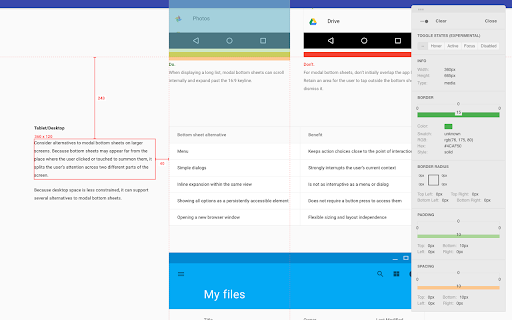
Prism is a redline tool for the web. Effortlessly extract redline specifications from a webpage, encompassing properties such as size, color, spacing, typography, and additional relevant attributes. Users can effortlessly hover and click on objects within the webpage to obtain comprehensive details about them. How to use: - Just click the Δ icon - Then click anywhere on the web page to redline item - Press Esc to pause redlining or 'Close' to turn off

Eagle for Chrome
This extension makes it easy to save images and save screenshots to Eagle App. Browser Extensions allow you to easily save web page images and save screenshots to Eagle. #1. Drag & Drop: To collect pictures, just drag & drop it to your Eagle. #2. Alt + Right-click: Pressing alt key and right-click on any image to keep it! #3. Batch-saving: Get the pass to easily save images within seconds. #4. Screen Capture: The most simple way to take a screenshot of your current browser window. ---------------------------------------------------- Your privacy is very important to us, this extension don't collect any personal information while browsing on the internet. For more detailed privacy terms, please check: https://en.eagle.cool/privacy

FigmaCN
中文 Figma 插件,设计师人工翻译校验。 👁 设计师人工翻译校验 📌 原有功能不受影响 🌍 翻译贡献者: Yancy Min 普鲁文 Pluwen ❤️ 赞助我们:Love.Figma.Cool Made by Figma.Cool

Redpen: Report bugs with screenshot/recording
Capture screenshot and record screen to report bugs and visual feedback. The easiest way to send feedback and report bugs is, take screenshots or record screens of any website or desktop application, highlight issues using annotation tools, and submit them to your favorite issues tracking service. 💁 Helpful for • Quality analysts, developers, designers, product managers, web agencies, consulting companies, product companies, and many more… • All-in-one feedback and bug reporting tool useful in customer support, UAT & Beta testing, and product development. 🔑 Key Benefits • Faster time to market - By reducing product development time by eliminating back-and-forth communication between teams. • Increase customer satisfaction - By faster turnaround of bugs or feedback submitted by customers. • Save Cost - By minimizing the development and support costs. 📋 Features ✪ Screenshot & Annotation tools • Take screenshots of any web page of a website or desktop screen and highlight issues using annotation tools. ✪ Screen recording & Voice comments • Record and explain issues visually on the web page or desktop screen with voice comments and annotation tools. • Double click the Redpen extension to start recording the screen. ✪ Auto-capture technical details • Minimize troubleshooting time with auto-collected browser or desktop-specific metadata. • Collect technical metadata like OS details, browser details, screen size, console logs, network logs, cookies, local storage, IndexedDB, etc. ✪ Auto-fill templates • Report bugs faster with pre-defined templates. While reporting bugs, auto-populate the common form fields to eliminate field selection every time. ✪ Widget • Add Redpen Widget to your website to capture unlimited feedback. $ Pricing & Plan • Our individual plan is FREE FOREVER. . Free Video recording • Visit Customer Support Request and Bug Capture Platform - Redpen to start your 14-days free trial (no credit card required).

Bubble Buddy
Bubble Buddy allows you to quickly add/remove the debugger, reveal an element in Elements tree, start/edit a workflow, switch between live and test versions of Bubble Editor, and App pages by using *Keyboard Shortcuts* Use the following 8 Keyboard Shortcuts to make the desired changes: 1. To add/remove “debug_mode” to the page URL, use “Ctrl + M” (or click on the Bubble Buddy extension icon) 2. To reveal an element in Elements tree, a) Select an element of your choice and then b) Use "Ctrl + Shift + E" 3. To start/edit a workflow on an element, a) Select an element of your choice b) Use "Ctrl + Shift + F" 4. To switch between live and test versions of your app pages, use “Ctrl + Shift + L” 5. To switch between live and development versions of your Bubble Editor, use “Ctrl + Shift + K” 6. To select first parent of an element, a) Select an element of your choice b) Use "Ctrl + Shift + Y" 7. To open app's Backend Workflows page in a newtab, use "Ctrl + Alt + B" - With Bubble Buddy sidepanel, you can organise all your URLs (Bubble Editor, App preview pages, any resource links) and Branches linked to your Bubble Projects at one place. - "Toggle Sidepanel" shortcut will work only on Bubble Editor pages. For Bubble Buddy tutorials, checkout this playlist: https://www.youtube.com/playlist?list=PL4YOHwiJinHt3S7Y7TOLxIj2lvcE776O- - - - - - - - - - - - - - - - - - - - - - - - - - - UPDATES: v2.4: - Bug fixes Version 2.0: - Open Backend Workflow in newtab shortcut - Show/Hide Buddy Buddy sidepanel shortcut - Organise your Bubble projects' related URLs and Branches [Demo Version] - Added shortcuts support to apps on Bubble Dedicated instances (suggested by Andy Kalati - @akalati)
