
alhnncmoomghdpieiiomjjcbmgmkaflk

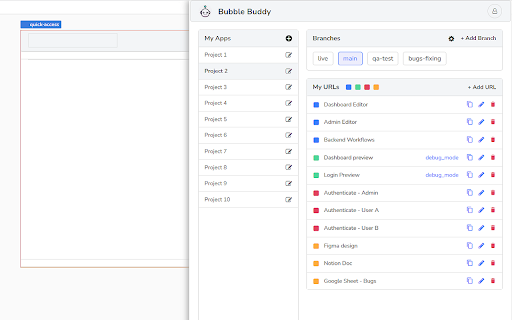
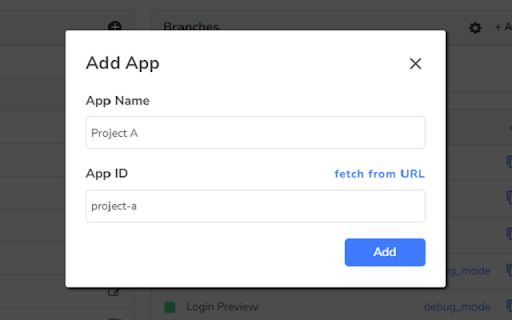

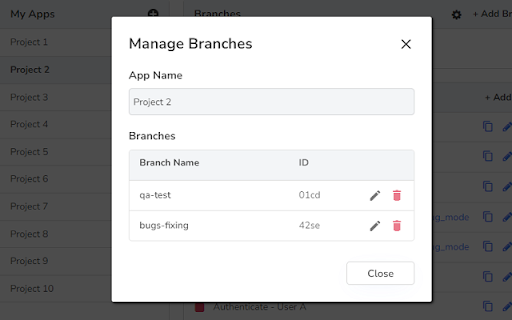
Bubble Buddy allows you to quickly add/remove the debugger, reveal an element in Elements tree, start/edit a workflow, switch between live and test versions of Bubble Editor, and App pages by using *Keyboard Shortcuts* Use the following 8 Keyboard Shortcuts to make the desired changes: 1. To add/remove “debug_mode” to the page URL, use “Ctrl + M” (or click on the Bubble Buddy extension icon) 2. To reveal an element in Elements tree, a) Select an element of your choice and then b) Use "Ctrl + Shift + E" 3. To start/edit a workflow on an element, a) Select an element of your choice b) Use "Ctrl + Shift + F" 4. To switch between live and test versions of your app pages, use “Ctrl + Shift + L” 5. To switch between live and development versions of your Bubble Editor, use “Ctrl + Shift + K” 6. To select first parent of an element, a) Select an element of your choice b) Use "Ctrl + Shift + Y" 7. To open app's Backend Workflows page in a newtab, use "Ctrl + Alt + B" - With Bubble Buddy sidepanel, you can organise all your URLs (Bubble Editor, App preview pages, any resource links) and Branches linked to your Bubble Projects at one place. - "Toggle Sidepanel" shortcut will work only on Bubble Editor pages. For Bubble Buddy tutorials, checkout this playlist: https://www.youtube.com/playlist?list=PL4YOHwiJinHt3S7Y7TOLxIj2lvcE776O- - - - - - - - - - - - - - - - - - - - - - - - - - - UPDATES: v2.4: - Bug fixes Version 2.0: - Open Backend Workflow in newtab shortcut - Show/Hide Buddy Buddy sidepanel shortcut - Organise your Bubble projects' related URLs and Branches [Demo Version] - Added shortcuts support to apps on Bubble Dedicated instances (suggested by Andy Kalati - @akalati)

BBR Helper
This provides some advanced stats (game score, simple player rating and game box plus-minus) on multiple pages for NBA, WNBA, G-League, international leagues and college basketball. Including: - average stats by season on the player page - average stats by playoff series on the player page - average stats by player on the team_season page - average stats by player on the team_player page - average stats by player on the season_player page - single game/half/quarter stats by player on the game_boxscore page - single game and average stats on the gamelog and split pages - top 5 and top 20 average stats players on the season page - top 20 average stats players on the team_season page - top 20 average stats seasons rankings on the player page - top 50 career stats rankings on the player page - multiple stats rankings on the leader page - player awards column on team season page gBPM = (-0.55 * fga + 1.04 * fg3 + 1.39 * fg - 0.25 * fta + 0.79 *ft + 0.17 * orb + 0.27 * drb + 0.24 * (trb - orb - drb) + 1.34 * stl + 0.43 * ast + 0.64 * blk - 0.34 * pf - 0.95 * tov) / g """ , where orb is treated as 0.3 * trb and drb is treated as 0.7 * trb approximately when stats are not complete in early years.

Bubble mode toggler
Toggle Bubble's Debug mode Bubble is an advanced no-code editor. It removes Bubble’s preview mode annoying “?debug_mode=true” only click the icon of extension, and one more click to put back.

Bubvisch - Bubble.io Database Visualization
Visualize your Bubble.io database schema effortlessly with BubVisch. Secure, private, and easy to use. Visualize your Bubble.io database schema effortlessly with BubVisch. Secure, private, and easy to use. Schema Visualization: Instantly visualize your Bubble.io database schema with BubVisch. Understand your database structure and relationships at a glance, enhancing your development efficiency. Real-Time Updates: Keep your database schema visual up to date in real-time. Any changes made in Bubble.io are immediately reflected in BubVisch, ensuring you always have the most current view. Privacy and Security: BubVisch prioritizes your data privacy and security. No database or JSON data is stored, guaranteeing complete confidentiality and peace of mind. Seamless Integration: Integrate BubVisch effortlessly with your Bubble.io workspace via our Chrome extension. Start visualizing your database schema with minimal setup and configuration. User-Friendly Interface: Enjoy a simple and intuitive interface that makes database visualization easy. No complex settings or technical expertise required to get started. Subscription-Based Access: Gain full access to all BubVisch features with a subscription for just 8 EUR per month. Cancel anytime through your account settings. Comprehensive Support: Access helpful resources and support directly from the extension. Find documentation, tutorials, and get assistance to maximize your BubVisch experience. Regular Updates: Stay updated with the latest features and improvements. Enable automatic updates to ensure you are always using the newest version of BubVisch.

Elemental
- Experience the bubble editor, now with dark mode support; - Fullscreen rich text & code editor with a new color scheme to improve code readability; - Keep track of tasks in your notes directly; - Notes with context: just like in Bubble, you’ll be able to navigate from a note to the element, reusable, page workflow, etc with a single click; - Searchable notes, with options to sort/filter, label/tag and even group notes; - Option to embed supported content (e.g: loom videos) into your notes;
