
gnhcejibdkgceebbeljdolienjplkpin
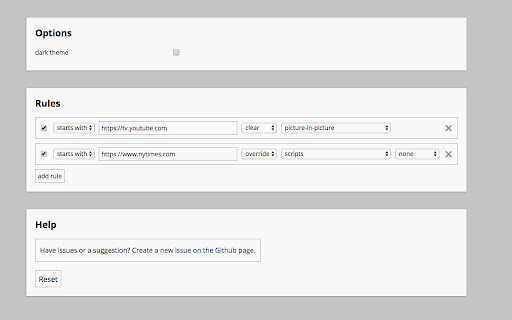

Simple editor for response headers. - Remove, set, and add response headers. - Block features through Permissions Policy. - Unblock features that were blocked.

Faro
Save pages with highlighted taglines - Bookmark manager ⨯ web highlighter Chaos in your bookmarks? Can't find what you want? They end up gathering dust? Or you don't even try and end up with 100s of open tabs? Faro is made to fix that! It's the simplest way to save & keep track of pages. With it, even thousands of saves don't get overwhelming. When saving, you highlight a sentence to act as a tagline. It helps you remember what the page is about and why you saved it. If unsure - just save whatever sentence you're reading. All saves appear on your dashboard. They come most-recent-first by default, so you don't forget what you recently saved. You can pick up your reading where you left off - no need for a separate reading list. You can also pin & archive to further arrange it. Organize them with tags. Since you're reminded what you saved and why, you can do it later. It makes your saves much easier to manage than bookmarks. Faro supports nested tags (eg: recipes/vegan), so combines the best of tags and folders. Clicking a save takes you right back to your highlight - especially useful for longer articles. Also: ➣ export to bookmarks to keep them if you uninstall Faro ➣ copy links to highlights and share them or paste into Notion, Obsidian, etc. ℹ️ About your data: When installing you can read: "it can read and change all your data on all websites" The only information that ever gets uploaded (when signed in) when you use it to save: ➣ Open page address ➣ Saved highlight/quote - what's visible in the sidebar ➣ Timestamp ➣ Debug info e.g. errors The extension also keeps track the currently open tab for each window - to update the sidebar as you navigate - but doesn't save or upload that data.

MarkALink
We all know what “bookmark” in every browser does, don’t we? What if I told you that bookmarks were insufficient and could be improved? I’m here to show you how :) We usually add something valuable there, stuff we want to read later when we have time or not feeling lazy. It’s pretty usual for most of us that the “read later” folder is becoming “probably read later” and then finally “don’t know what’s here”. How do we change it? Add the reminder to the link: set it up for the day you’re going to have some spare time, add a Mark to remind why you should do it. That’s the spirit! What about valueless stuff? Links we don’t want to open again. “Why would we want it?” - you’re going to ask. Fair question. Have you ever been looking for an apartment? You should know then how it is to open the same apartment every day forgetting that you rejected it (and why). Once again you open the photo of the bathroom: “Ah, yeah, this bath is ugly...”. Don’t worry, you’re going to open the same room again tomorrow, the title photo is so promising… Not with MarkALink! Add the link to the “Hide” group and forget about coming to this useless page henceforth. Whenever and wherever you see this link on the web, you’ll recognize it. And it’s only one of the cases where it could optimize your processes and save your time!

PageOne
Collects and organizes your browsing history into annotable, portable, topic-based tree lists in Markdown If you feel the same during web browsing: - Piling lots of browser tabs and hesitate to close them? - Easily get distracted by irrelevant links on a web page? PageOne automatically collects and organizes your browsing history into tree lists, according to topics you set up. You can then review, annotate and export them into text-based Markdown format. - To help you stay in a single tab -- Your browsing history is organized into a tree list for easy tracking and jumping among links. - To help you get focused -- Reminds you the topic you set up before browsing/searching. - Annotate links on the organized browsing history list -- and export them to free Joplin notebooks as markdown! 1. Find PageOne light bulb icon on browser extension toolbar. 2. Click the icon and in the popup, input your topic or idea. Alternatively, open a new tab to show the same PageOne page. 3. Start searching/browsing under the topic by clicking the Google button. 4. Check back the browsing history tree anytime by clicking the light bulb icon. You can then add notes here or mark some history items as done. Visit our website for tutorial videos: https://sites.google.com/view/hyperfocal/pageone/en 1. Feel no worry browsing within a single page You can easily review your browsing history as a popup page by clicking the extension icon (a lightbulb) on browser. The browsing dependency are traced and well-organized into tree lists. 3. A list for a topic Allows to easily set and switch between topics. Let PageOne the default page to help you set a topic before browsing. (Or turn this off in Options pane). 4. Your search term as the topic Use the Google button to set topic and search at the same time. ☑ Check as done. Consider a browsing list as a TODO list for review. ☆ Star and highlight a URL. ✎ Take whatever note you want. 6. Sync with the free note taking app (Joplin) Freely edit your browsing history as a note in Markdown. One topic, one note. Allows both sync forward and backward! Joplin link: https://joplinapp.org/ 7. Use TabGroup to open multiple topics at the same time. 8. Dock as side-panel Turn on/off side-panel view in options page. ☆ Release notes: v1.1.4: - Search topic through the main topic inputbox. - Directly edit the tree lists in the Markdown view. v1.2: - With the new Chrome feature -- Side panel, PageOne can dock on the web browser. Just select PageOne from the drop-down list of the side panel. - Integrate with Chrome's tab groups -- your topic name is group name. With this you can keep topics in opened tabs and switch among them quickly. v1.3: - Improve tracking for history tree construction. - Add switch between pop-up or side-panel view.

Add to LinkJoin
Organize and automatically open virtual meetings. Keep all of your links in one central location where they can be sorted, searched for, and opened from any device with just a click. Receive reminders up to 30 minutes before a meeting and automatically opens it when the time comes. LinkJoin Bookmarks store links for access from any device at any time. Add to LinkJoin streamlines this process into a two-click process in your browser. Add to LinkJoin operates in the background so you can open links or open Zoom meetings automatically without any tabs running. Share links and bookmarks with others via the LinkJoin website, transferring your saved information to them as well.
