
gkiobnohamhihbaipacecjfljepjjlmg
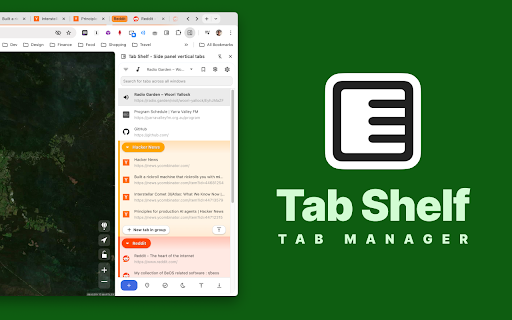


Vertical tab management from your side panel with support for tab groups, multiple windows, and much more. Tab Shelf is a versatile, vertical tab manager for Chrome. It provides an alternate, more feature-packed alternative to the Chrome, Edge, and Brave vertical tabs feature. Whether you're frantically doing research for a paper, queuing up articles to read, or you just love hoarding tabs, tab management can be a pain. Having all your tabs squeezed at the top of your window makes it hard to remember what tabs you have and to quickly navigate between them. Being able to persistently view all your tabs in a convenient, colorful, and customizable vertical view takes that headache away! - View and manage your tabs conveniently from the side panel. - Use rules to automatically group tabs from specific websites (or right-click on a tab and choose to group all tabs from the same site). - Save and restore tab groups, windows, and browser sessions. - Quickly search or filter your tabs by group, window, or whether they've got audio playing. - Duplicate tab detection and deletion (optional). - Sleep your tabs to save memory and energy. You can also set tabs opened in the background to sleep after a specified period of time. - Sync your settings and grouping rules via your Google account across your other computers. - Light and dark themes to match your browser, plus 20 accent colors to give your Tab Shelf some flair. Also includes Roomy, Comfortable, and Compact display density options. - Choose from amongst 20 colors to differentiate your tab groups and windows. Please read Tab Shelf's privacy policy (which can be found at: https://www.tabshelf.com/privacy-policy) to understand how Tab Shelf prioritizes responsible permissions usage and user privacy. Tab Shelf does not and will never collect your data. You can launch Tab Shelf in a number of ways: 1. Opening the Chrome side panel via the toolbar button (on the right-hand side, next to your profile button) and selecting Tab Shelf. 2. Pinning the Tab Shelf extension button to the toolbar. This allows you to open Tab Shelf in a single click. You can also use the default keyboard shortcut to quickly open Tab Shelf: * On Windows/Linux: Ctrl + Shift + O * On macOS: Command + Shift + O For a more detailed user guide, please visit: https://tabshelf.com/user-guide Disclaimer: This extension requires at least Chrome 114 in order for side panel integration to work. Other Chromium-based browsers are not officially supported. - Tab grid layout - switch the main tab list from rows to compact tiles, with pinned tabs, grouped tabs, window headers, selection, drag-and-drop, and context menus still working in the new layout. - Save selected tabs directly to a collection from the tab context menu, either by choosing an existing collection or creating a new one. - Saved collections can now be managed more directly, with options to change collection type and collection color. - The audible-tabs button can now (optionally) cycle focus between audible tabs instead of only filtering them, with separate scope options for the active window or all windows. - Added an option to automatically collapse tab groups that do not contain the active tab. - Context menus now scroll when there are too many actions to fit on screen, making long tab, window, and toolbar menus easier to use. - Saves and Grouping Rules can now remember filter and sorting preferences between visits when their persistence settings are enabled. - Settings with multiple choices now use clearer radio-style pickers, including updated visual pickers for display mode and tab-list density. - Localization system overhauled to reduce memory and CPU load. - Fixed issue where newly created saved collections are not persisting. - Fixed fresh installs creating duplicate Saves bookmark folders in some cases, and added repair handling for existing duplicate roots. - Fixed saved collection metadata issues such as out-of-sync names after renames and stale or orphaned metadata being left behind. - Scroll to Focus Mode - use mouse wheel gestures over the tab list to move focus between visible tabs, with settings for disabled, always-on, Alt + wheel, or Ctrl + wheel behavior.

VertiTab – Vertical Tab Manager | Sessions, AI Groups & Bookmark Sync
Manage all your tabs & bookmarks from a sidebar. Tree view, workspaces, one-click save & restore, organize everything across devices Never lose a tab again. VertiTab turns your browser's side panel into a tree-style tab dashboard — search, sort, and batch-close hundreds of open tabs at a glance. ⭐ SMART TAB MANAGEMENT • Vertical tab sidebar – see all your tabs at a glance • Multi-select with drag selection, Ctrl+Click, and batch operations • Close, reload, or suspend all same-site tabs in one click • Customizable right-click menus, hover buttons, and 60+ keyboard shortcuts • Rename tabs with custom icons, colors, and URL-based rules 🖱️ BROWSER RIGHT-CLICK MENU (NEW) • 40+ tab actions in the browser's native right-click menu – no panel needed • Right-click any tab, page, link, or extension icon to manage tabs instantly • Hibernate, close, group, sort, snapshot, split view – all from the context menu • Tab strip right-click menu support (Chrome 150+, Edge, Firefox) • Fully customizable: per-item toggle, drag-to-reorder, per-context settings 🤖 AI-POWERED GROUPING • Auto-group tabs by content with AI – supports custom rules and emoji labels • Domain-based grouping with flexible format options • New tabs auto-join the right group based on context • Merge groups, customize group colors, auto-collapse inactive groups 📸 SESSION SAVE & RESTORE • Save complete browser sessions as snapshots – manually, on schedule, or automatically • Restore with full control: window positions, tab groups, lazy loading • Crash recovery – automatically restores your last session on startup • Import from Session Buddy, Toby, and Tab Session Manager 📋 WORKSPACES (TAB PANELS) • Create custom workspaces to organize tabs by project or task • Drag tabs between panels, auto-cleanup empty workspaces • Built-in smart panels: All Tabs, Active Tabs, Recently Accessed • Workspaces sync across devices and are included in snapshots 🌳 TREE TABS • Auto-build parent-child tree based on how tabs were opened • Close a parent tab to close the entire subtree 🔖 BOOKMARK MANAGEMENT • Cloud bookmark sync with conflict-free CRDT architecture • Bookmark snapshots with diff comparison and one-click restore • Sync spaces: sync bookmarks across devices or browse bookmarks from other browsers • Convert bookmark folders to tab groups in one click 🔍 UNIVERSAL SEARCH • Search across open tabs, history, bookmarks, reading list, and snapshots • Use @ commands for quick source switching • AI chat: send questions directly to ChatGPT, Claude, and more 🤖 AI ASSISTANT • Agent mode: control your browser with natural language commands • Q&A mode: summarize, translate, and explain current page content • Multi-provider: OpenAI, Gemini, Claude, DeepSeek, and built-in on-device models 🔒 TAB LOCK & PRIVACY • Lock tabs to prevent accidental closure with URL lock • Per-site privacy: auto-clear cookies and data when closing tabs • Developer debug mode: clear site data + force reload ⚡ AUTOMATION • Auto-suspend/close inactive tabs with smart protection rules • Scheduled tasks per tab: timed refresh, suspend, or close • Site-level config: auto-join groups, auto-refresh, privacy clearing 🎨 40+ THEMES & CUSTOMIZATION • Color-blind accessible themes (Okabe-Ito palette) • Deep theme editor with component-level control and custom CSS • Tab styling: index numbers, colored dots, discarded indicators 🪟 WINDOW & SPLIT VIEW • Split View: arrange tabs side by side or top-and-bottom for easy comparison • Customize window name, icon, and color – save as style presets • Smart tab routing: auto-assign tabs to specific windows by URL rules ☁️ CLOUD SYNC • Sync tabs, settings, bookmarks, snapshots, and workspaces • AES-GCM local encryption – your password never leaves your device • Flexible sync modes: upload only, download only, or full sync Four ways to use VertiTab: 🎯 Browser Sidebar – Vertical tabs in Chrome's native side panel ⚡ Popup Window – Independent tab management window 💡 In-Page Sidebar – Trigger from any webpage edge 🖱️ Right-Click Menu – Manage tabs from the browser's native context menu Install VertiTab – the smartest way to manage your browser tabs.

Link Map
Link Map is a browser tab sidebar that is designed for heavy information consumers. With Link Map, even if you have a large number of tabs and windows, you can manage and classify them in a logical and clear way using the tree view structure, forming your own link collection. Have you used Tabs Outliner before? Now you can import your data to Link Map and start a new journey. **What can Link Map do?** 🌲 Tree-shaped vertical tab sidebar, but with more levels: you can use drag-and-drop to quickly complete more tab operations 💾 Close and save for later reading: clear your workspace and focus on current work, they will remain in the list 🔒 Backup/restore: backup and restore your data in a universal format (JSON) 🔧 Tabs Outliner import: supports importing data from Tabs Outliner We do need to operate more tabs and windows, but at the same time, we can also keep them organized. Install Link Map and start building your tag collection to make your information consumption more efficient.

Side Panel
Vertical tab menu that searches, moves, and sorts. Vertical tabs. Search and sort. Click the extension icon to show the popup and each favicon. Press enter after searching. Press tab key then enter. Automatically scroll to the focused tab. Try the bonus side panel feature. Move tabs by dragging and dropping. Middle click to close. * Added beautiful color coded tab movement. * Restored side panel menu visibility, caused by regression listed below. * Side Panel was affected by the browser regression that broke setPanelOptions. * Middle click now closes the tab that was clicked on. * Move tabs by dragging and dropping. * Use images instead of text for the top row of links. * Added hover title for the top row of links. * Search input box now has a magnifying glass in it. * Search input box now has a placeholder. * Automatically scroll to the focused tab in view. * Only scroll when the focused tab isn't visible on screen. * Animate scrolling. * Faster image loading by exiting the event loop and lazy loading favicons.

Vertical Tabs Side Panel
★ Simplicity defines us - NOW WITH TREE VIEW and AUTOMATIC GROUPING! ★ Open shortcut, CTRL + i (windows), COMMAND + e (macOS) and… ★ Simplicity defines us - NOW WITH TREE VIEW and AUTOMATIC GROUPING! ★ Open shortcut, CTRL + i (windows), COMMAND + e (macOS) and CTRL + q (linux) Vertical Tabs View allow you to easily access and search your tabs, using a vertically stacked UI. It also allows you to open, sort and close individual or a group of tabs. This extension is very useful for those who end up with many tabs open without knowing the last time you even interacted with them, allowing one to easily get rid of old tabs. It also makes it easy to spot duplicated tabs and to navigate to recently opened ones. See https://www.youtube.com/watch?v=8ow6f5zWRLI for details on how to use it. Note: Chrome shows a scary popup regarding Vertical Tabs View accessing your browser history. We do react to new tabs as a way to store LOCALLY the last time you interacted with them. However, nothing is ever sent to a server, nothing ever leaves your computer, this extension is completely private. Feel free to check the code at the website link. ★ White and dark mode ★ Search bar that allows to search for title or url. ★ Sort tabs by url and staleness. ★ See the number of open and duplicated tabs. ★ Delete duplicated tabs with one click. ★ Open shortcut, CTRL + i (windows), COMMAND + e (macOS) and CTRL + q (linux) ★ Navigate your tabs using the arrow or TAB (on your keyboard) ★ Open a tab via Enter key. ★ Easily close a specific or multiple tabs. ★ Click on the sort icon to sort by either, url, title or staleness. ★ If you have duplicated tabs, click on the menu to highlight them or get rid of them.
