
gjmgohadapodpamhimnnjnkjgnodljfe

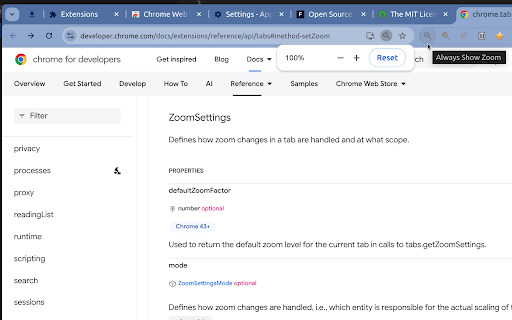
A Minimal Chrome & Edge Extension to always show the Zoom Button (Magnify icon in the URL box) To keep the button from disappearing, this extension tweaks the zoom by an almost imperceptible 0.1% when it is at the default level. There is one side effect when repeatedly resetting (ctrl-0) where it will toggle between the default and the next increased zoom level. For a button to zoom in with a single click, pin the extension in the toolbar. Privacy: This extension does NOT collect, store, or transmit any user or usage data.

Custom Page Zoom
Easily set a custom zoom level for each website (or all websites) Custom Page Zoom extension lets you set separate zoom levels for each website. Besides, you can set the X and Y positions for each page. Some features: 1. Add custom zoom levels for each website easily from the browser's toolbar popup window. 2. Set X and Y positions for each page. 3. Save button stores the settings for individual pages. 4. You can delete each setting from the toolbar popup window by clicking on the close (x) button. 5. There is also an option to set a zoom level for all websites by adding "*" instead of a "URL". 6. To quickly turn the Addon ON or OFF, there are two separate buttons at the popup UI, top section. To add a custom zoom level, (a) simply open the toolbar popup UI, (b) change the zoom slider to adjust the magnifying scale, (c) then change the other two sliders for X and Y positions, (d) and finally click on the add (+) button. The settings will be saved for the page you selected (the URL for each page will be automatically added to the popup UI once you open it, however, you can change it to your desired value). Note: to report bugs, please visit the addon's homepage (https://mybrowseraddon.com/custom-page-zoom.html) and fill the bug report form.

Zoom Page WE
Zoom web pages (either per-site or per-tab) using full-page zoom, text-only zoom, automatic fit-to-width and minimum font size. Zoom Page WE provides facilities to make the contents of a web page larger or smaller (either per-site or per-tab) using full-page or text-only zoom and minimum font size. AutoFit (fit-to-width) can be applied manually or automatically. Small images can be scaled to fit the browser window. After installation, there will be a new blue 'floppy-disk' icon on the main toolbar with a blue badge showing the current zoom level. To change the zoom level for a page, click on the toolbar button to show the popup panel, then click on one of the six buttons on the right side of the popup panel: • Type - toggles the type between Full and Text. • Level (%) - shows a drop-down menu from which a specific level can be selected. • In (+) - increases the level to the next defined level or by a fixed step. • Out (-) - reduces the level to the next defined level or by a fixed step. • Autofit - adjusts the level so the page contents fit the width of the browser window. • Reset - applies the defined default full/text level depending on the current type. To change the minimum font size for a page, click on the toolbar button to show the popup panel, then click on one of the two buttons on the left side of the popup panel: • Minimum Size (px) - shows a drop-down from which a specific minimum font size can be selected. • Reset - applies the defined default minimum font size. Distributed under the GNU General Public License version 2. See LICENCE.txt file and http://www.gnu.org/licenses/

Zoom Out Chrome
Control your web page zoom with Zoom Out Chrome! This extension makes it easy to zoom out on Chrome, improving readability. Zoom Out Chrome: Master Your Web View! 🔍🔎 🥱 Tired of squinting at tiny text or feeling overwhelmed by giant images on websites? Wish you could easily adjust the view or magnify with total precision? Take command of your browsing experience with the Zoom Out Chrome extension! No more fiddling with awkward browser settings – get the perfect view on every page, instantly. With our extension, you gain effortless control over your web page display size. How to zoom out on Chrome becomes a question of the past! One click, and you're in control. 🚀 Get Started in Seconds: ⬇️ Install the "Zoom Out Chrome" extension directly from the Chrome Web Store. 🖱️ Click the extension icon to reveal the user-friendly size controls. ➕➖ Use the slider or buttons to adjust the scale to your exact preference. Double click on icon and reset the view to default size (100%). 🌟 Key Features That Make You the Display Master: 🤯 Forget Complex Menus: No more hunting through settings! Chrome scaling in and out is now at your fingertips. 🎯 Precise Scale Control: Use the intuitive slider for fine-grained adjustments, or the buttons for quick jumps. How to magnify and shrink on Chrome has never been easier! 💾 Per-Tab View Memory: The extension remembers your preferred display size for each tab! Revisit a site, and it's exactly how you left it. No more constantly having to figure out how to zoom out on google chrome! 🌍 Global Scale Control: Want to apply the same level to all open tabs? We've got you covered! 💯 Double-Click Reset: Instantly return to 100% view with a simple double-click on the extension icon. Perfect if your chrome scaled out unexpectedly. 🛠️ Customizable Scale Range: Set your preferred minimum and maximum levels in the extension's settings. Take total control and solve how to control the scale on google chrome once and for all! 🔔 Visual Badge Indicator: The extension icon displays the current percentage, so you're always in the know. 🚫 HTTP-Only Safety: A helpful modal window alerts you if you try to use it on a non-HTTP page (like Chrome's internal settings), keeping things secure. 💎 Ideal for Every Chrome User: 👓 Visual Comfort: Whether you need larger text for readability or want to see more content at once, easily adjust the display for optimal viewing. How to shrink a webpage? Simple! 💻 Developers & Designers: Quickly check how your website looks at different sizes for responsive design testing. 🖥️ Presentations: Ensure everyone in the room can see your screen clearly by adjusting the display on the fly. 🧑💻 Multi-Monitor Setups: Match sizes across different screens for a consistent experience. 📰 Reading Articles: Make long-form content more comfortable to read, you no need think how to magnify in browser. 🖼️ Viewing Images: Enlarge details or shrink to see the whole picture. ❓Anyone: Easy way to change text size chrome. 💬 Frequently Asked Questions: ❓ How to zoom out in Chrome using this extension? 💡 Simply click the extension icon and use the slider or buttons! ❓ How do you shrink on Chrome if it's stuck enlarged? 💡 Double-click the extension icon to reset to 100%. ❓ How to magnify and reduce in Chrome on specific pages? 💡 The extension remembers your size level for each tab individually. ❓ How to scale down Chrome entirely? 💡 Use the global feature to apply the same level to all tabs. ❓ I accidentally scaled! How to unzoom google? 💡 Double click on extention icon! ❓ How to unzoom a web page? 💡 Adjust the slider to a smaller percentage. ❓Can i use chrome custom scaling? 💡Yes! You can set any level you like. ❓My chrome screen zoomed in, what should I do? 💡Use the Zoom Out Chrome extension to quickly reduce to your preferred level. ❓ How to enlarge google screen? 💡 Use the + in slider to make things bigger. ❓How to reduce the size of a website? 💡Use extension settings. 🚀 Take Control of Your Visual Experience! 👆🏻 Click "Add to Chrome" now and enjoy a more comfortable and productive browsing experience. Say goodbye to eye strain and hello to perfectly sized web pages!

Zoom Slider
Change zoom settings smoothly with a standard slider. A super easy way to change the zoom setting level of a page. Syncs perfectly with chromes zoom settings and provides a more granular approach to changing the zoom level. Just click on the popup and you'll know what to do next (but if you still don't know, just slide the slider up and down to change zoom levels). The slider goes up in increments of 5%.
