
ghnligmodmddkdbampehbnpfnjgpookn
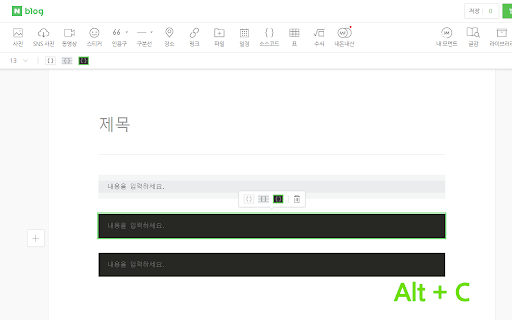
네이버 블로그 글쓰기에 삽입 단축키들을 추가해줍니다. 네이버 블로그 글쓰기에서 삽입 단축키들을 추가해줍니다. 소스코드: Alt + C - 소스코드 작성창에서 Alt + C를 누르면 소스코드 스타일이 바뀝니다. 수식창 열기: Alt + N, M - 글쓰기 창에서 Alt + N을 입력한 후 Alt를 떼지않은 상태로 Alt + M을 입력하면 수식창을 엽니다. 수식: Shift + Esc - 수식 입력창에서 Ctrl + Enter 또는 Shift + Esc를 누르면 수식입력이 완료됩니다. 임시저장: Ctrl + S 최종업데이트: 2024. 04. 05.

Extensions shortcut
Lets you create a keyboard shortcut to the extensions page An extremely lightweight extension (only runs when used) which lets you specify a custom keyboard shortcut which opens the extensions page. If turned on in the options, this extension will check if you already have an extension page open and switch to that one instead of opening a new. Because it is an option you don't have to trust this extension with a dangerous permission if you don't want to. Extension icon by Ganeshk (derived from "Wiki puzzle.svg") and Mysid (derived from "Insertpad.svg") both licensed under GFDL (http://www.gnu.org/copyleft/fdl.html) or CC-BY-SA-3.0 (http://creativecommons.org/licenses/by-sa/3.0/), via Wikimedia Commons.

Scrollbar of Contents
Adds clickable heading markers on the scrollbar. This extension creates clickable markers for all the headings on a page and places them proportionately on the scrollbar. The markers enable you to jump between different sections of the page and help to quickly find what you are looking for. They are especially useful when navigating long webpages. Featured in CNET, Lifehacker and Mashable. • After a page is loaded, click on the extension icon on the toolbar to display the heading markers. • Click on a marker to scroll to the corresponding section. • You can minimize, hide, or show the markers using these keyboard shortcuts: ⁃ show/hide ( Shift + Alt + v ) ⁃ minimize/maximize ( Shift + Alt + b ) • You can customize the behavior of this extension on the options page. View the source code, contribute, report issues, or request new features here: github.com/mlijanto/scrollbar-of-contents Thanks for your comments and suggestions, keep them coming!

Switch tabs shortcuts
Adds custom shortcuts for switching tabs. This extension adds custom shortcuts for switching tabs. After installing, you will be able to customize your shortcuts through chrome://extensions/shortcuts The default key bindings are as follows: Jump to the previous open tab mac: "Command+Shift+Left" other platforms: "Ctrl+Shift+Left" Jump to the next open tab mac: "Command+Shift+Right" other platforms: "Ctrl+Shift+Right" Jump to the last open tab mac: "Command+Shift+Up" other platforms: "Ctrl+Shift+Up" Jump to the first open tab mac: "Command+Shift+Down" other platforms: "Ctrl+Shift+Down"

arXiv keys
Adds keyboard navigation keys to the arXiv. New in v0.9.9: Updated and more careful lookup of next/prev list pages New in v0.9.8: Add h/H key to navigate to HTML version of paper. ---------------------------------------------------------------- Less clicking, more science! Now you can navigate the arXiv with the keyboard instead of the mouse. This extension adds several "navkey" navigation keys / keyboard shortcuts to arXiv pages. On all pages: ? Show/hide short keyboard shortcut help / Set focus to search bar g Go to category... u Go to user page On list/search/author-id pages: j/k Steps down/up through the abstracts a/A Open the selected abstract in the current/new window p/P Open the selected PDF in the current/new window [/] Previous/next page of abstracts On abstract pages: p/P Open the selected PDF in the current/new window [/] Browse previous/next abstract
