
fncelbkbpljhacojmfbcajibgdkaegjf
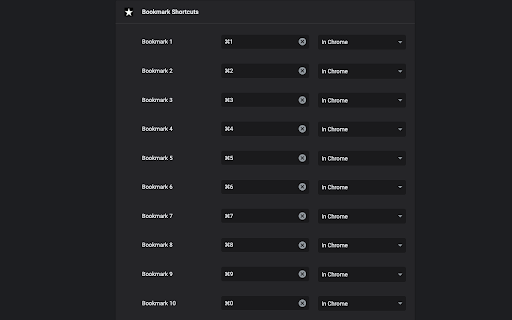
Add keyboard shortcuts for 10 of your bookmarks. This extension allows you to add 10 keyboard shortcuts for 10 of your bookmarks. When a shortcut is pressed the url for your bookmark (assigned to that shortcut) is opened in your browser. The first 10 bookmarks in your bookmarks list are the bookmarks assigned to the 10 shortcuts you've specified. Go to chrome://extensions/shortcuts and scroll down to "Bookmark Shortcuts Extension" to choose your shortcut key combinations. A better explanation of how to use this extension: (originally written by Miguel Garza in a review of this extension, so all credits for this great explanation goes to Miguel) You get up to 10 bookmarks that you can load by keyboard shortcut. The bookmarks *must* be in your bookmarks bar. The first bookmark in your bookmarks bar is the first bookmark you can assign a keyboard shortcut to, the 2nd bookmark in your bookmarks bar is the 2nd bookmark you can assign a keyboard shortcut to, etc. To assign the keyboard shortcuts to the bookmarks, depending on your browser, type one or the other of the following web addresses in your browser's address bar--for Chrome, type "chrome://extensions/shortcuts" and press Enter. For Microsoft Edge, type "edge://extensions/shortcuts" and press Enter. Scroll down to "Bookmark Shortcuts Extension." There will be 10 slots there for 10 bookmarks, labeled "Bookmark 1" to "Bookmark 10." Click in the box next to any label, and then press the keyboard shortcut you want that bookmark to have (such as Alt-1 for Bookmark 1, Alt-2 for Bookmark 2, etc.). The combination you typed will be listed in the box. That's it! Now if you press the keyboard shortcut you assigned to a bookmark (such as Alt-1), that bookmark will be opened in a new tab.

Bookmark Folder Hotkeys
Open bookmark folders with up to 4 global keyboard shortcuts. Simple extension that opens all bookmarks in a folder based on user-defined keyboard shortcuts. Supports up to 4 folders/hotkeys. See options page for instructions on how to pick folders, hotkeys can be changed in Settings > Extensions > Keyboard Shortcuts. Default hotkeys are Ctrl+Shift+# (1-4). Please note that this was made for personal use, so replies and fixes may be significantly delayed. Changelog: 1.1: Initial release, basic functionality. Better-looking options page and bookmark picker functionality slated for later. 1.2: Quick fix for options page not saving correctly. 2.0: Rewrite, should be more stable. Added more instructions to options page. 3.0: Update for manifest v3.

Finder Bookmarks
This extension will replace Chrome's default bookmarks manager. It's very useful if you have lots of bookmarks. Similar to Mac Finder in columns view, you can manage and navigate bookmarks by mouse or keyboard shortcuts, for example: • Navigate all bookmarks using mouse or arrow keys. • Open a bookmark by double click or enter key. • Open all bookmarks in a folder by context menu. • Drag and Drop a bookmark to a new location. • Create, edit or delete bookmark or folder by context menu. • Select multi bookmarks to move, delete or open. • Copy/cut/paste bookmarks(except folders) by shortcuts. • Sort bookmarks by name. • Support many keyboard shortcuts. How to use: • Click this extension's icon • Click menu item at Chrome -> Bookmarks -> Bookmark Manager • Use Chrome keyboard shortcuts, Windows/Linux is Ctrl + Shift + o, Mac is ⌘ + Option + b This extension is a part of another extension "Re-newtab" that contains this bookmarks manager in Chrome newtab.

Bookmark Manager and Viewer
An elegant bookmark manager with fuzzy search and more The "Bookmarks Manager and Viewer" extension provides a panel view to modify your bookmarks. The panel is equipped with fuzzy search (like Google search) to help you find the matching bookmarks. You have a set of tools to edit your bookmarks on the fly. It is even possible to drag a bookmark to a new position in the tree or create a new directory and place the bookmark inside it. Features: 1. Fuzzy Search: Use to find matching items even if you are not sure what the exact title or URL of the stored bookmark is. 2. Validation Button: Delete broken bookmarks or find duplicated bookmarks recursively. 3. Edit Properties: Modify the title or address of a bookmark 4. Toolbar Color: Detect if the current page is bookmarked or not 5. Sort Bookmarks 6. Supports Live Bookmarks 7. Opening Mode: Open in a browser tab or popup view 8. Keyboard Navigation and Operation

online / offline Bookmark Manager
I am a software developer and this is a project that I created as part of my profile. I update this from time to time - as I learn new skills. I also fix reported bugs. This extension does not upload any data online - neither does it fetch / download anything. Feature summary: - 1. USE SHORTCUT - Ctrl+Shift+F - it is default for this extension (set shortcut in chrome if it not working). To open a link in new tab, hold Ctrl key while clicking on the link. 2. This is just an editor - it doesn't mess up your data or store it anywhere - nothing is uploaded online. Turn on sync in your browser if you want to see your mobile bookmarks here. 3. You can change theme using icons on top left - you can also CREATE a new one from there. You can only edit the themes you yourself create. 4. Hover on icons for tips. 5. Interface is easy to understand and support drag/drop. You can go into edit mode (by clicking pencil icon on top right) - then you can select multiple things and then drag drop them at the same time. 6. You can drop folders on left panel / menu - then you can open them in full view as shown in screenshots. Then you can also move things into those folders using drag / drop or you can set a home folder. 7. Use right click options - you can rename, hide names to show only icons on bookmark bar. 8. No undo yet - you can undo anything by going to chrome's bookmark manager and then using Ctrl + Z. Will maybe add undo sometime in late 2024. 9. Please report bugs and share any feedback. Some detailed explanations: - The extension is mostly useful if you have a lot of bookmarks. I appreciate feedback (especially positive ones) - I do get to things eventually. Please report bugs - via comments/emails. BASIC IDEA: To view and manage bookmarks on full screen. It shows and edits in chrome bookmarks - move / rename / delete etc in a full tab view like a website. HOW I USE THIS: I personally use it to view my mobile and other bookmarks occasionally and to hide some of their names so that they show as simply icons on the bookmarks bar(use right click). Also I have pined a few folder onto side - then I just DRAG and DROP bookmarks onto the pinned one - to quickly move things. Also when searching for some projects, I tend to create its separate folder. Pin it to side and set it as home. Whenever if I have to check links later, just press shortcut and all the links show up on screen in full page. SYNC DATA across devices: It does not interfere with chrome's built-in data synch-up process. So you can bookmark something on phone and after google syncs your data it will show up in the extension. GROUP: To show folders together and bookmarks sorted alphabetically (by url). It has a button on top right. DUPLICATES: Button on top-left side to check if you have any. RIGHT CLICK: things such as rename, delete, hide name in bookmark bar, show in parent folder (can be useful when clicking something you found through search). DRAG/DROP: You can use it to move bookmarks/folders to another folder. Or pin a folder to side bar (maybe set it as home later - right click). ROW-WISE / COLUMN-WISE: Button in top right. Its used to switch the direction in which the bookmarks are arranged. Whether the rows are filled first or are the columns filled first. Tips: 1. Use Ctrl + F (chrome's feature) to find bookmarks from time to time. 2. Use Right click menus. They have features like show in folder (in search). 3. Edit Mode : Button in top right. It just allows you to select and apply simple operations - move, delete - to multiple bookmarks/folders at once.
