
giheghkconpffcaboaoabfjopnnoiglm


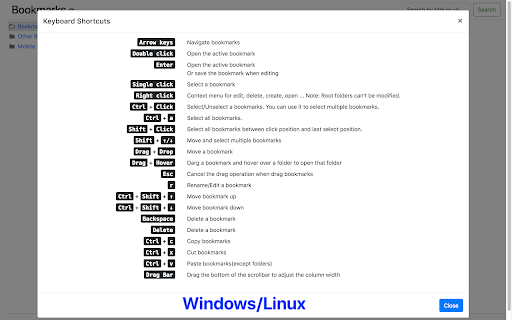

This extension will replace Chrome's default bookmarks manager. It's very useful if you have lots of bookmarks. Similar to Mac Finder in columns view, you can manage and navigate bookmarks by mouse or keyboard shortcuts, for example: • Navigate all bookmarks using mouse or arrow keys. • Open a bookmark by double click or enter key. • Open all bookmarks in a folder by context menu. • Drag and Drop a bookmark to a new location. • Create, edit or delete bookmark or folder by context menu. • Select multi bookmarks to move, delete or open. • Copy/cut/paste bookmarks(except folders) by shortcuts. • Sort bookmarks by name. • Support many keyboard shortcuts. How to use: • Click this extension's icon • Click menu item at Chrome -> Bookmarks -> Bookmark Manager • Use Chrome keyboard shortcuts, Windows/Linux is Ctrl + Shift + o, Mac is ⌘ + Option + b This extension is a part of another extension "Re-newtab" that contains this bookmarks manager in Chrome newtab.

Quick Bookmarks Menu
Just click on the toolbar button to access your bookmarks. Main feature: 1. Browse bookmarks with a breadcrumb navigation. 2. Enter a folder when mouse hovering over it automatically. 3. Search bookmarks easily. 4. Set startup folder by clicking current folder title. 5. Hide any items by right clicking on it. (Only hide in Quick Bookmarks Menu) 6. And many other customizations!! Includes horizontal layout, dark mode etc. If you have any questions or suggestions, you can go to the support page and tell me, thanks!😀 [0.6.0] - 2021-10-12 - Add options page. - Add context menu. - Add middle button and keep showing customization. [0.5.1] - 2019-09-14 - Rewrite all code for better maintainability. - New feature: Hide items by right click.

Bookmarks HotList
A Speed Dial in your toolbar, with easy set-up and keyboard shortcuts Set up your HotList in the Bookmark Manager, access it from the toolbar in a choice of layouts and colours. For keyboard access, the default shortcut to open the extension is Alt+B (or Command+B). To change the shortcut, paste this into the address bar: chrome://extensions/shortcuts When the extension is open, shortcut keys (1-9 and A-Z) are available for each bookmark. Hold down the Space Bar to reveal hints. Open multiple tabs: 1 click will open a bookmark in a background tab, but the Popup stays open. A 2nd click on that bookmark will close the Popup and activate the tab, or you can open other bookmarks instead. The only automated modification to your bookmarks will be the creation of a new folder to contain those displayed by this extension, and a bookmark to get you started. The Star icon is “Actions bookmark new list Icon” by Oxygen Team, available from Icon Archive under the GNU Lesser General Public License: http://www.iconarchive.com/show/oxygen-icons-by-oxygen-icons.org/Actions-bookmark-new-list-icon.html Icons used in promotional images are in the public domain and available from http://paomedia.github.io/small-n-flat/

Bookmarkie - Bookmarks in popup
View and manage your bookmarks in a popup. Maybe the most beautifully designed popup bookmark you can ask for Chrome. View, organize or edit your bookmark within a popup menu. @Ztail, Daniel and Mirosław Żylewicz also contributed to this extension.

Bookmanize - Advanced bookmark manager
Advanced bookmark manager provides tagging, instant sorting, and filtering among all bookmarks on a full list view. Bookmark manager with a clean user interface where all bookmarks can be easily accessed in one full list view with tagging, instant sorting, and filtering. Organize your bookmarks with custom tags and faster navigates between them. We are an independent team of developers who love what they do:) If you want to improve or expand anything - email us bookmanize@gmail.com Support us with a cup of coffee - https://www.buymeacoffee.com/bookmanize ★ All bookmarks on one screen ★ Fast access to all main functions ★ Instant searching, filtering, sorting, adding, deleting bookmarks ★ Drag n drop bookmarks and folders All the features that the default bookmarks have (add, delete, sort, drag and drop bookmarks) in a more user-friendly interface with high performance for a large number of bookmarks Note: Your data (history and bookmarks) is not saved or stored anywhere else but on your computer. Hotkeys: - ctrl+shift+f or command+shift+f — focus the search field
