
fehcbmngdgagfalpnfphdhojfdcoblgc


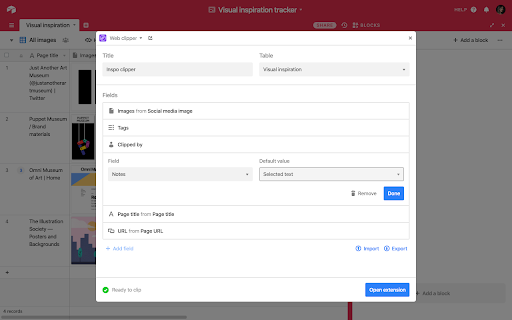
Clip web content to your Airtable bases. Clip text, links, images, and more directly from the web to Airtable with just a few clicks. Customize your web clipper to meet your needs and get the information that matters most to you: if you want to save screenshots, pull images directly from a page, label content with custom tags, or assign clips to team members, you can do it all—without leaving your current browser window. Best of all, every clip you make is automatically stored in a flexible database that you can filter and sort in seconds. The Airtable web clipper is part of Airtable Extensions, a Teams plan feature. Extensions let you extend the functionality of your bases: you can use extensions to bring new information into Airtable, visualize and summarize your records in colorful ways, and even directly integrate your Airtable bases with your favorite apps. To use this extension, you need to have at least one web clipper extension added to one of your Airtable bases. Learn more here: https://support.airtable.com/docs/using-the-web-clipper-browser-extension

mymind — An extension for your mind
Add images, bookmarks, notes, quotes or text highlights to your new mind. mymind is YOUR PRIVATE place to keep everything that inspires you and means something to you.Think of it as your digital garden, a peaceful place away from the noise to cultivate your own taste, inspiration, research and ideas. We’re a small & independent team that originally built mymind for ourselves. For too long, we've been serving algorithms and tools, passively scrolling and reacting and engaging and performing and curating and brain rotting. Unlike most of the internet, mymind gives back to you rather than draining you. It's an external way to feed the beauty and depth and meaning we need internally. Your mental bank of inspiration to feed your real mind. This extension will work as a wonderful companion for the full mymind experience. — Mark text, then right-click and save it to your mind. — Right-Click images on the web, then save them to your mind — Save any website, article etc. with just a single click. — More reliable magic classifications across a wider range of websites — Improved social integrations — Added a Command+Shift+S shortcut to save the current page directly to mymind — Added Omnibox search support: type mm, press [SPACE], enter your query, then press [RETURN ] into the search bar — General code quality improvements

ClickUp: Tasks, Screenshots, Email, Time
ClickUp is a productivity platform that makes your personal and work lives more productive, saving you time. ClickUp's revolutionary Chrome Extension replaces five separate apps, virtually allowing you to do anything! 1. Create Tasks & Save Websites as Tasks 2. Time Tracking: Easily attach time to ClickUp tasks 3. Screenshots: Capture, mark up, and edit screenshots 4. Email: Create tasks and attach emails to tasks 5. Notepad ClickUp is free forever for up to 100MB of files storage. Installing the Chrome Extension 1. Click ADD TO CHROME 2. Click Add extension in the next popup 3. Click the ClickUp extension icon at the top of your browser window. 4. Log in to your ClickUp Account 5. Select the Workspace(s) that should have access Creating a new task 1. Select the "New Task" tab 2. Write a title for your task 3. Add assignees and a due date 4. Write a description for your task. (Pro tip: Use Markdown Shortcuts in your description fast rich text editing) 5. Click Create New Task Bookmark a site as a task 1. Click on the Bookmark tab 2. This automatically sets the page title & URL as the task title 3. You can also add a description here 4. Then you'll also be given the option to attach a screenshot of the website to the task by clicking Include screenshot Set a Default List Save a default destination for tasks making this the fastest way to add new tasks! Simply locate a task in the extension and select it to begin tracking time. From the Time Spent window, you are able to view time logged on recent tasks and even remove time that was accidentally logged. Back in the ClickUp task, the time has been logged, and we can even start the extension's timer from within the task. Screenshots: capture, mark up, and edit screenshots Capture Capture your entire browser tab or select a certain area to add to a task or download to your computer Attach Attach the file to an existing task or create a new one Mark Up The extension grants you extremely detailed mark up functionality: Paintbrush - draw what you want on top of the screenshot - set a color and brush size Arrow, line, circle, square - quickly add shapes to highlight areas of the screenshot - set a color and brush size Text - add notes right onto a screenshot - set a color, size, and substrate (background) Blur - select an area of the screen you would like to remain hidden. Numbers - drop increasing numbered markers on your screenshot - dragging and dropping allows you to create a box with the number - perfect for sharing steps with a team member Pointer - select things you've already added to the screenshot and make adjustments Undo / Redo Attach to comments 1. Take a screenshot with the Chrome Extension 2. With the screenshot still in the extension, open a task in ClickUp 3. Open the comment editor 4. Click the "Chrome attachment" button Email: Create tasks and attach emails to tasks Capture an email Click the Add to ClickUp button in your email to generate a full HTML record of the email. Attach emails to tasks and create tasks from emails ClickUp will attach the email to a task or create a brand new one with the email attachment included so you can quickly view, jump back, or download the email! For more info, check out our doc on attaching emails to ClickUp! You can also access your ClickUp notes from any page. Open the extension to the Notepad tab, and all of your notes are available from ClickUp. Your notes will sync across all your devices. Use Markdown Shortcuts and Rich Text in any note. When hovering over a note, you will be able to rename the note, archive, delete, and convert the note to a task. While inside a note, at the bottom are the options to see earlier versions of the note, open the fullscreen editor, as well as the option to convert the note to a task. The ClickUp button gives you quick access to the Notepad, Bookmarks, Screenshots, Time Tracking, and creating a task from any webpage. To move the button, click and drag it to any spot on the page. To hide the button, hover over the x icon. You can choose to hide the button for the current session, always for the current website you're on, or turn them off all together.

Matter
Save articles to your Matter account Finally, a better reading app. The internet is full of things you want to read – articles, newsletters, Twitter threads, PDFs. Matter brings them together in one place. “Matter improves vastly on earlier read-later apps like Pocket and Instapaper, letting you easily access news and other stories whenever you get the time” –The Wall Street Journal (2022) Save in 1-click: - Save full articles if you’re within the paywall (eg. Bloomberg, NYT, WSJ) - Rollup Twitter threads into a single article page - Save PDFs and YouTube 3 ways to save: - Click the Matter button in the toolbar - Or right-click a link and “Save to Matter” - Or use the keyboard shortcut ‘Control + M’ Unified inbox for your subscriptions: - Sync your newsletters by connecting Gmail - Follow individual writers for their latest - Add any RSS feed The most elegant reading experience: - Best-in-class article parsing - Gorgeous night mode - Human-like text-to-speech - Fluid highlighting Export your knowledge: - Sync your highlights to Notion, Obsidian, Roam, Readwise, and others

Make DevTool
Inspect your scenarios in Make at a glance! Make DevTool gives you the ability to debug your Make scenarios. An extra pane will be added to the Chrome Developer tools, enabling you to review all manual scenario runs, performed operations and details of API calls performed. For improved app development, you can view all the calls that your app has performed. This extension aims to improve the developer experience, enabling quicker, more seamless debugging across Make scenarios, modules, operations, apps, etc. Give it a try!
