
ainnemkhpnjgkhcdkfbhmlenkhehmfhi

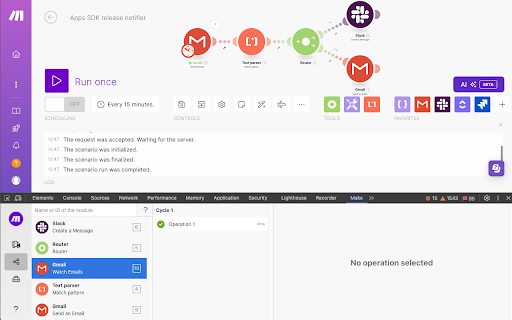


Inspect your scenarios in Make at a glance! Make DevTool gives you the ability to debug your Make scenarios. An extra pane will be added to the Chrome Developer tools, enabling you to review all manual scenario runs, performed operations and details of API calls performed. For improved app development, you can view all the calls that your app has performed. This extension aims to improve the developer experience, enabling quicker, more seamless debugging across Make scenarios, modules, operations, apps, etc. Give it a try!

ncScale
ncScale GitHub for no-code ncScale helps you to auto-document and monitor your no-code infrastructure: applications, automations and databases in one place. Key Features: Document: automatically retrieve and store all your no-code elements in your ncScale repository for easy access and management. Log Management & alerting: Create personalized alerts for your no-code activity to stay informed of important bugs, updates or changes.

Autosave Make & Integromat by MakeMarket.io
Autosave Make.com (former Integromat) Scenarios. You can define prefered saving interval and this extension will automatically save… Autosave Make.com (former Integromat) Scenarios. You can define prefered saving interval and this extension will automatically save the scenarios for you.

Browse AI: Fast Web Scraping & Monitoring
Scrape, monitor, and automate any website in 2 minutes. Train a robot to scrape any website in 2 mins with no-code. Automate any repetitive web data extraction task you do on the web. Never again spend hours monitoring your competitor's site regularly to extract pricing information. Your time is more valuable than that. Superpowers Browse AI will give you: - Set up web scraping automations using an easy to use point-and-click interface. - Download data as a spreadsheet or sync it with a Google Sheet. - Run tasks on a schedule and monitor data for changes. - Stream data into any other software using the Zapier integration or REST API and webhooks. - Turn any website into an API. Code examples are available in all popular languages. Here is what some of the users say: - "We've been using Browse AI and it has been phenomenal. It's the easiest scraper that we've ever used, and the ability to listen for changes is game-breaking. It now serves a core part of our business and saves us thousands of dollars per month. Can't wait to see what other features await us down the line!" Weiwei Li, CTO at marketplace startup https://www.producthunt.com/posts/browse-ai?comment=1502234 - "New favorite web tool is @BrowseAI. It’s like having a developer specializing in python scraping waiting for your ideas to write scripts. Lots of pre-made “tasks”, like pulling data from a company’s LinkedIn, Google Search results, and much more" Dan Capelle, Managing Director at Synkun Inc. https://twitter.com/DanCapelle/status/1440330780610232323 - "Browse.AI has been immensely helpful as it enabled us to scrape live inventory data from our retailers that they are unwilling to provide to new vendors. This means my sales team knows who to call and when and saves immeasurable time." Taylor McCarten, CEO at BinBreeze https://www.producthunt.com/posts/browse-ai?comment=1503330 By using this extension, you agree to the terms of service (available at the Privacy Policy link on the sidebar). In order to improve the extension and identify and fix bugs early, we collect anonymous usage data. You can disable this under Settings.

ClickUp: Tasks, Screenshots, Email, Time
ClickUp is a productivity platform that makes your personal and work lives more productive, saving you time. ClickUp's revolutionary Chrome Extension replaces five separate apps, virtually allowing you to do anything! 1. Create Tasks & Save Websites as Tasks 2. Time Tracking: Easily attach time to ClickUp tasks 3. Screenshots: Capture, mark up, and edit screenshots 4. Email: Create tasks and attach emails to tasks 5. Notepad ClickUp is free forever for up to 100MB of files storage. Installing the Chrome Extension 1. Click ADD TO CHROME 2. Click Add extension in the next popup 3. Click the ClickUp extension icon at the top of your browser window. 4. Log in to your ClickUp Account 5. Select the Workspace(s) that should have access Creating a new task 1. Select the "New Task" tab 2. Write a title for your task 3. Add assignees and a due date 4. Write a description for your task. (Pro tip: Use Markdown Shortcuts in your description fast rich text editing) 5. Click Create New Task Bookmark a site as a task 1. Click on the Bookmark tab 2. This automatically sets the page title & URL as the task title 3. You can also add a description here 4. Then you'll also be given the option to attach a screenshot of the website to the task by clicking Include screenshot Set a Default List Save a default destination for tasks making this the fastest way to add new tasks! Simply locate a task in the extension and select it to begin tracking time. From the Time Spent window, you are able to view time logged on recent tasks and even remove time that was accidentally logged. Back in the ClickUp task, the time has been logged, and we can even start the extension's timer from within the task. Screenshots: capture, mark up, and edit screenshots Capture Capture your entire browser tab or select a certain area to add to a task or download to your computer Attach Attach the file to an existing task or create a new one Mark Up The extension grants you extremely detailed mark up functionality: Paintbrush - draw what you want on top of the screenshot - set a color and brush size Arrow, line, circle, square - quickly add shapes to highlight areas of the screenshot - set a color and brush size Text - add notes right onto a screenshot - set a color, size, and substrate (background) Blur - select an area of the screen you would like to remain hidden. Numbers - drop increasing numbered markers on your screenshot - dragging and dropping allows you to create a box with the number - perfect for sharing steps with a team member Pointer - select things you've already added to the screenshot and make adjustments Undo / Redo Attach to comments 1. Take a screenshot with the Chrome Extension 2. With the screenshot still in the extension, open a task in ClickUp 3. Open the comment editor 4. Click the "Chrome attachment" button Email: Create tasks and attach emails to tasks Capture an email Click the Add to ClickUp button in your email to generate a full HTML record of the email. Attach emails to tasks and create tasks from emails ClickUp will attach the email to a task or create a brand new one with the email attachment included so you can quickly view, jump back, or download the email! For more info, check out our doc on attaching emails to ClickUp! You can also access your ClickUp notes from any page. Open the extension to the Notepad tab, and all of your notes are available from ClickUp. Your notes will sync across all your devices. Use Markdown Shortcuts and Rich Text in any note. When hovering over a note, you will be able to rename the note, archive, delete, and convert the note to a task. While inside a note, at the bottom are the options to see earlier versions of the note, open the fullscreen editor, as well as the option to convert the note to a task. The ClickUp button gives you quick access to the Notepad, Bookmarks, Screenshots, Time Tracking, and creating a task from any webpage. To move the button, click and drag it to any spot on the page. To hide the button, hover over the x icon. You can choose to hide the button for the current session, always for the current website you're on, or turn them off all together.
