
fchdfdnnpkphopmdaochdfnmcahndmnb
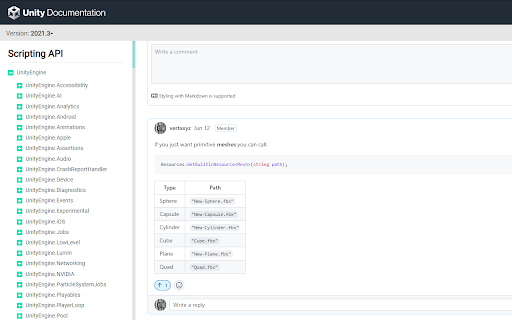
See and post notes on developer documentation. Shared user-contributed notes, curated for accuracy and relevance, with hundreds of notes added by dozens of contributors, covering usage, relevant examples, references, and gotchas. This extension supports: • Unity Manual and Scripting Reference • Unity Documentation • Unity Package Documentation • Unity Multiplayer Documentation • Unreal Engine Documentation • Unreal Python API Documentation • Wwise Documentation This extension uses Giscus (https://github.com/giscus/giscus) to link comments to GitHub discussions. Disclaimer: This is an unofficial extension and isn't affiliated with or endorsed by Unity Technologies, Epic Games, or Audiokinetic.

Luna Debugger
Debug Luna Playable develop builds in the browser The Luna Debugger is a powerful tool that allows developers using Playable Plugin to inspect and debug develop builds directly in the browser. The interface will be familiar to users of the Unity Editor, we've incorporated similar components like hierarchy and inspector panels so that you can debug a Playable Plugin build in real time just as easily as you would a Unity scene. How to get started Install the Luna Debugger Chrome extension from the Chrome Web Store Open a Playable Plugin develop build in Chrome Use the keyboard shortcut Option + ⌘ + I (on macOS), or Shift + CTRL + I (on Windows/Linux), to open the Chrome DevTools panel At the furthermost right of the DevTools tabs you should now see Luna, click this to open the debugger Once the Luna Debugger is displayed in DevTools, you should see the hierarchy and inspector panels populated with information related to your scene in the develop build. What youre seeing is a live representation of your builds object hierarchy in the Luna engine. Additionally, most of what you see in the inspector panel is editable in real time and we provide tools to move freely around the scene and pause it. Hierarchy Panel Here you can see the full hierarchy of all game objects in your exported build, you can click game objects to open them in the inspector panel and expand child objects. The hierarchy panel is useful for a number of reasons whilst debugging your build: Determining whether a game object is instantiated and active in the scene Determining whether a game object is a prefab Inspector Panel This is where youll find the values and attributes that apply to a game object in your scene. All the fields displayed in this panel are editable and any resulting changes can be observed instantly in the running scene. Viewing and editing game objects here can useful for the following reasons: Activating disabled game objects Changing the position, rotation and scale of an object

Spector.js
Explore and Troubleshoot your WebGL scenes easily. Spector is a tool aim to WebGl developers willing to know what happens on their context. It enables capturing all the available information from a frame. You will be empowered to look at your entire commands list with their associated visual states and context information. You will be able to Explore and Troubleshoot your WebGL and WebGL2 scenes easily. This is compatible with any WebGL capable browser and all the web based 3d engines as well as vanilla scripts.

ProseMirror Developer Tools
Run prosemirror-dev-toolkit as Chrome extension Inspect and debug any ProseMirror rich-text editor from your browser without having to bundle prosemirror-dev-toolkit https://github.com/TeemuKoivisto/prosemirror-dev-toolkit Created in the spirit of React and Redux DevTools. Report any issues or bugs to the GitHub repository.

StreetPass for Mastodon
Find your people on Mastodon StreetPass is a browser extension that helps you find your people on Mastodon. Here's how it works: 1. Mastodon users verify themselves by adding a custom link to their personal site. 2. StreetPass lets you know when you've found one of these links, and adds them to your StreetPass list. 3. Browse the web as usual. StreetPass will build a list of Mastodon users made up of the websites you go to.
