
falglioamaogaliloglbhkannkjlpjil


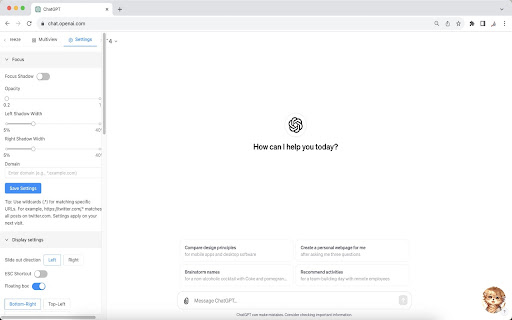
Help you manage tabs more easily and quickly Innovative Browsing Approach: Your Personalized Web Assistant Elevate your web browsing experience with our tab product. A simple click activates focus mode, allowing you to manage your tabs effortlessly. It's more than a tab management tool; it's an essential aid for boosting work efficiency and enhancing focus during study sessions. Key Features 🚀 Efficient Tab Management: Manage a multitude of tabs with ease through vertical layout and automatic tab grouping. 🔒 Tab Freeze & Cache: Reduce resource usage and quickly restore tab states to enhance your computer's performance. 🎨 Custom Themes: Customize the interface theme according to your preferences for a personalized browsing experience. 📂 Flexible Opening Options: Various tab opening choices to suit your needs in different scenarios. 💡 Focus Shadow: Activate focus mode with one click, using shadow effects to minimize distractions and concentrate on core content. 🖥️ Screen & Tab Splitting: Browse multiple web pages at once, compare information efficiently, and handle multitasking seamlessly. 🔗 Smart URL Adaptation: Automatically recognize and tailor the experience for specific websites, enhancing your browsing on frequently visited pages. 🎥 Fullscreen Mode Options: Distraction-free and fully focused fullscreen modes create an immersive reading and working environment. 🌐 Internationalization Support: Multi-language interface for smooth usage no matter where you are. Change Your Browsing Habits With our extension, efficiently organize and manage tabs whether for work, research, or everyday learning. Auto-adaptation features enhance the reading experience on your favorite websites. Multi-screen functionality makes comparison and multitasking easier than ever. Trusted by Users and Teams Numerous users, from students to professionals, have adopted our tab management extension for their daily work and studies, enjoying a clearer and more focused web browsing experience. Everything You Need, Within Reach Our tab product offers not just basic tab management but also advanced features like shadow effect adjustment and screen splitting, meeting your needs for personalization and efficiency.

Tab Copy
Quickly copy tabs to the clipboard in a variety of formats ● Copy the current tab, tabs in the current window, or all tabs. Optionally group tabs by window. ● Select from a wide variety of formats like Link, URL, Title & URL, Markdown, CSV, JSON, HTML, and more ● Create your own formats with powerful format templates ● Choose between using a popup or copying tabs with one click ● Define keyboard shortcuts for your most commonly used ranges and formats ● Add copy actions to web page context menus ● Set up filtering for tabs you want to omit ● Fine-tune your experience with a robust set of options See the docs for more: https://tabcopy.com/docs

Simplest Tabs
Streamline Your Tab Management. Save, search, and navigate with ease using Simplest Tabs. Simplest Tabs: Effortlessly Save, Organize, and Manage Your Browser Tabs With Simplest Tabs, you can take control of your browsing experience by seamlessly saving, organizing, and managing your browser tabs. This powerful Chrome extension empowers you to save the current tab or all open tabs with a single click, ensuring you never lose important content again. Discover enhanced productivity as your saved tabs are conveniently displayed in a well-organized list, complete with tab titles, favicons, and direct links. Effortlessly search and filter through your saved tabs, enabling quick access to the information you need. Customize your tab organization with intuitive arrow icons, allowing you to easily reorder tabs based on priority or relevance. Take advantage of the tab editing feature to personalize titles and further enhance your organization. When it's time to declutter, deleting unwanted tabs is a breeze, giving you a clean and focused browsing environment. Enhance your browsing experience with Simplest Tabs and regain control over your workflow. Stay organized, boost productivity, and never miss a beat with this indispensable tab management tool.

Vertically Listed Tabs
Manage your tabs vertically and browse quicker! ================ BEFORE YOU BEGIN Browser check: Vertically Listed Tabs is built for Chrome, Brave, and Edge. Beyond that, I cannot guarantee it will work. Please do not review the extension unless you are using Chrome or Brave. Other browsers can be added if you submit a GitHub issue or email support@onlyhumn.org. About reviews: If something is preventing you from using the extension, please contact me before leaving less than a 5-star review. Email, GitHub issue, or Chrome Web Store support all work. I will fix the problem so you can leave a 5-star review. Thanks. ============ THE PROBLEM Lots of horizontal tabs at the top of the browser pile up and become tiny. When they share the same favicon, or even similar titles, finding the right tab becomes slow and frustrating. If you multitask with many tabs open, this wastes time every day. Vertically Listed Tabs opens a panel window ("VLT") and attaches it to the left or right of your normal browser window. It is not inside the tab strip or existing window. It is its own window, docked beside your browser. This allows you to even move it to a different window if needed. Inside VLT, tabs and groups are listed vertically. You can see many tabs at once while keeping full tab titles readable. Scan the list, click the tab you want, and it becomes active in the main window. 1. Install the extension. 2. Click the puzzle piece in the top-right to open the extensions menu. 3. Pin Vertically Listed Tabs so its icon appears next to the puzzle piece. 4. Click the VLT icon. If your window is maximized or fullscreen, VLT will resize the window so the panel can attach on the side. 5. In the list, hover over a tab's favicon (the small image on the left) to show the toolbar for close, group, pin, pause, and more. • Side panel: VLT opens on the left or right (set in Options) and adjusts when you resize the window. Windows and macOS may look slightly different due to window borders. • Options: Right-click the extension icon and open Options to change background color, default width, and more. • Click to focus: Click a tab in VLT to switch to it in the main window. • Drag to reorder: Click, hold for about one second, then drag tabs to reorganize. • Hover toolbar: Hover the tab favicon to close, group, pin, or pause a tab. • Rename groups: Edit group titles directly in the VLT window. • Detach and move: Detach VLT from the main window and move it to another monitor. • Snap and tile: Works with Windows Snap and macOS tiling so VLT can sit beside a full-screen window. Example: https://i.imgur.com/Nwg2h6z.png • Linked focus: When you switch away and click either VLT or the main browser window, both windows come to the front together. 1.0.4 - fixed group movement 1.0.3 - fix for focusing on main window 1.0.2 - fixed detatch and attach button in top menu 1.0.1 - Fixes for windows 1.0.0 - Bunch of minor fixes. 0.12.0 - All remaining bugs fixed. Hovering over a tab shows an animation indicating how long until the full title appears.

Mute Tab
Convenient and fast to 'Mute Tab' Provide default shortcut keys, Change as you needed - Windows: "Ctrl+T" - Mac: "Command+T" Chrome 71 removed the flag that enables per-tab audio muting. This extension allows you to mute individual tabs by a new context menu option or interacting with the extension icon. Restores the 'Mute Tab' functionality of versions prior to Chrome 71 and Enhance on this. The previous version of the extension used belonged to the v2 level and the developer did not update it, so this v3 extension is now available.
