
enlhohaeiobiocoimgbblmidcdodmdae
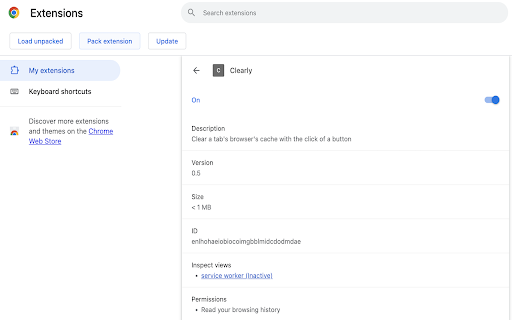

Clear OPFS and the browser cache of the active tab with the click of a button. Clear OPFS and the browser cache of the active tab with the click of a button. Version .4 (September 15th 2021) * Upgraded manifest from V2 to V3, chrome.browsingData.remove() callback does not work in V2 and is an open issue with Google Chrome. * Fixed issue where Google Chrome 93.0.4577.63 broke the callback for browserData.remove().

Circle Reader
An extension that provides immersive reading to make you fall in love with reading on the web The best free reading assistant (reader mode) that enhances the web page reading experience. Ads are too distracting, the colors are too ugly, the fonts are too small to see clearly, the typography is too messy to find the text, does it really need to be so difficult to read the web? With just one click, Circle gives you the purest reading experience, escorting you to better reading. Circle reading assistant can extract the content of the webpage and rearrange the layout into a more suitable interface for reading. Using self-developed analysis engine and typesetting engine, the recognition effect and typesetting ability are smarter, faster and more friendly. If you are looking for a lightweight and intelligent reading aid product, you might as well try Circle Reading Assistant-the best reading aid of its kind! The reading assistant browser extension Circle, which is more powerful than the Safari reading mode, is an extension and improvement of the browser's own reading mode; it is the only magical tool for computers to read web pages, read novels, and watch news; it has shortcut key support, custom styles, Custom fonts, custom themes, automatic scrolling, automatic loading of the next page, reading aloud, article outline (outline), back to the top, reading by column, printing the formatted webpage in reading mode, supporting browser translation, etc. Reading auxiliary functions. The self-developed analysis engine provides faster analysis and smarter analysis capabilities. The self-developed typesetting engine automatically blocks advertisements and noise on html, and says goodbye to the format escape. The Circle reading assistant browser extension developed by pure js has been launched on Google Chrome browser, Firefox browser, Edge browser, 360 browser, Opera browser, etc. ★ Several distinctive functions of Circle Reading Assistant: ➤ Self-developed recognition engine: With the help of self-developed recognition engine, Circle's recognition effect is smarter and the recognition speed is faster. ➤ Self-developed typesetting engine: With the help of self-developed typesetting engine, Circle's typesetting effect is more friendly and the typesetting speed is faster. ➤ Letter paper effect: a reading experience like reading a letter. ➤ Multi-page analysis: On a page with a link to the next page, the content of the next page is automatically parsed and displayed on the current page. ➤ Reading by column: Originally read the webpage by column, the welfare of large-screen users, without wasting every inch of screen space. ➤ Read aloud: Tired of reading? Why not try the content! Free your hands to do other things. With the help of "multi-page analysis", what kind of bicycle is needed for listening to novels? ➤ Preset 5 colorful themes: simple white, eye-protecting green, elegant dark gray, and deep dark. Circle has always been what you like. ➤ Custom gradient background or picture background: The preset theme is not on your aesthetic point? It's ok! Customize themes as you splash ink. ➤ Customize various styles: Just reading is not possible, I have the final say on the style of the web page! The font size is bigger, the font is thicker, and the line spacing is higher. Circle does everything for you to read. ➤ Follow the system to switch themes: only support custom themes? nonexistent. How about switching different themes at different times? . ➤ Custom css: You don't have the effect I want, you are awesome ugly! Customize css to help you, understand that css Circle is your person. ★ Keep abreast of the trends of Circle's reading assistant ➤ Subscription account 👉🏻 Senior Ranhe ★ Description of required permissions ➤ contextMenus: Use this permission to implement the right-click menu module, you can quickly access the function of Circle in the right-click menu ➤ : This permission allows Circle to access webpages, thereby realizing the recognition and layout of webpage content, as well as access to screenshots and exporting as pictures and other functions ★ Contact and discussion ➤ Contact me by email 👉🏻 wenguang.fe@gmail.com If you approve of my work, please have a cup of coffee to show encouragement and support 👉🏻 https://circlereader.com/donate The source code is hosted on github 👉🏻 https://github.com/hewenguang/circle Installing Circle means you accept our user agreement (https://circlereader.com/docs/agreement.html) and privacy policy (https://circlereader.com/docs/privacy.html)

Reader View 2.0
1. Install and pin 📌 the extension. 2. Click on the extension on any page to enter the reader's view of the page. 3. Or you can select any part of the page and click on the extension to enter into the reader view with only that reader. 1. Fullscreen reader mode. 📖 2. Blocks 🚫 the ads and hides the additional links. 3. Adjusts the text size, formatting, navigation, and theme. 🔖 Enjoy your favorite articles without distractions and without having to exit your browser!

Reader View
Open any page in reader view mode; light, dark or sepia and clutter free. Reader View extension enables you to open any website in a simple and clutter-free environment. Simply click on the toolbar button to open the reader view UI. The current page will be reloaded in a plain format. Once the reader view interface is open, you can see a toolbar in the top left corner. Click on the second button from the top to open the settings view. There are three themes available for the reader view. The default theme is the - Light - color. But you can choose, Dark or Sepia options as well. Moreover, font size, line height, and page width can also be adjusted in the settings popup. The reader view is a format with minimal distractions. No, buttons, toolbars, background images, ads, or banners are allowed in reader view. It is much easier on your eyes and reduces eye strain if you spend a long time surfing the web. Please note that all changes are auto-saved to the memory in the add-on. Note 1: There are a few options available to open the reader view interface. Please right-click the toolbar button to see all the choices. By default, the reader view opens in the same-tab. Please note that, if you opt for the popup or sidebar view, the first time you access the reader view for a particular page, you will need to press the toolbar button twice to open the interface. Note 2: The reader view extension uses the Readability open-source library to render the page in a simple format. You can get more info about this library here: https://github.com/mozilla/readability To report bugs, please fill out the bug report form on the addon's homepage: https://mybrowseraddon.com/reader-view.html

EasyReader
EasyReader can customize and improve the readability of long web articles Usage: 1. Click extension button. 2. Select content on the page to read. 3. Enjoy. Features: ★ Table of contents for headings are provided to the left. ★ Color, size, fonts and more are fully customizable. ★ Print, will print selected content only. ★ Code highlighting for code segments without other style. Tips: ☞ Drag right edge of content to change width. ☞ Background can be customized using images, not only colors. Example for background color use: url("http://antonj.se/resources/css/images/paper-texture-warm.gif") ☞ Hovering lables in option page will give you the actual CSS property that is used. Updates: 1.63 - Maintenance update to upgrade to chrome manifest version 3, since that was required. Keyboard shortcut moved from options to standard extension shortcuts 1.62 - Removed tabs permissions, since it was not needed 1.61 - Minor bug fixes (no scrolling in original page) 1.60 - Minor bug fixes 1.50 – Keyboard shortcut to activate/deactivate EasyReader (set in extension options) 1.46-7 – Bugfix: Print width always 100 % 1.45 – Printing with EasyReader activated will only print selected content. 1.44 – Bugfix: Flash content temporary hidden, when ER is activated. Since Chrome7 Flash would otherwise always be above ER content. 1.43 – Bugfix: Google Dictionary (by Google) extension popup will be on top of EasyReader content. 1.40 – Syntax highlight for code segments of articles, using http://code.google.com/p/google-code-prettify/
