
emlgbimicfdajjogdfjimamoedlibpnj

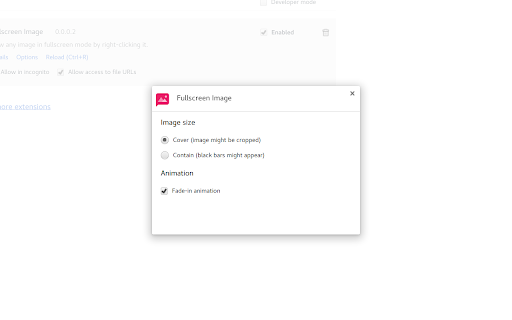
Right-click any image to view it in fullscreen mode, cropped to fit the entire screen for maximum immersion. Note: If you want to view images from your hard drive, you must first open the extension options, close the small dialog that appears, and check "Allow access to file URLs" on the page behind it.

Picture in Picture - Floating player
Picture-in-Picture mode allows you to watch a video in a floating window with playback video and volume controls. This extension brings a PiP view to all websites with an HTML video element. Press the extension icon to open the active player in the picture in picture mode. This extension automatically tries to use the active player. Now stream movies, series or sports on any tab. Install Picture in Picture chrome extension to enable the floating video. We support this feature on every streaming site. For YouTube, the extension also offers an in-player button next to the settings button to open the YouTube video in the picture-in-picture mode. You can use this extension to watch YouTube videos in a floating window that is on top of all other windows so tabs can be switched and still the player is visible. The floating window has play and pause buttons, and you can exit from the picture-in-picture mode anytime. How Extension works: 1. Find the video and run it. 2. Click the extension icon to reduce the video player on YouTube and other sites. 3. Select the “Floating Picture in Picture” and you're done. A floating video allows the viewer to scroll through your webpage and keep your video in view the whole time. Video Playback Controls Enjoy full control over your video playback with intuitive controls directly within the floating player: - Volume control; - Stop and play video; - Video speed control; - Switch to next video. Just click on the Floating Player and Video Control icon to display the video player on YouTube, Netflix or any other websites on the Web. This window will play the video on all pages of the browser on which there is a video resource. Pic-in-pic mode supports all video formats and works with popular video hubs like Youtube and many others We hope you find our tool useful! We are waiting for your feedback and ratings!

Floating Video with Playback Controls
Picture-in-Picture mode allows you to watch a video in a floating window with playback video controls. Picture in Picture supports the video player on various platforms and sites. This mode allows you to watch videos in a floating window so you can keep track of what you are watching while interacting with other sites or applications. Open the YouTube video on the mini-player in floating image-in-picture (PiP) mode. This window will play videos on all pages of the browser. - Find the video and run it. - Select the “Floating Picture in Picture” (PiP) mode, and you're done. There is one thing worth noting: while you can freely browse other sites while playing a video in a pop-up window, you should keep the original tab open. Floating picture-in-picture is a powerful tool for watching videos on a mini-video player for all sites. The Picture in Picture floating panel is a lightweight addon that gives you access to videos on the entire site with one click. A floating panel for all is an extension that is developed and maintained independently. A floating panel for everyone simply makes it easier to access PiP videos for all video sites.

Picture-in-Picture Everywhere
PiP Everywhere is a modern Google Chrome extension that lets you enable Picture-in-Picture (PiP) mode on any video, any website, anytime. Simply hover your cursor over a video, and a convenient button will appear to display the image in a separate mini-window on top of all other windows. The extension is fully compatible with YouTube, Vimeo, Netflix, Twitch, social media, educational platforms, and any other websites with video players. Now you can watch videos while working in other tabs or apps. Works on all websites, regardless of the embedded player type. Even if a website blocks PiP, the extension automatically bypasses the disablePictureInPicture attribute and unblocks the feature. Just hover your cursor over the video, and a floating button with a PiP icon will appear in the upper right corner. Click it, and the video will instantly open in a separate window, above all other videos. Press Alt + P to toggle PiP mode for the largest video on the page. Works on any website, without opening a popup menu. The extension constantly monitors new videos appearing on the page and automatically adds a PiP button for them—perfect for dynamic websites (YouTube, Twitter, TikTok, etc.). The popup window is designed in the Tailwind CSS style: • Light and dark themes; • Gradient buttons, responsive layout; • Displays the number of videos found on the current page; • "Activate PiP" and "Exit PiP" buttons; • Theme switcher (System / Light / Dark). Full support for 3 languages: The interface automatically selects the browser language or allows you to change it manually. ⚙️ Theme settings and saving The selected theme (light, dark, or system) is saved via the Chrome Storage API, ensuring your interface looks the same every time you launch it. The code is optimized—the extension doesn't impact browser performance, doesn't collect data, and doesn't create unnecessary background processes.

Full Page Screenshot
Full page screen capture is a simple extension that lets you capture the entire screen in one click. Get an entire page screenshot. Note: FOR THE BEST RESULT, SCROLL THROUGH THE ENTIRE PAGE BEFORE TAKING A SCREENSHOT. The Full Page Screenshot extension for Chrome is a powerful tool that allows users to capture the entire screen with a single click. With this extension, users can easily take entire page screenshots of websites, articles, documents, or any other content they come across while browsing the internet. The extension offers two convenient methods for capturing full-page screenshots. The first method captures the entire visible content of the webpage, including what's currently visible on the screen. The second method captures the entire page, scrolling down automatically to capture the hidden content that extends beyond the visible area. This ensures that users can capture every bit of information on the page without any limitations. In addition to the full page screen capture functionality, the extension provides several useful features. Users can annotate the screen by adding various figures, shapes, lines, or other elements to highlight or emphasize specific areas of interest. This makes it easy to communicate information visually or draw attention to important details within the screenshot. Once a webpage is captured and annotated, users have multiple options to save and share it. They can download the image directly to their PC, making it easily accessible for future reference. Also, users can copy the screenshot to the clipboard and paste it into a message or any other application. This feature allows for seamless sharing with colleagues, friends, or anyone else. The extension is designed to cater to users who require comprehensive screen capture capabilities. Its intuitive interface, quick one-click functionality, and convenient annotation and sharing features make it a valuable tool for both personal and professional use. Why Full Page Screenshot? 1. Comprehensive Content Capture: Full page screen capture allows users to capture an entire webpage as it appears on their screen, including all visible content such as images, text, and interactive elements. This is especially useful for saving articles, blog posts, or other online content for offline reading or reference. 2. Design and Development Evaluation Web designers and developers often use entire page screenshots to assess the overall layout and appearance of a webpage. By capturing the entire page, they can review how different elements interact, check for visual inconsistencies, and ensure the webpage renders correctly across different devices and screen sizes. 3. Documentation and Reporting Full page screenshot is valuable for documentation and reporting purposes. They enable users to create visual records of webpages, which can be shared with others for reference or analysis. This is particularly useful in fields like user experience (UX) design, where capturing the entire page context helps communicate design decisions or identify areas for improvement. 4. Comparison and Analysis By creating full page screenshots of different versions of a webpage or different webpages altogether, users can easily compare and analyze changes in design, content, or layout. This is beneficial for A/B testing, tracking design iterations, or evaluating the effectiveness of different webpage variations. 5. Sharing and Collaboration Entire page screenshots are often shared with clients, team members, or stakeholders to gather feedback or discuss specific aspects of a webpage. They provide a visual representation of the webpage's appearance, facilitating effective communication and collaboration among team members, regardless of their physical location. Overall, Full Page Screenshot offers a convenient and versatile way to capture, evaluate, and communicate webpage content and design, making them a popular choice among users.
