
aecnmadngpjbokeakinhbgfanlnjdnom


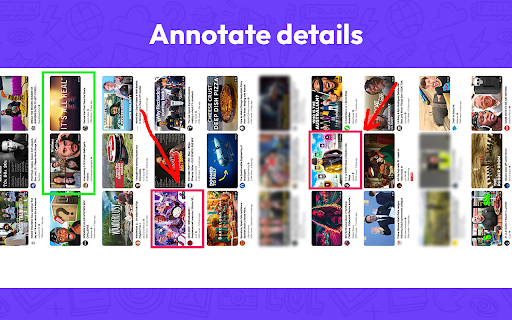
Full page screen capture is a simple extension that lets you capture the entire screen in one click. Get an entire page screenshot. Note: FOR THE BEST RESULT, SCROLL THROUGH THE ENTIRE PAGE BEFORE TAKING A SCREENSHOT. The Full Page Screenshot extension for Chrome is a powerful tool that allows users to capture the entire screen with a single click. With this extension, users can easily take entire page screenshots of websites, articles, documents, or any other content they come across while browsing the internet. The extension offers two convenient methods for capturing full-page screenshots. The first method captures the entire visible content of the webpage, including what's currently visible on the screen. The second method captures the entire page, scrolling down automatically to capture the hidden content that extends beyond the visible area. This ensures that users can capture every bit of information on the page without any limitations. In addition to the full page screen capture functionality, the extension provides several useful features. Users can annotate the screen by adding various figures, shapes, lines, or other elements to highlight or emphasize specific areas of interest. This makes it easy to communicate information visually or draw attention to important details within the screenshot. Once a webpage is captured and annotated, users have multiple options to save and share it. They can download the image directly to their PC, making it easily accessible for future reference. Also, users can copy the screenshot to the clipboard and paste it into a message or any other application. This feature allows for seamless sharing with colleagues, friends, or anyone else. The extension is designed to cater to users who require comprehensive screen capture capabilities. Its intuitive interface, quick one-click functionality, and convenient annotation and sharing features make it a valuable tool for both personal and professional use. Why Full Page Screenshot? 1. Comprehensive Content Capture: Full page screen capture allows users to capture an entire webpage as it appears on their screen, including all visible content such as images, text, and interactive elements. This is especially useful for saving articles, blog posts, or other online content for offline reading or reference. 2. Design and Development Evaluation Web designers and developers often use entire page screenshots to assess the overall layout and appearance of a webpage. By capturing the entire page, they can review how different elements interact, check for visual inconsistencies, and ensure the webpage renders correctly across different devices and screen sizes. 3. Documentation and Reporting Full page screenshot is valuable for documentation and reporting purposes. They enable users to create visual records of webpages, which can be shared with others for reference or analysis. This is particularly useful in fields like user experience (UX) design, where capturing the entire page context helps communicate design decisions or identify areas for improvement. 4. Comparison and Analysis By creating full page screenshots of different versions of a webpage or different webpages altogether, users can easily compare and analyze changes in design, content, or layout. This is beneficial for A/B testing, tracking design iterations, or evaluating the effectiveness of different webpage variations. 5. Sharing and Collaboration Entire page screenshots are often shared with clients, team members, or stakeholders to gather feedback or discuss specific aspects of a webpage. They provide a visual representation of the webpage's appearance, facilitating effective communication and collaboration among team members, regardless of their physical location. Overall, Full Page Screenshot offers a convenient and versatile way to capture, evaluate, and communicate webpage content and design, making them a popular choice among users.

TakeScreenshot – capture area, full page or scrolling screenshot
Easily capture an area, the entire screen or a scrolling page and instantly add annotations: highlight, draw, write... 🎯 Take a screenshot or record a video from your computer screen in one click – quickly, for free, and without any extra software! 📸 TakeScreenshot is a fast, powerful screenshot extension and screen recorder for Chrome, Yandex Browser, and other Chromium-based browsers — built to help you capture, annotate, save, and share content in seconds. Need to grab a selected area, save a visible page, make a full page screenshot with scrolling, highlight an issue, or record your screen to explain something clearly? TakeScreenshot brings all of that together in one simple, smooth, and user-friendly workflow. Whether you are working, studying, reporting a bug, creating step-by-step instructions, saving important information from a website, or sending a quick visual explanation to someone, TakeScreenshot helps you do it faster — without bulky desktop software, complicated tools, or extra steps. ✨ With TakeScreenshot, you can: • capture a selected area of any web page; • capture the visible part of the current tab; • create a scrolling screenshot for long pages; • make a full page screenshot with scrolling; • annotate screenshots right after capture; • add arrows, lines, shapes, text, highlights, and numbered steps; • save screenshots as PNG, JPG, or WEBP; • copy screenshots directly to the clipboard; • add a watermark or signature; • record a browser tab, a window, or your full screen; • record with microphone input; • capture tab audio or system audio when available; • pause and resume recording; • save the final video after recording. ⚡ Fast when you need it TakeScreenshot is built for real everyday tasks. You do not need one app to take screenshots, another one to edit them, and a third one to record screen video. Just open the extension, choose your mode, capture what you need, add annotations if needed, and save the result right away. That makes it especially useful for people working in websites and web apps every day — dashboards, admin panels, online stores, help centers, browser tools, reports, support chats, documents, product pages, and web-based services. 🎯 Capture exactly what you want Different tasks need different tools — and TakeScreenshot gives you the right mode for the moment. 🟦 Selected area screenshot Capture only the exact part of the page you need. Perfect for error messages, UI elements, product details, forms, images, charts, messages, tables, or any small section of a webpage. 🖥️ Visible page screenshot Save the visible part of the current tab in one click. Great for quick browser screenshots when you do not need scrolling. 📜 Scrolling screenshot / full page screenshot Need to save more than one screen at a time? TakeScreenshot helps you create a scrolling screenshot for long pages, articles, product pages, help center content, documentation, reports, dashboards, timelines, and long conversations. This is ideal for users searching for a full page screenshot extension, a scrolling screenshot tool, or a way to capture an entire web page. 🎥 Screen recording Sometimes a screenshot is not enough. When you need to show the full process step by step, TakeScreenshot lets you record your screen and explain everything clearly. That is perfect for bug reports, tutorials, onboarding guides, support replies, demos, walkthroughs, and visual explanations. 💡 That makes TakeScreenshot a great fit when users need: • a screenshot tool for Chrome; • a screenshot extension for Chromium browsers; • a full page screenshot extension; • a scrolling screenshot tool; • a visible page capture tool; • a browser screen recorder; • a tab recorder; • a window recorder; • a desktop recorder. 🖍️ Built-in screenshot editor After taking a screenshot, you can edit it immediately without opening another app. Available annotation tools include: • arrows; • lines; • rectangles; • ellipses; • text; • freehand drawing; • highlighter marks; • numbered steps; • moving and editing annotation elements; • undo for recent actions. This built-in screenshot editor is especially useful when you want to: • point to a bug or issue; • show exactly where to click; • highlight an important part of a page; • prepare a clear bug report; • create visual instructions; • comment on a layout or design; • send a clean explanation to a teammate, client, or developer. A screenshot with arrows, highlights, notes, and steps is often much more useful than a plain image. It saves time, reduces confusion, and makes communication much easier. 💾 Save and share the way you want TakeScreenshot gives you flexible ways to save and reuse what you capture. You can: • save screenshots to your computer; • copy screenshots to the clipboard; • paste them into chat, email, documents, tickets, or presentations; • save your final video recording after capture is complete. 🧩 Supported screenshot formats: • PNG — ideal for crisp UI, text, and interface details; • JPG — useful for lighter files; • WEBP — a modern format that helps reduce file size. Whether you need a quick screenshot for a message, a saved file for documentation, or a lighter image for sharing, the workflow stays smooth and convenient. 🎬 Screen recording features TakeScreenshot is more than a screenshot extension — it also works as a practical browser screen recorder. You can record: • a browser tab; • an application window; • your full desktop or screen. Recording features include: • microphone recording; • tab audio or system audio when available for the selected source; • pause and resume; • click highlighting; • an on-page recording control bar; • saving the final video when recording ends. This makes the extension especially useful for: • recording bugs and issues; • creating tutorials; • explaining steps on a website; • recording support videos; • showing a workflow to a client or teammate; • creating educational videos; • recording a browser process with voice explanation. If someone is searching for a screen recorder for Chrome, a browser screen recorder, a tab recorder, a way to record screen with audio, a way to record screen with microphone, or a tool to record a web page workflow, TakeScreenshot fits naturally into that use case. 📝 Watermark and signature support If you create work materials, reports, internal guides, training content, or branded visuals, you can add a watermark or signature to your screenshots. This is useful for keeping files organized, identifying the source of an image, or adding a simple branded touch before sharing it with clients, colleagues, or customers. ⌨️ Keyboard shortcuts that save time TakeScreenshot helps you move faster with hotkeys. Common shortcuts include: • Alt+1 — selected area screenshot; • Alt+2 — visible page screenshot; • Alt+3 — scrolling screenshot / full page screenshot; • Alt+4 — screen recording. This is especially useful for people searching for: • how to take a screenshot with keyboard shortcuts; • how to capture a page faster; • how to start screen recording quickly; • how to record the browser screen without extra clicks. For support teams, QA specialists, remote workers, teachers, and anyone who captures content often, hotkeys can save a surprising amount of time. ⚙️ Flexible settings for your workflow TakeScreenshot can be customized to feel comfortable from day one. You can: • choose a default editing tool; • select colors and line thickness; • choose the default screenshot format; • set a file name template; • enable auto-close after save; • enable auto-close after copy; • export settings; • import settings; • use sync and backup options for settings. That makes the extension especially convenient for people who capture screenshots and videos regularly for work, study, support, documentation, content creation, or everyday use. 💼 Great for work TakeScreenshot is especially useful if you need to: • capture a bug on a website; • show an issue in a web app; • send a screenshot to support or development; • create a clear bug report; • explain a workflow to a client; • save part of an online report or dashboard; • make internal documentation; • record a problem step by step. The extension is often needed by technical support staff, QA specialists, students, and anyone who works with websites on a daily basis. 🎓 Great for study and learning TakeScreenshot is also useful for students, teachers, and anyone working with online materials. You can: • save part of an article or lesson; • highlight important sections; • capture a long page for later review; • create visual study notes; • prepare examples with arrows, text, and marks; • record an on-screen explanation or walkthrough. 💬 Great for communication and everyday use Sometimes it is simply easier to show something than to describe it. TakeScreenshot is convenient when you want to: • send a page fragment to a friend or colleague; • share a quote or visual detail; • show a specific block on a website; • copy a screenshot directly into a messenger; • send a short screen recording instead of a long explanation; • save important information from a page before it changes. A quick screenshot with annotations or a short screen recording often explains more in 10 seconds than a long message ever could. 🌍 Built for Chrome and other Chromium browsers TakeScreenshot works smoothly in Chrome, Yandex Browser, and other Chromium-based browsers, including Microsoft Edge, Brave, Opera, and similar browsers. That makes it a practical choice for users across different countries, browsing habits, and workflows who want one screenshot extension and one browser screen recorder they can rely on. 🔒 A clean, browser-first workflow TakeScreenshot keeps the main workflow simple: open a page, capture what you need, add annotations if needed, and save the result to your device. No heavy desktop apps, no confusing setup, and no need to jump between multiple tools for common screenshot and screen recording tasks. 🤝 Built with users in mind We want TakeScreenshot to be more than just another screenshot extension. We want it to be a genuinely useful tool that makes everyday work easier. If you have an idea, a suggestion, or a feature request, we would love to hear from you. We are open to feedback, open to improvement, and always trying to make the product more useful for real users and real tasks. 🚀 How to use TakeScreenshot 1. Install TakeScreenshot. 2. Open the extension from the toolbar or use a hotkey. 3. Choose a mode: selected area, visible page, scrolling screenshot, full page screenshot with scrolling, or screen recording. 4. Add arrows, text, highlights, shapes, or numbered steps if needed. 5. Save the screenshot as PNG, JPG, or WEBP, or copy it to the clipboard. 6. If you recorded video, save the final recording when finished. ❓ When TakeScreenshot is especially useful • When you need a screenshot extension for Chrome or another Chromium browser. • When you want a full page screenshot or scrolling screenshot of a long web page. • When you need a screenshot editor built into the browser. • When you want to record a browser tab, a window, or your full screen. • When you need to explain a bug, a workflow, or a process visually. • When you want both a screenshot tool and a screen recorder in one extension. • When you want to avoid installing multiple heavyweight desktop apps. ✅ If you need a screenshot extension, scrolling screenshot tool, full page screenshot extension, built-in screenshot editor, browser screen recorder, tab recorder, or a practical way to capture, annotate, and share web content quickly, TakeScreenshot gives you all of that in one clean, friendly workflow. 📣 TakeScreenshot is an easy way to capture a selected area, save a visible page, create a full page screenshot with scrolling, annotate images, record your screen, and share results faster in Chrome, Yandex Browser, and other Chromium-based browsers.

Screenshot Tool - Screen Capture & Editor
Innovative screenshot tool lets users screen capture and edit screenshot. Full page screen capture. Take stunning screenshots of entire websites and capture page elements. Offline. No registration. Screenshot tool - captures entire websites and user areas. Ready-made screenshots can be quickly edited (crop, paint over, add arrows, captions or text). Screen Capture tool for making a full page or partial capture with further editing, download, or text adding. Make a full webpage screen capture or just any part of it with an opportunity to edit, save and download screen capture to your PC. The app is launched from a browser that totally saves your time. Simply click the extension icon to choose from options whole page capture or a selected part. You will not see any additional windows with websites here. Why waste time if you just want a screenshot? Want to share your screen for cases like reporting technical issues, making product demos or how-to tutorials? Here are reasons to choose Screenshot and Screen Capture: ✔️ Screenshot of the full page, not just the visible area or selected area; ✔️ Screenshot on One-Click; ✔️ Storage and processing without a server; ✔️ Save PNG files or Copy it to the clipboard with One-Click; ✔️ No login or registration required; ✔️ There are no restrictions on the size or size of the file; ✔️ Edit and discard changes your screenshot; ✔️ Add graphic and text elements such as pointer, arrow, square and other shapes; Click on the extension icon (in the upper right corner of the browser) then choose one of the options capture and watch the Screenshot Tool capture each part of the page and then transfer the finished screenshot to a new tab, where you can edit the image and upload it as a file to your PC. Notes Remember to reload the page after you install extension before trying to take a screenshot of it (Chrome should initialize the extension for each page). The extension Screenshot tool is completely free and easy to manage for users. If our extension is useful to you, please give us 5 stars!

Capture Full Page
Use Capture Full Page — a lightweight Chrome extension for creating online screen and full web page screenshots. Do you need to save a full webpage or a specific section of the screen? Capture Full Page is a lightweight Chrome extension that helps you create high-quality online screenshots with one click. Whether you're a designer, marketer, developer, or student, it provides a simple and professional way to capture and save information directly from your browser. 💻 Fast and Simple Workflow With Capture Full Page you can: 1. Capture visible or full-page screenshots instantly 2. Save files locally for easy access anytime 3. Manage your captures directly from the toolbar 4. Keep your workspace clean and distraction-free 5. Work faster with intuitive controls 🏆 Why It's Useful for You Capture Full Page combines speed, stability, and simplicity. It's perfect for users who value efficiency and clarity. The interface is intuitive, so you can focus on what really matters — your work. Main advantages include: 1️⃣ Minimal memory usage 2️⃣ Works smoothly on any device 3️⃣ Quick local saving without cloud uploads 4️⃣ No extra permissions required 5️⃣ Seamless integration with Chrome 📸 Professional Quality Screenshots Each image created with the full page screen capture chrome extension keeps all page details clear. You can use it to save: 🔸 Project layouts for reports 🔸 Marketing data and visual references 🔸 Web articles, diagrams, and infographics 🔸 Research materials or course content This tool ensures precision, no matter how long or complex the page is. 🔧 How It Works 🔵 Open a webpage you want to save 🔵 Click on the Capture Full Page icon 🔵 Select between visible area or entire page 🔵 Wait a few seconds for the image to process 🔵 Your screenshot will appear in your downloads folder 🔵 You can easily rename or organize your screenshots after saving. 💡 Key Features ♦️ Full page screen capture for Chrome — save entire websites in detail ♦️ Screenshot tool for Windows — create images instantly ♦️ Chrome full page screen capture plugin — ready to use immediately ♦️ Screen capture software Chrome — smooth, stable, and fast ♦️ Full web page capture — precise and reliable results 🌍 Multi-Platform Support Capture Full Page works perfectly on: ✅ Windows (take screenshot Windows easily) ✅ macOS (use capture full page screenshot Mac) ✅ PC and laptop devices ✅ Any system running Google Chrome It fits naturally into your workflow and works just as well on modern versions of Chrome across platforms. ⚙️ Productivity and Everyday Use You can apply this extension for multiple purposes: 🔻 Prepare presentation visuals 🔻 Save product pages and pricing for comparison 🔻 Collect reference materials for projects 🔻 Archive digital content for later use 🔻 Share screenshots instantly with colleagues Whether you take screenshots for documentation, creative work, or research, the process remains fast and convenient. 🚀 Speed and Reliability The extension performs a full page screen capture quickly and without freezing your browser. Every image is optimized for clarity, and each file is lightweight. Compared to other screen tools, Capture Full Page provides an elegant balance between performance and detail. 🔒 Privacy and Security Your screenshots are stored locally on your computer — not in the cloud. Only you can access the saved files, making it a safe option for business, education, or personal use. 🌐 Compatibility Capture Full Page supports all modern Chrome versions and related browsers. It also integrates with: ◾️ Chrome screen capture plugin ◾️ Screenshot Chrome extension ◾️ Screengrab Chrome extension 🧠 Benefits ♦ One-click full-page capture ♦ Consistent quality on every screenshot ♦ No external tools or software needed ♦ Works offline once installed ♦ Designed for professional use 🎨 Designed for Professionals Capture Full Page offers a clean design and fast results. It's ideal for: ➤ Marketers who save campaign examples ➤ Designers who collect visual materials ➤ Developers documenting web layouts ➤ Teachers and students storing references ✅ Conclusion Capture Full Page turns everyday browsing into a productive experience. Take screenshots, save full web pages, and keep everything organized on your device. The full page screen capture Chrome extension offers the perfect mix of functionality, speed, and reliability. Install it today and enjoy professional-level full web page capture right in your browser.

Screenshot Entire Webpage
Capture a full page screenshot easily with the Screenshot Entire Webpage extension. Perfect for whole page screen capture. 📸 Introducing Your Ultimate Full Page Screen Capture Chrome Extension! Have you ever wondered how to take a picture of an entire webpage, including those parts hidden behind the edge of the browser window? With this Chrome extension, taking a whole webpage picture has never been easier! 🌟 Effortlessly Capture Screen Shots With our Chrome extension, you can: 1️⃣ Capture entire webpage picture with just one click. 2️⃣ Take a scrolling screen shot to include everything from top to bottom. 3️⃣ Save long screenshots without any hassles. 4️⃣ Share your screen shots instantly across various platforms. 5️⃣ Generate high-quality images from your captured content. 🚀 Features You Will Love Our full page screenshot app offers a variety of features: - Take full webpage picture effortlessly. - Learn how to screenshot the entire page. - Discover how to take a scrolling screen shot. - Seamlessly save and share captured images. ➤ Click on the extension icon. ➤ Select the option to take the full webpage. ➤ Wait as the extension scrolls the site content for you. ➤ Save or share your webpage picture instantly. 📈 Boost Your Productivity Wondering how to take a full page screenshot? This Chrome extension is designed to make your work easier, whether you're a student, a developer, or a designer. Here’s why you need it: ▪️ Document entire articles, tutorials, and guides. ▪️ Save full webpages for offline reading. ▪️ Share comprehensive reviews and feedback. ▪️ Capture everything from detailed analytics to creative content. 💻 Perfect for Professionals Learn how to screenshot an entire webpage for your professional needs. Our extension is ideal for: 1. Developers needing to debug entire web designs. 2. Marketers capturing promotional pages. 3. Writers archiving online content. 4. Designers documenting their layouts. 5. Educational purposes where you need to capture long articles. - User-friendly interface. - Hassle-free full page screen capture. - High-quality output every time. - Regular updates to improve user experience. 🔍 Optimize Your Workflow Tired of missing important parts of content while making screen pictures? Learn how to take a long screenshot that captures every detail. This application makes taking an entire webpage screen capture a breeze. 🚧 Reliable and Efficient 🔖 How to Use the Extension ◽ Install the extension from the Chrome Web Store. ◽ Open the webpage you want to screencapture. ◽ Click the extension icon. ◽ Select full page screen shot. ◽ Save the generated long screenshot. Our users love the ease and efficiency of our app. Whether you need to capture full webpage screenshots or understand how to take a long screen shot, our tool is highly recommended by professionals and everyday users alike. If you're wondering how to take a scrolling screenshot or how to take a full page screen shot, look no further. This Chrome extension is the solution to make entire web page picture efficiently. Discover how to screen shot an entire webpage easily and make your life simpler. Don’t waste any more time! Install our extension today and learn how to take a long screen shot effortlessly. Capture full webpage screenshot and enjoy the convenience of having every detail in one comprehensive image! 📜 Capture the Entire Page with Ease Whether you're capturing a detailed blog post, a lengthy research paper, or any other extensive content, our extension ensures you get a full website screencapture without missing a thing. Learn how to screenshot a whole page and make sure you always have the complete picture! ✨ In summary, if you’ve ever wondered how to screenshot an entire webpage, our Chrome extension is the answer. We regularly update the extension to include new features and improvements. Stay tuned for future updates that will enhance your full page screen capture experience even further. Don't miss out on the best way to screen capture whole page content. Download our Chrome extension today and experience the ease of full page screenshots. Whether you need it for work, study, or personal use, this tool will exceed your expectations.
